

Appearance
Multi-language video
Multi-language video lets viewers switch the spoken language of a video without leaving the player. Each language version is a full playable media source, such as another MP4, HLS stream, Bunny.net video, Mux playback URL, or direct video/audio file.
This is different from captions. Captions add translated text tracks; multi-language video swaps the media source so the audio itself changes.
How it works
When a video has language versions, Ink Player shows a small language pill in the top-right of the player. Viewers can open it and choose another language.
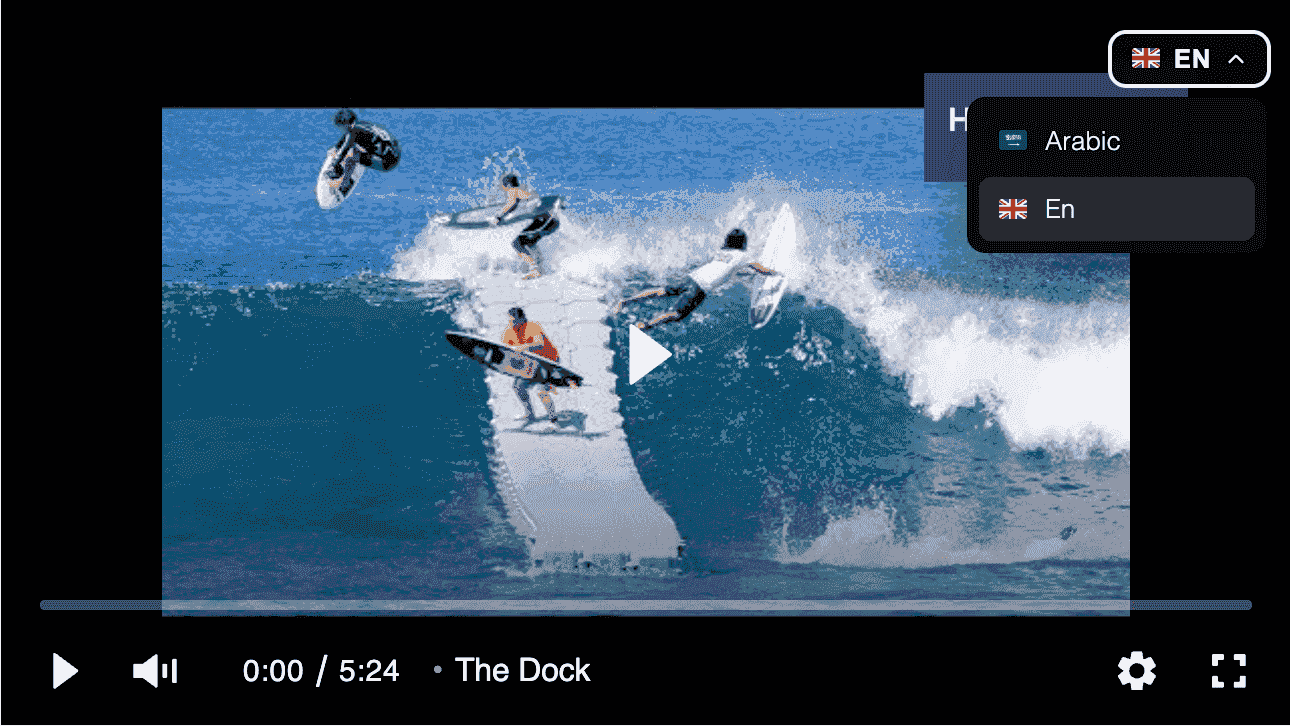
When a language is selected, the player:
- Swaps to that language's media source.
- Keeps the current playback time where possible.
- Keeps the play or pause state.
- Shows the language flag and short language code in the player pill.
On first load, Ink Player checks the viewer's browser language. If a matching language version exists, the player switches to it automatically.
Add language versions
You can add language versions from either the dashboard media editor or the Gutenberg block inspector.
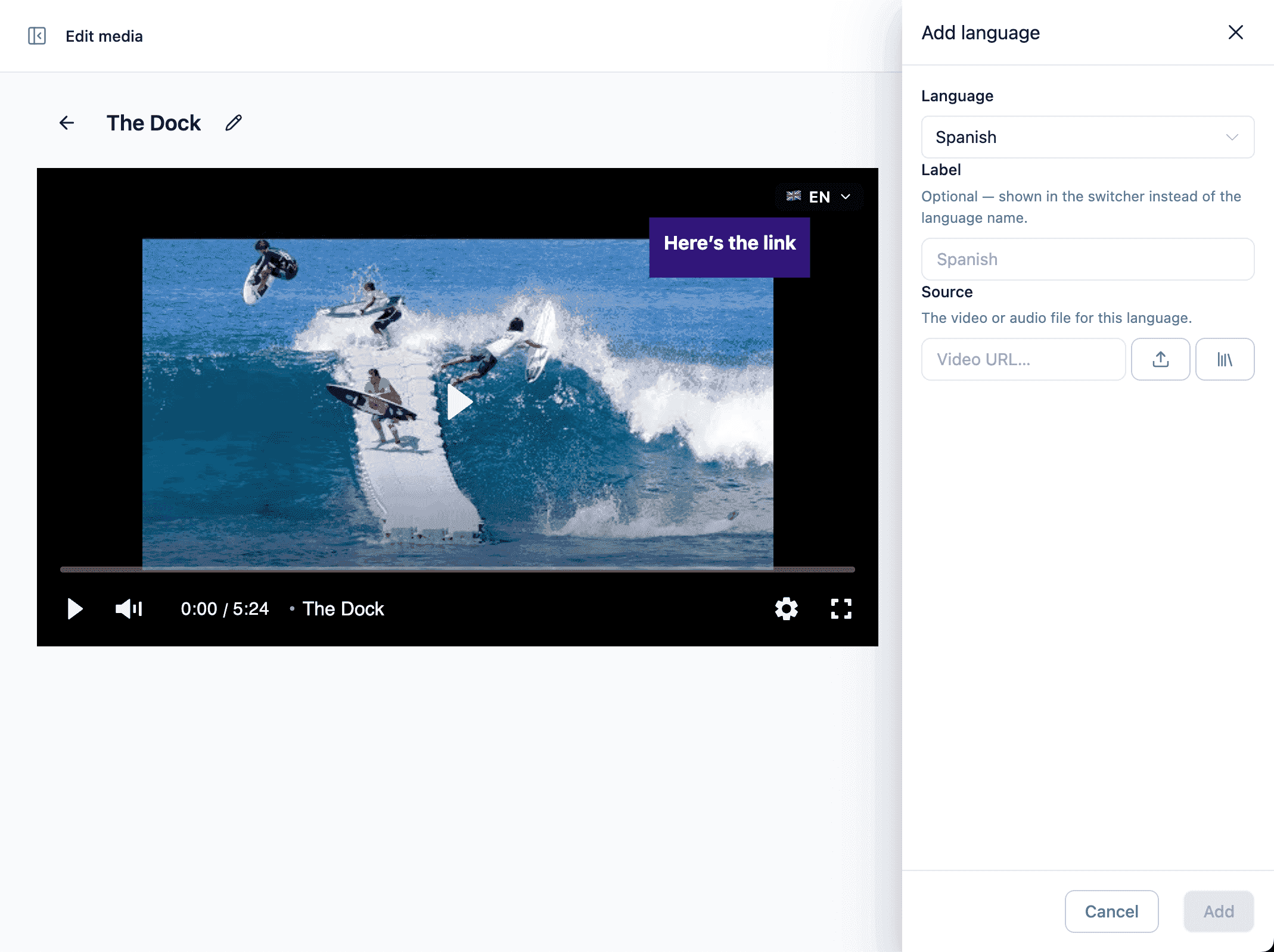
In the Media editor
- Go to Ink Player → Media.
- Open the video you want to edit.
- Open the Multi-Language panel.
- Click Add language.
- Choose the language.
- Optionally enter a custom label.
- Pick or paste the media source for that language.
- Save the media item.
In the block editor
- Edit a page with an Ink Player video block.
- Select the block.
- Open the Multi-Language inspector panel.
- Add one language version per spoken-language source.
- Update the page.
Add the primary language first
The saved media source remains the initial playback source. For the cleanest switcher experience, add your primary/default language as the first language entry and use the same source URL as the media item.
Example:
| Entry | Language | Source |
|---|---|---|
| 1 | English | Same URL as the main media source |
| 2 | Spanish | Spanish-dubbed version |
| 3 | French | French-dubbed version |
This keeps the switcher label aligned with what is already playing before a viewer makes a choice.
Source requirements
Each language's Source accepts a video or an audio file, so a language version can point to a dubbed audio-only track as well as a full video.
Each language needs its own playable source URL. Use sources that match the same viewing experience as closely as possible:
- Same video duration.
- Same edit, intro, and outro timing.
- Similar encoding and quality.
- Same access strategy as the original where possible.
If the language versions have different lengths or cuts, the player will still try to preserve the timestamp, but the switched version may land at a different moment in the content.
Browser language matching
Ink Player uses the viewer's browser language, such as en, es, or fr, to pick an initial language when possible.
If the browser language matches a configured language version that is not first in the list, the player switches to that source on load. If there is no match, it starts with the default media source.
Captions vs language versions
Use both features when needed:
| Feature | Best for |
|---|---|
| Captions | Subtitles, accessibility text, translated text, or silent viewing. |
| Multi-language video | Dubbed audio, localized voiceover, or separate spoken-language versions. |
For a fully localized video experience, add both translated captions and matching language versions.
Limitations
- Multi-language switching swaps the media source; it is not an audio-track selector inside a single video file.
- Each language can be added once.
- Language versions should be hosted where the viewer can access them.
- The switcher appears only when at least one language version is configured.
- This feature is for player playback. It does not translate titles, descriptions, pages, or the WordPress admin interface.
Related
- Media — edit media records and player configuration
- Captions — add subtitle and caption tracks
- Providers — supported media source types
- Access control — protect private source URLs