

Appearance
Video inspector panels
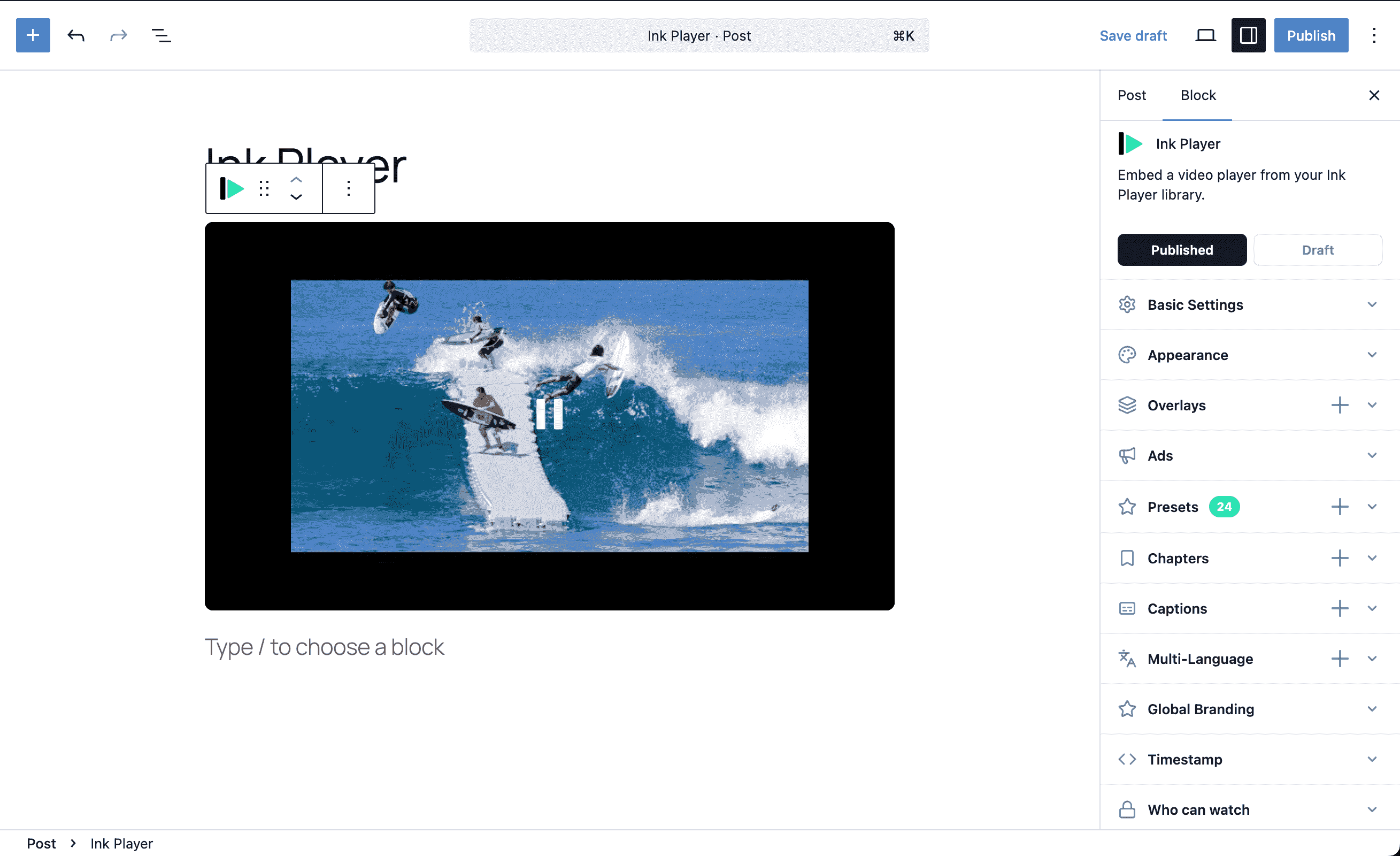
The Ink Player video block and the dashboard Media Editor use the same inspector model. Select a video block, or open a video from Ink Player → Media, then use the right-side panels to configure how that video plays, looks, converts, and stays protected.
Most panels edit the saved media record, so changes follow the video everywhere it is used. Some panels, such as Global Branding, update site-wide settings.
Publishing and drafts
The Media Editor footer has two save buttons: Save as draft and Publish.
- Save as draft stores your changes but keeps the item hidden from visitors. Public viewers see nothing; as an admin you still see the player with an amber badge in the top-left: "Draft — only you can see this. Publish it to show it to visitors." The live preview shows the same badge.
- Publish makes the item visible to visitors, subject to the Who can watch rules below.
Use a draft to set up overlays, captions, and access privately, then Publish once the video is ready.
Basic Settings
Use Basic Settings for the video identity and core playback behavior.
| Option | What it does |
|---|---|
| Title | Sets the video title shown to the player and admin UI. |
| Poster Image | Picks or pastes the image shown before playback starts. |
| Autoplay | Starts playback automatically. Most browsers require the video to also be muted. |
| Loop | Replays the video when it reaches the end. |
| Muted | Starts with audio muted. |
| Plays inline | Allows mobile browsers to play inline instead of forcing full-screen playback. |
| Fluid | Lets the player fit its container automatically. |
| Aspect Ratio | Appears when Fluid is off; choose the fixed player ratio. |
Use this panel first when a video needs a better title, poster, or mobile playback behavior.
Popup
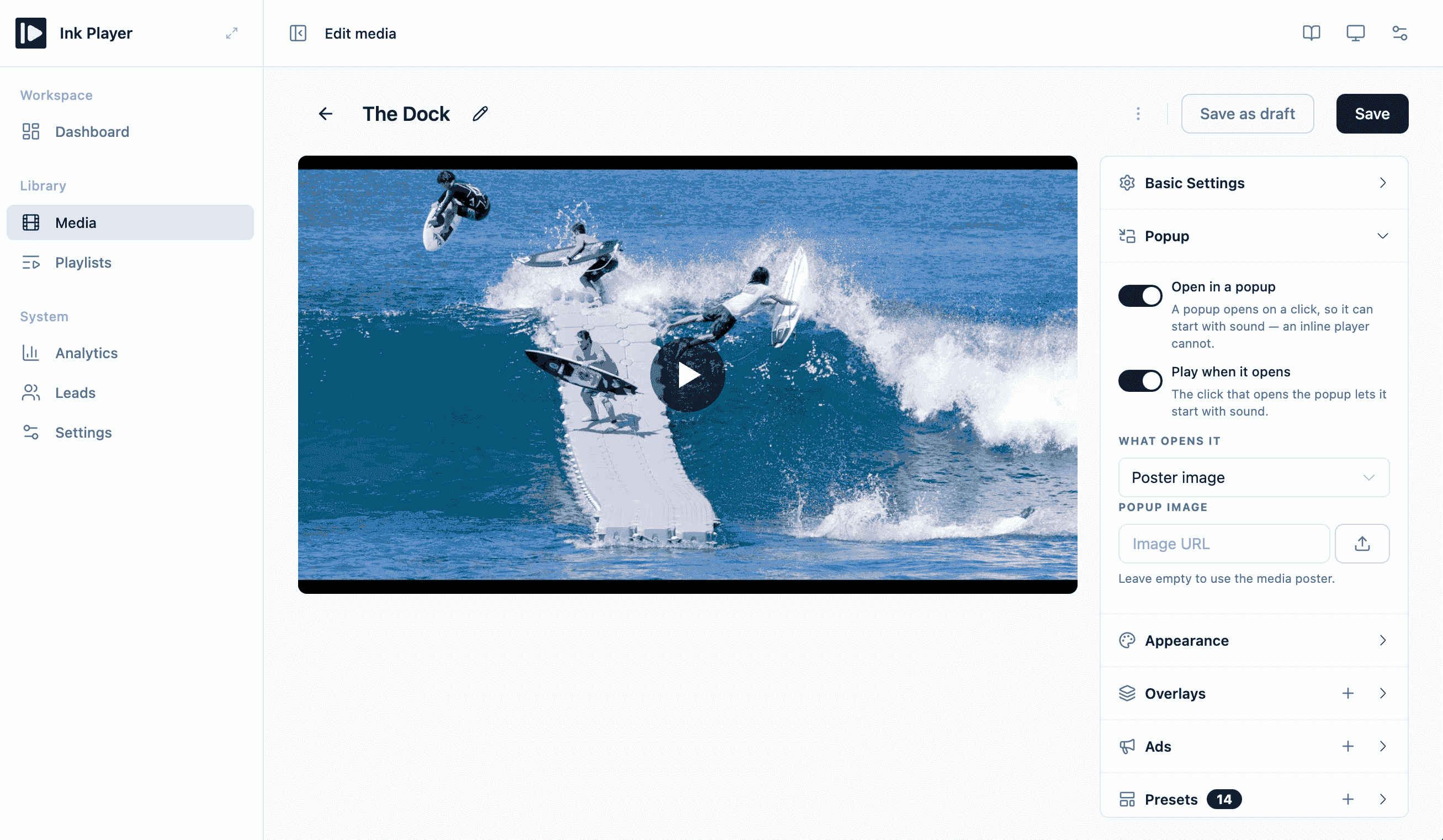
Use Popup to open the video in a lightbox instead of playing it inline. The page shows a trigger, and the player opens in a modal when a visitor clicks it. Popup is available for video only.
| Option | What it does |
|---|---|
| Open in a popup | Switches the video from inline to popup. Off by default. |
| Play when it opens | Starts playback as soon as the popup opens. On by default. |
| What opens it | Choose Poster image, Button, or Text link. |
| Popup image | Poster trigger only. The image visitors click. Leave it empty to use the media poster. |
| Label | Button and text link only. The trigger text. Defaults to Watch video. |
| Alignment | Button and text link only. Places the trigger left, center, or right. |
| Text colour | Button and text link only. Colour of the trigger text. |
| Background | Button only. Button background colour. |
| Corner radius | Button only. Rounds the button corners from 0px to 60px. |
The preview shows the real trigger, and clicking it opens the real modal. Visitors close the popup with the close button, the Esc key, or a click outside the video. Playback stops when it closes.
TIP
Because the popup opens on a click, it can start with sound. An inline player that autoplays has to start muted.
The player is only loaded when someone opens the popup, so a popup video adds almost nothing to page load. Popup works everywhere the media is placed: blocks, shortcodes, and page builders.
Appearance
Use Appearance for the player's shape and colors.
| Option | What it does |
|---|---|
| Corner Radius | Rounds the player corners from 0px to 40px. |
| Control Bar | Solid color for the control bar. Empty keeps the default gradient scrim. |
| Icon | Color of the control icons (play, seek, volume, settings, fullscreen…) and the center play glyph. |
| Icon Hover Background | Background chip shown behind a control icon on hover. |
| Play Button Background | Background behind the large center play button. |
Every color is empty by default, which keeps the player's built-in look. Set a color to override it. Colors set here apply to this media; the same controls also live on a preset, so you can theme every player at once and override individual media as needed.
Corner Radius affects the visible player container — useful when the player sits inside a design with rounded images, cards, or product sections.
Overlays
Use Overlays to place timed content on top of the video. Click New overlay to add one. Existing overlays can be enabled/disabled, edited, duplicated, or deleted from the list.
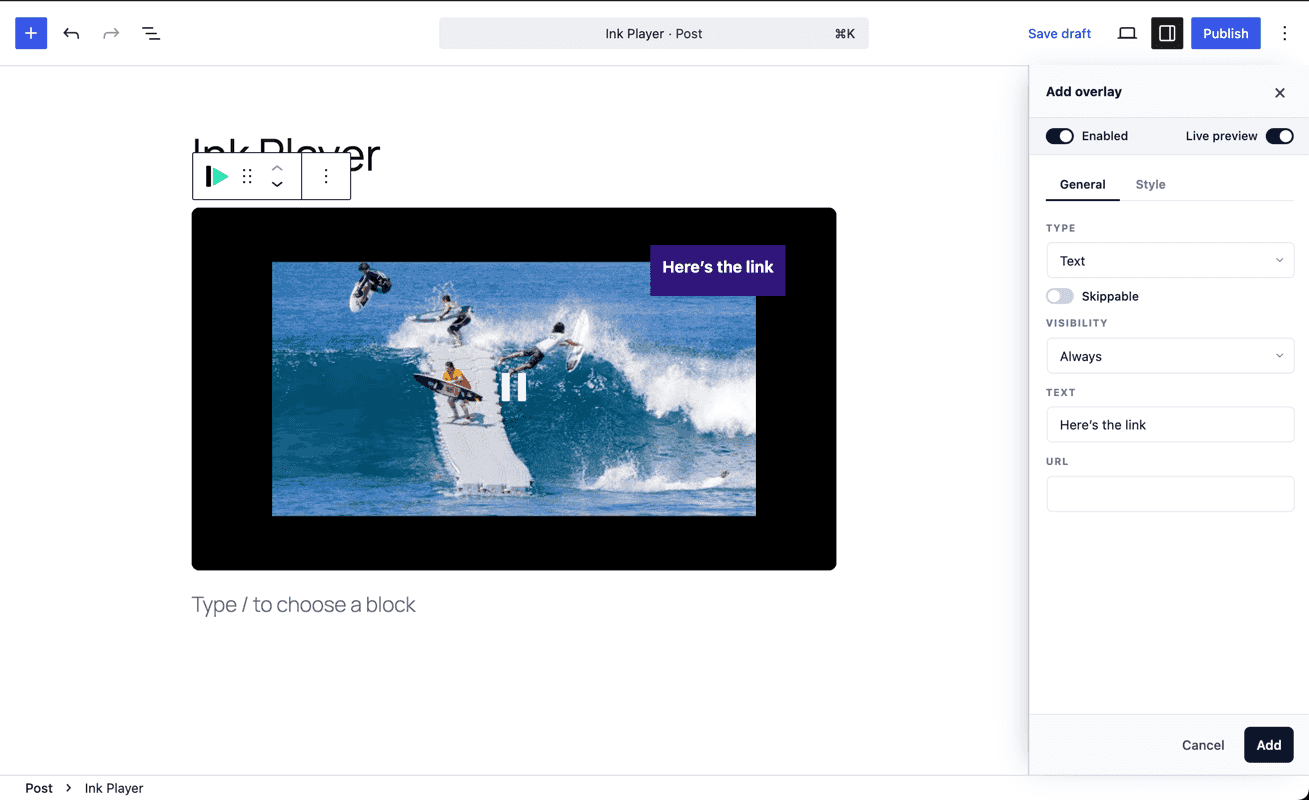
Every overlay drawer has:
| Control | What it does |
|---|---|
| Enabled | Turns that overlay on or off without deleting it. |
| Live preview | Shows the overlay while editing, ignoring timing so you can design it. |
| General tab | Type, visibility, timing, and content. |
| Style tab | Position, color, size, spacing, opacity, and type-specific styling. |
| Skippable | Lets viewers dismiss the overlay. Not available for watermark overlays. |
Overlay visibility
| Visibility | Behavior |
|---|---|
| Always | Shows for the whole video. |
| While playing | Shows only while playback is active. |
| While paused | Shows when playback is paused. |
| Percentage | Shows after playback reaches a selected percentage. |
| Percentage range | Shows between a start and end percentage. |
| Time range | Shows between a start and end time. |
Overlay positioning
Most overlays support placement presets: top-left, top, top-right, right, center, bottom-right, bottom, bottom-left, and left. Point-style overlays also support Custom placement with horizontal and vertical sliders.
Overlay types
| Type | General options | Style options |
|---|---|---|
| Text | Text and optional URL. | Position, padding, font size, opacity, background, text color, z-index. |
| CTA | Headline, description, show/hide button, button text, button link, link target. | Overlay background, padding, opacity, headline size/color, description size/color, button background/text/radius/padding. |
| Action bar | Text, button type, custom button link, or YouTube subscribe settings. | Bar background, height, opacity, text size/color, button color/radius/padding. |
| Email capture | Headline, bottom text, placeholder, button text, provider, provider-specific fields, after-submit action. | Overlay background/opacity, card background/padding/gap/radius/width, headline, input, button, and bottom text styles. |
| Watermark | Text or image, image file, link, auto move. | Position, move interval, padding, opacity, background, image max width or text size/color. |
| Image / Banner | Image, link URL, link target, alt text, optional Ad label. | Position and width. |
| Hotspot | Label and click action: open link, jump to time, or pause video. | Custom position, marker color, icon color. |
| Shortcode | WordPress shortcode text. Rendered server-side over the player. | Position, width, z-index. |
| Custom | Custom HTML or text. | Position, padding, font size, opacity, background, text color, z-index. |
Email capture delivery
The Email capture overlay can save leads locally and optionally send them to enabled providers:
- None
- Webhooks
- Mailchimp
- MailerLite
- ActiveCampaign
- FluentCRM
Provider-specific choices appear after you choose the provider, such as audience, group, list, tags, or webhook destination.
Ads
Use Ads to add per-video ad breaks. This panel only becomes useful after ads are enabled globally in Settings → Ads. If ads are off site-wide, the panel shows a link to enable them.
Click New ad break to open the ad break drawer.
| Option | What it does |
|---|---|
| When | Choose pre-roll, mid-roll at a time, percentage-based mid-roll, or post-roll. |
| At time | For mid-roll ads, choose the exact playback time. |
| At percent | For percentage ads, choose the playback percentage. |
| Source | Choose Custom video or VAST tag. |
| Ad video | The video file used for a custom ad. |
| Click-through URL | Optional destination when a viewer clicks the custom ad. |
| Skippable | Allows viewers to skip a custom ad. |
| Skip after | Seconds before the skip option becomes available. |
| VAST tag URL | The VAST ad tag URL when using an ad server. |
Per-video ad breaks are combined with global ad breaks. Use per-video breaks for media-specific sponsors or campaigns.
Presets
Use Presets to apply, create, duplicate, edit, or delete reusable player configurations.
| Action | What it does |
|---|---|
| Select a preset | Applies that preset to this video. |
| New preset | Saves a reusable configuration from the current player setup. |
| Edit | Updates a custom preset. Built-in presets cannot be edited directly. |
| Duplicate | Copies a preset so you can customize it. |
| Delete | Removes a custom preset. |
When you switch presets, per-video overrides are reset, but overlays are preserved because overlays are media-specific.
Chapters
Use Chapters to create named timeline sections. Viewers can jump directly to a chapter.
Click New chapter to add one.
| Option | What it does |
|---|---|
| Title | The chapter name shown to viewers. |
| Start time | The time where the chapter begins. |
Chapters are sorted automatically by time. You can edit, delete, or remove all chapters from the list.
Captions
Use Captions for subtitle and caption files. Click New caption to add a track.
| Option | What it does |
|---|---|
| Label | Human-readable track name, such as English. |
| Language | The language code used by the player. |
| Source | Caption file URL. Supports .vtt, .srt, .ssa, and .ass. |
| Kind | Choose Subtitles or Captions. |
| Default track | Makes the track selected by default. |
Use captions for translated text, accessibility captions, and silent viewing. Use Multi-language video when the spoken audio itself changes.
Multi-Language
Use Multi-Language to add alternate spoken-language versions of the video. Each language version is a separate playable source. Viewers switch from a language pill on the player.
Click New language to add one.
| Option | What it does |
|---|---|
| Language | Select the spoken language. Each language can be used once. |
| Label | Optional custom label shown in the switcher instead of the language name. |
| Source | The video or audio file for that spoken-language version. |
Add the primary/default language first, usually with the same URL as the main media source. Then add dubbed or localized versions. See Multi-language video for the full workflow.
Global Branding
Use Global Branding to control the site-wide logo and brand color used by players.
| Option | What it does |
|---|---|
| Enable branding | Turns global branding on or off. |
| Logo | Picks or pastes a logo image URL. |
| Logo max width | Controls how large the logo can appear. |
| Position | Places the logo around the player. |
| Opacity | Controls logo transparency. |
| Z-index | Controls stacking above or below other player layers. |
| Logo link | Optional URL when viewers click the logo. |
| Brand color | The main accent color used by player controls and overlay defaults. |
Changes in this panel apply globally to all players. The drawer previews changes live and asks before discarding unsaved edits.
Timestamp
Use Timestamp to generate a copyable [inkp_timestamp] shortcode. Paste that shortcode in surrounding page content to create a button that controls the player.
| Option | What it does |
|---|---|
| Time | Target time or skip amount. |
| Button text | Visible label for the generated button. |
| Direction | Choose Seek to time, Skip forward, or Skip backward. |
| Copy | Copies the generated shortcode. |
Example:
text
[inkp_timestamp id="123" time="1:30" text="Jump"]If the media record has not been saved yet, the panel warns that the player ID is not available. Save the post first to generate a shortcode that targets this player directly.
Who can watch
Use Who can watch to control viewer access.
| Mode | Behavior |
|---|---|
| Public | Anyone can watch. |
| Private | Only logged-in users can watch; others see a sign-in prompt. |
| Password | Viewers must enter the password before playback. |
When Password is selected:
- Save the post once if the media record does not exist yet.
- Set a password.
- Update or remove the password later from the same panel.
WARNING
Private and password protection are enforceable for providers whose source can be gated or signed, such as Bunny.net, Mux, and protected uploads. Public platform embeds and public URLs may still be reachable directly from their original source.
Recommended setup order
- Start with Basic Settings and Appearance, and turn on Popup if the video should open in a lightbox.
- Apply or create a Preset.
- Add Chapters, Captions, and Multi-Language versions.
- Configure Overlays and Ads for conversion or monetization.
- Set Who can watch before publishing protected content.
- Use Timestamp only when you need buttons outside the player.