

Appearance
Getting started
This guide walks you from a fresh install to a working player on your site in a few minutes. You will add your first video, place it on a page, and then optionally brand it, control who can watch, and turn on analytics.
1. Install and activate
If you have not already, follow Installation to upload and activate the plugin. Once active, a top-level Ink Player menu appears in the WordPress admin.
2. Open Ink Player
Click Ink Player in the admin sidebar to open the dashboard. From the left navigation, go to Library → Media.
3. Add your first video
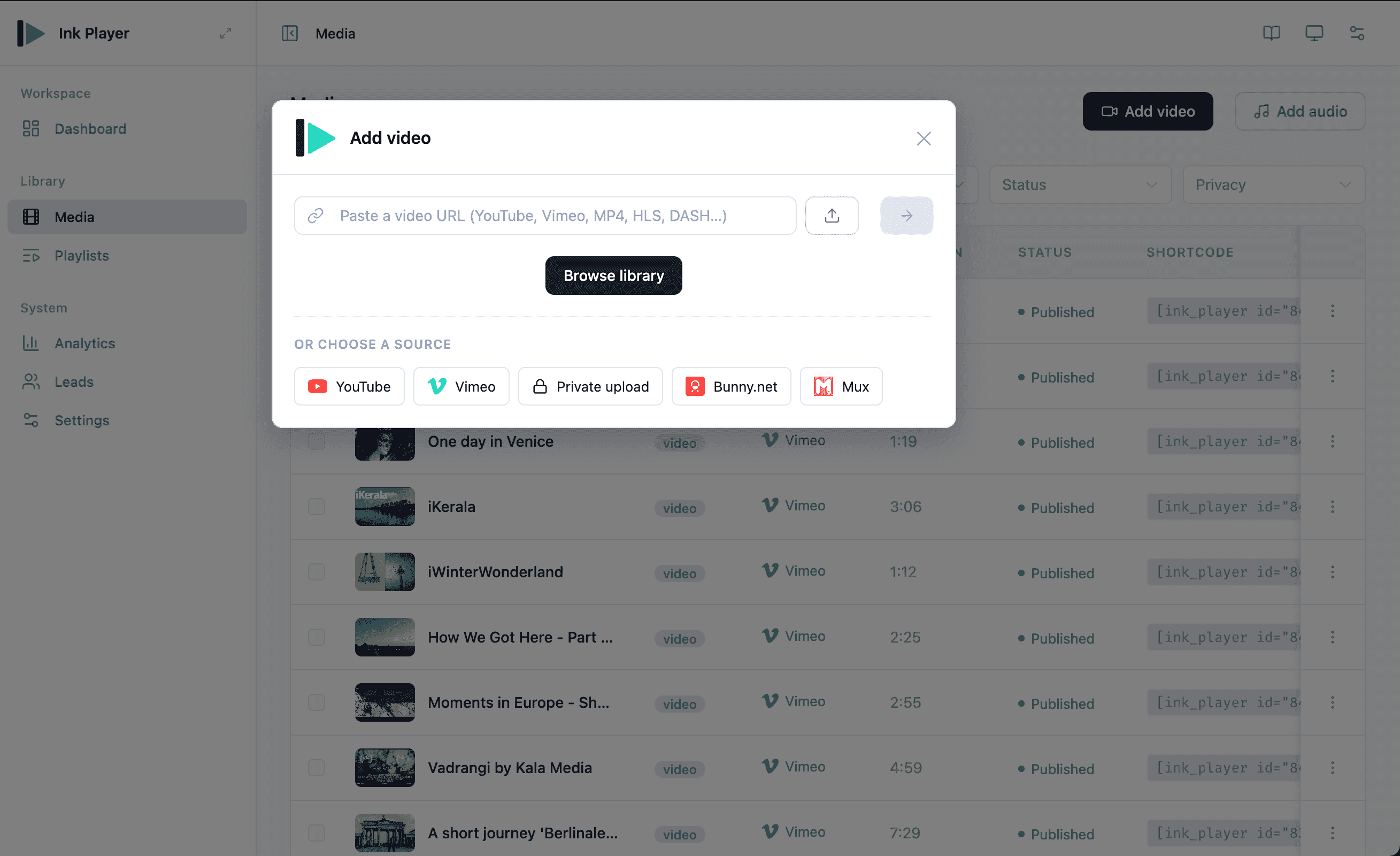
Ink Player can play from many providers, but the fastest way to start is to paste a URL or upload a file.
- On the Media screen, click Add media.
- Add your video by one of these methods:
- Paste a URL — for example a YouTube link, a Vimeo link, or a direct
.mp4URL. - Select from the WordPress media library — pick a file you have already uploaded.
- Choose a source — YouTube, Vimeo, Bunny.net, Mux, or Private upload.
- Paste a URL — for example a YouTube link, a Vimeo link, or a direct
- Give the media a title, then choose Publish to make it live or Save as draft to keep it hidden from visitors until you are ready. Drafts stay invisible to the public — only you and other admins can see them.
TIP
Ink Player detects the source type from the URL you paste — an HLS .m3u8, a DASH .mpd, an MP4, or a platform link such as YouTube — and uses the same consistent player for all of them.
4. Place it on a page
Once the media record is saved, you can drop it anywhere. The two most common ways:
Using a block — In the WordPress editor, add the Ink Player block, then pick your saved media from the placeholder. See Blocks.
Using a shortcode — Each media row in the dashboard shows a copyable shortcode chip. Paste it into any post, page, or widget:
text
[ink_player id="123"]See Shortcodes for playlists and clickable timestamps.
INFO
Blocks and shortcodes both render from the same saved media record by id. Edit the media item once in the dashboard and every place it is used updates automatically.
5. (Optional) Brand, gate, and measure
With your first video live, you can refine it:
- Branding — Set your colors and logo in Settings → Branding so every player matches your site.
- Multi-language video — Add dubbed or localized spoken-language versions. See Multi-language video.
- Who can watch — Choose Public, Private, or Password on the media item. See Access control.
- Analytics — Turn on tracking in Settings → Analytics, then watch views and viewers build up under Analytics.
Where to go next
- Blocks — every Gutenberg block in detail
- Shortcodes — media, playlists, and timestamps
- Providers — how to add each source type
- Multi-language video — alternate spoken-language sources
- Access control — Public, Private, and Password modes
- Page builders — Elementor and Beaver Builder