

Appearance
Media
The Media library (/media) is where you manage every reusable video and audio item in Ink Player. Each item is a single record you can drop anywhere on your site — every block and shortcode that references it stays in sync with the source.
For the complete right-side editor reference, see Video inspector panels.
What a media item holds
Each media item stores:
- Title — the display name (rename it inline at any time)
- Type —
videooraudio - Provider — where the file is hosted
- Poster image — the thumbnail shown before playback
- Duration
- Status
- Player config — appearance, presets, chapters, captions, multi-language versions, branding, timestamps, and access control
The media record is the single source of truth
When you edit a media item, those changes propagate to every block and shortcode that uses it. Update once, and the change appears everywhere.
Supported sources
Ink Player can play media from many providers:
- Local — self-hosted upload
- Remote — a direct URL (MP4, HLS, DASH, or audio)
- YouTube
- Vimeo
- Bunny.net Stream
- Bunny.net Classic Storage
- Mux
To configure provider credentials, see Integrations.
Adding media
- On the Media page, click Add video or Add audio (top-right). You can also start from the Dashboard.
- In the source picker, choose one of:
- Paste a URL — a video or audio link (YouTube, Vimeo, Bunny.net, MP4, HLS, DASH)
- Select video / Select audio — pick a file already in the WordPress media library
- Or choose a source — YouTube, Vimeo, Bunny.net, Mux, or Private upload
- The new item opens in the Media Editor, ready to configure.
The media table
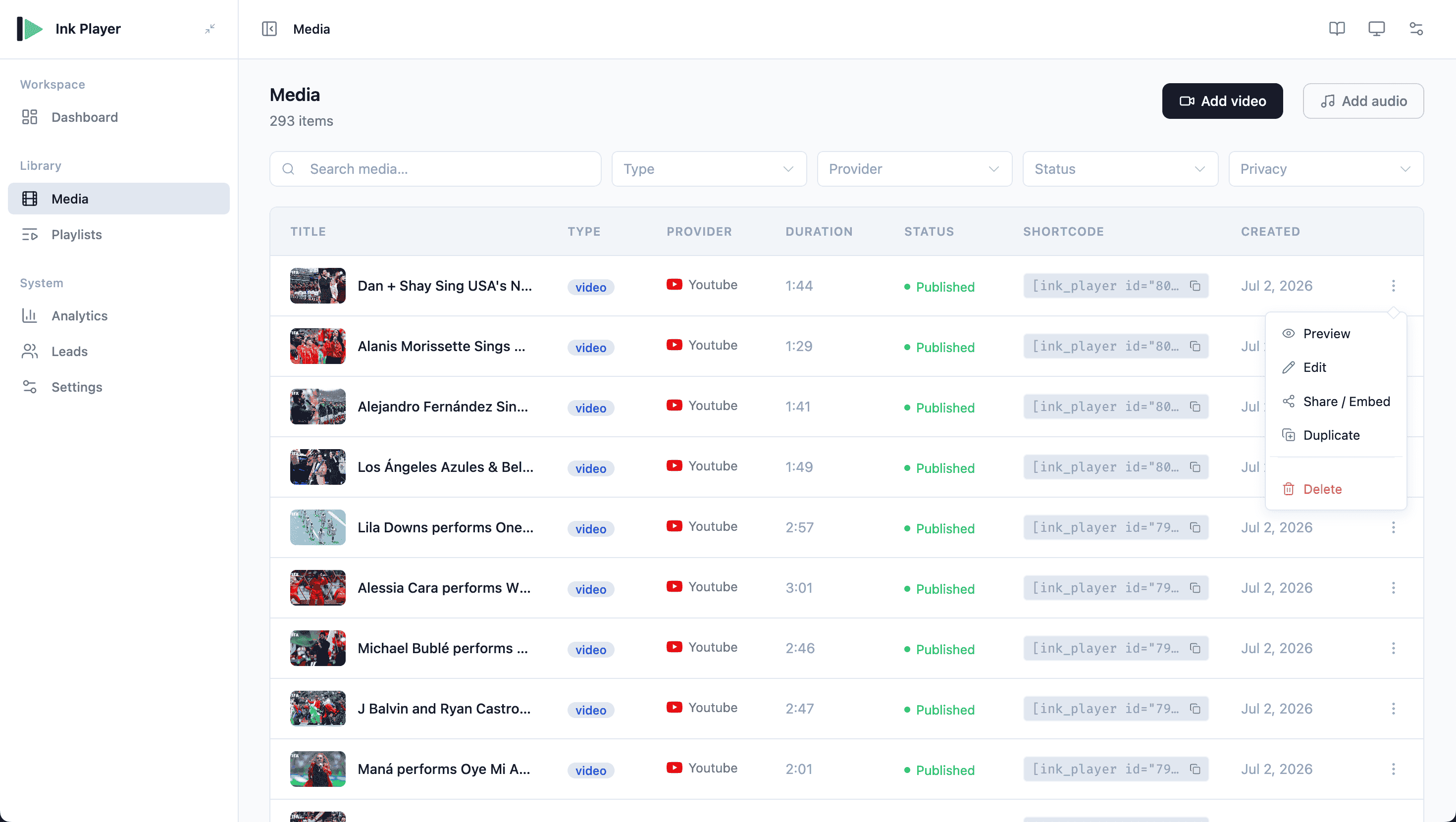
The Media library lists every item with these columns:
| Column | What it shows |
|---|---|
| Title | Thumbnail and name — click the name to edit |
| Type | Video or audio |
| Provider | The provider logo |
| Duration | Length of the media |
| Status | Published (visible to visitors) or Draft (visible only to you) |
| Shortcode | A copyable [ink_player id="N"] |
| Created | When the item was added |
Row actions
Open the ⋮ menu on any row for:
- Preview
- Edit
- Share / Embed
- Duplicate
- Delete
Select multiple rows to enable bulk delete.
Draft and published media
Every media item is either published or a draft. In the Media Editor, the header has two buttons — Save as draft and Publish — so you choose the state as you save.
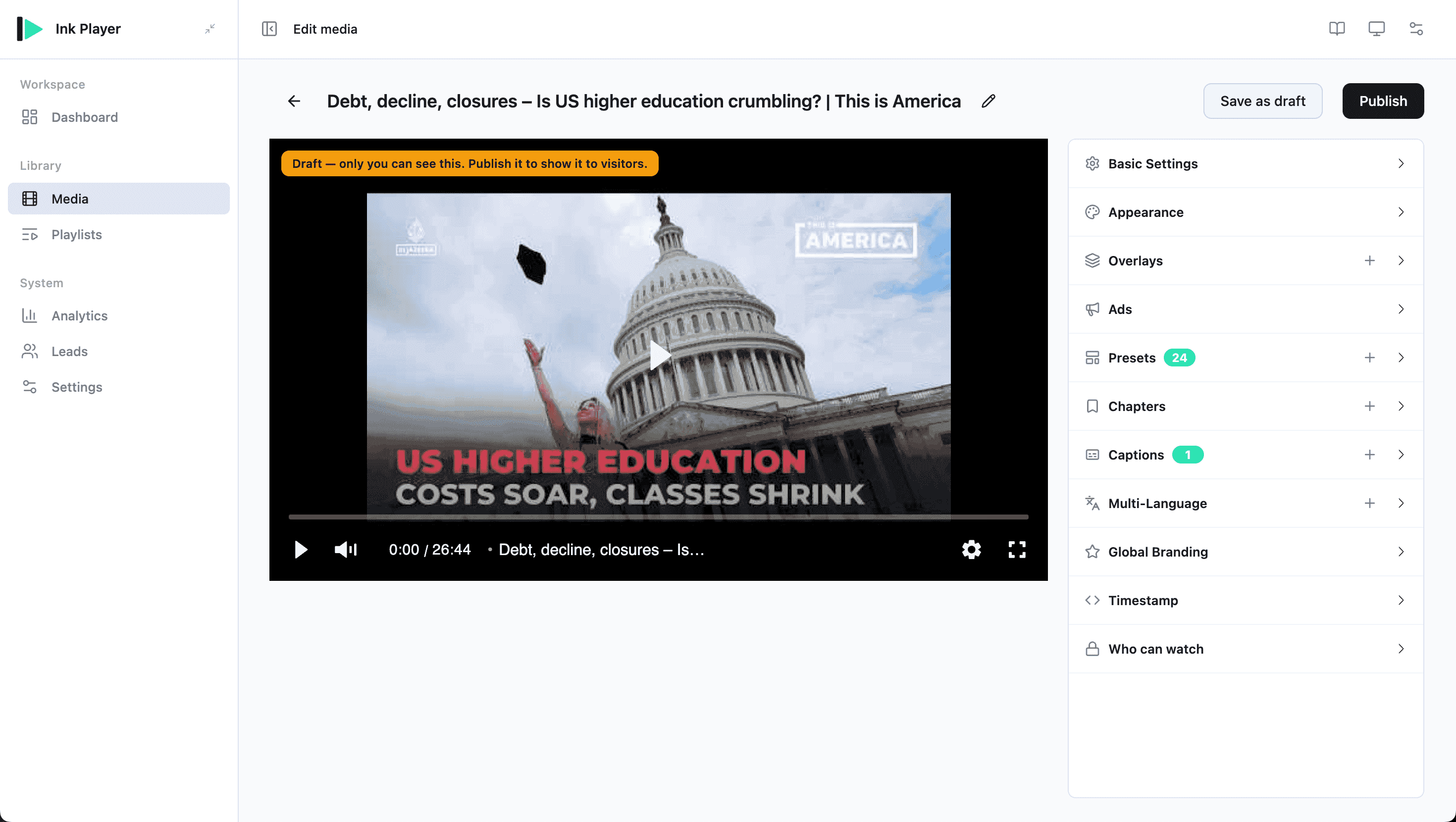
- Drafts are hidden from public visitors entirely. As an admin you still see the player, plus an amber badge in the top-left: "Draft — only you can see this. Publish it to show it to visitors." The editor preview shows the same badge while the item is a draft.
- Published items are visible to everyone, subject to the Who can watch access rules below.
TIP
Use a draft to stage a video — configure overlays, captions, and access — and only Publish once it is ready for visitors.
Filters
Narrow the list with the search box and the Type, Provider, Status, and Privacy filters.
Using a media item
Embed any item with its shortcode:
text
[ink_player id="N"]Replace N with the item's ID. Copy the exact shortcode from the Shortcode column.
The Media Editor
Clicking a title (or Edit) opens the Media Editor. It has two parts:
- A live player preview that updates as you change settings
- An inspector with these panels:
| Panel | Purpose |
|---|---|
| Basic Settings | Core media options |
| Appearance | How the player looks |
| Overlays | Place timed content on top of the video |
| Ads | Add per-video ad breaks (requires ads enabled in Settings → Ads) |
| Presets | Apply a saved configuration (Presets) |
| Chapters | Define named sections |
| Captions | Add subtitle / caption tracks |
| Multi-Language | Add alternate spoken-language source versions |
| Global Branding | Add your logo and brand styling |
| Timestamp | Generate a button shortcode that controls the player |
| Who can watch | Access control (see below) |
See Video inspector panels for every field inside these panels.
Renaming inline
Edit the title directly in the editor. It updates live; click the save/check button to confirm.
Multi-language versions
The Multi-Language panel lets you add alternate spoken-language versions of a video. Each language points to its own playable source, and viewers switch between them from a language pill on the player.
Add the primary/default language first, usually using the same URL as the main media source, then add translated or dubbed versions after it. See Multi-language video for setup details and limitations.
Who can watch (access control)
The Who can watch panel controls who can view the media:
- Public — anyone can watch
- Private — logged-in users only
- Password — viewers must enter a password
Enforcement support
Password and Private protection is enforceable for Bunny.net, Mux, and protected uploads. Other providers may not enforce these restrictions at the source.
For more on viewer restrictions, see Access control.
Related
- Playlists — group media items into ordered collections
- Analytics — track views and watch time per item
- Multi-language video — add alternate spoken-language versions
- Video inspector panels — complete right-side panel reference
- Presets — reuse a player configuration across items