

Appearance
Playlist editor
The Playlist Editor is where you build an ordered video or audio collection and configure how that playlist behaves when published. A playlist uses existing Media records, so updates to a media item automatically appear anywhere that playlist is embedded.
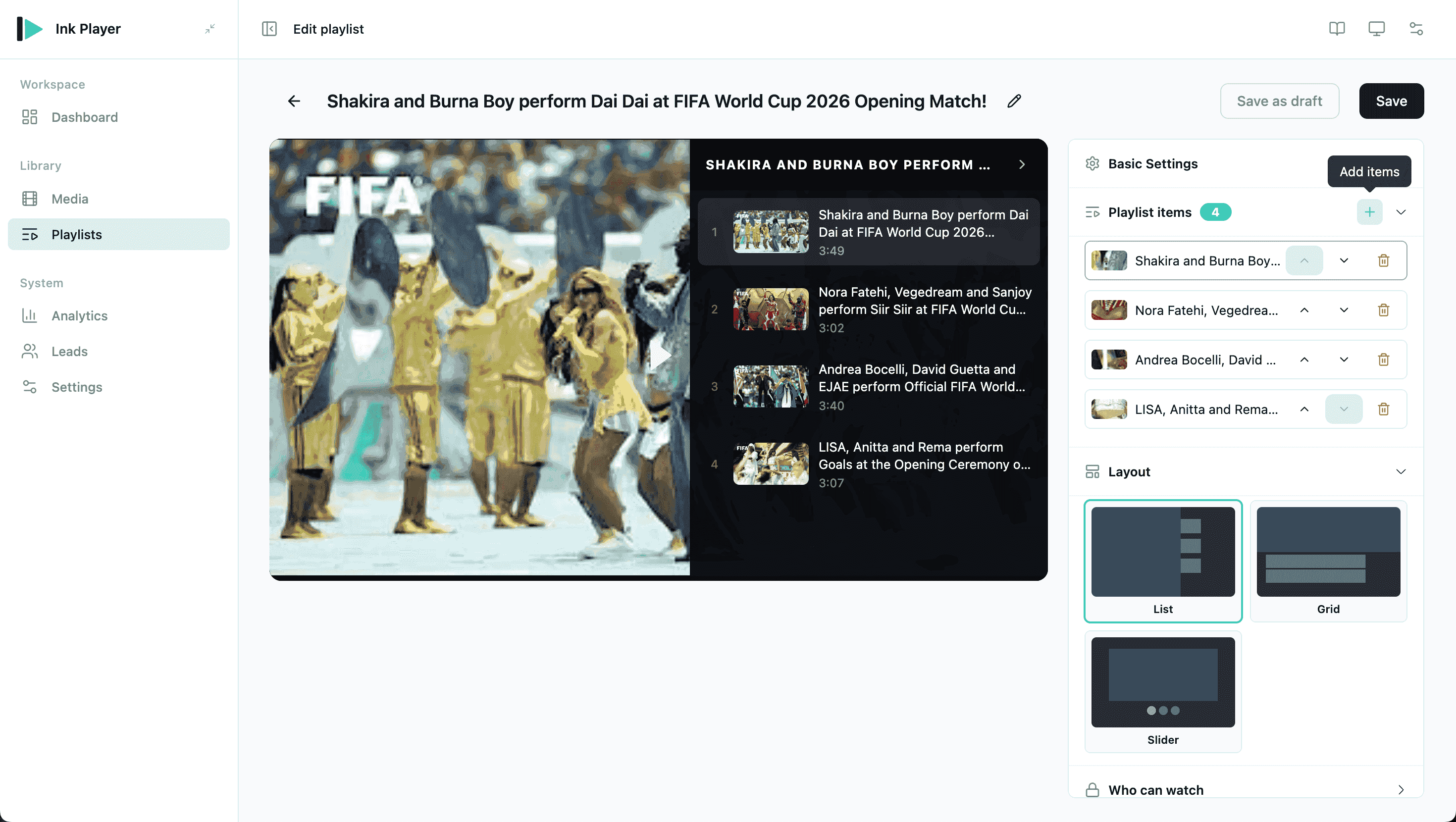
Create a playlist
- Go to Ink Player → Playlists.
- Click Add playlist.
- Choose Video playlist or Audio playlist.
- Add media from the library or import a supported external playlist.
- Review the order, configure the layout, then save.
Use separate playlists for video and audio. A playlist should contain one media type so the correct player and layout controls are available.
Playlist identity
Use the top editor area to manage the playlist record.
| Option | What it does |
|---|---|
| Title | Sets the playlist name shown in the admin and used to identify the playlist later. |
| Type | Shows whether the playlist is a video playlist or audio playlist. |
| Items | Shows the media records included in the playlist. |
| Save as draft | Stores the playlist but keeps it hidden from visitors. |
| Publish | Stores the playlist and makes it visible to visitors. |
The Save as draft and Publish buttons sit in the editor header. Both stay disabled until you add at least one item — an empty playlist cannot be saved.
Rename playlists clearly when you have many collections, such as course modules, episode seasons, product demos, sermons, lessons, or music albums.
Add items from the media library
Use the media picker when the items already exist in Ink Player → Media.
- Click the add/select media control in the playlist editor.
- Search or scroll through the media library.
- Select the items you want in the playlist.
- Confirm the selection.
- Save the playlist.
The picker is designed for large libraries and supports loading more records as you browse.
Import external playlists
For supported providers, paste a playlist or channel URL to create playlist items faster.
Supported import sources include:
- YouTube playlists
- YouTube channels, where supported by the configured integration
- Vimeo playlists / showcases, where supported by the configured integration
After import, review the created items before publishing. Imported items still behave like Ink Player media records, so you can edit titles, posters, privacy, captions, overlays, and other player settings from the media editor.
Reorder items
The item order in the editor is the playback order viewers see on the site.
Use the playlist item controls to:
- Move an item earlier or later.
- Remove an item from the playlist.
- Open the media record for deeper editing.
Removing an item from a playlist does not delete the underlying media record from the Media library.
Configure the player
The inspector exposes a small set of playlist-level settings. Per-item options such as appearance, autoplay, and loop live on each media record, not on the playlist.
| Panel | What it controls |
|---|---|
| Basic Settings | Auto-play next (start the next item when one ends), Shuffle (random order), and Repeat (No repeat, Repeat one, or Repeat all). |
| Layout | How the item list appears around the player — List, Grid, or Slider. See Playlist layouts. |
| Who can watch | Playlist access — Public or Private only. See Access control. |
For detailed per-video controls such as captions, chapters, overlays, ads, presets, branding, timestamps, and multi-language versions, edit the individual item in Media.
Publish a playlist
A playlist is published or a draft, chosen with the editor's footer buttons:
- Save as draft stores the playlist but keeps it hidden from visitors. As an admin you still see the player with an amber badge: "Draft — only you can see this. Publish it to show it to visitors."
- Publish makes the playlist visible to visitors, subject to its Who can watch setting.
Both buttons are disabled until the playlist has at least one item.
Once published, embed the playlist anywhere. Copy the shortcode from the Playlists table:
text
[ink_playlist id="N"]Replace N with the playlist ID.
You can also insert playlists with:
- Ink Playlist block for video playlists.
- Ink Audio Playlist block for audio playlists.
- Elementor widgets, where enabled.
- Beaver Builder modules, where enabled.
What updates after publishing
Published playlists stay connected to their playlist record.
| Change | Result |
|---|---|
| Reorder playlist items | The embedded playlist uses the new order. |
| Add or remove playlist items | The embedded playlist updates after save. |
| Edit a media item title, poster, source, captions, or overlays | The playlist reflects that media update. |
| Delete a media item used by a playlist | Review the playlist and remove or replace the missing item. |
Related
- Playlist layouts — choose the visual layout for video and audio playlists
- Media — edit the individual media records used by playlists
- Blocks — publish playlists in the block editor
- Shortcodes — publish playlists in classic editors and templates