

Appearance
Branding
Branding lets you stamp every player with your own logo and accent color so the player feels like part of your site. Branding is on by default.
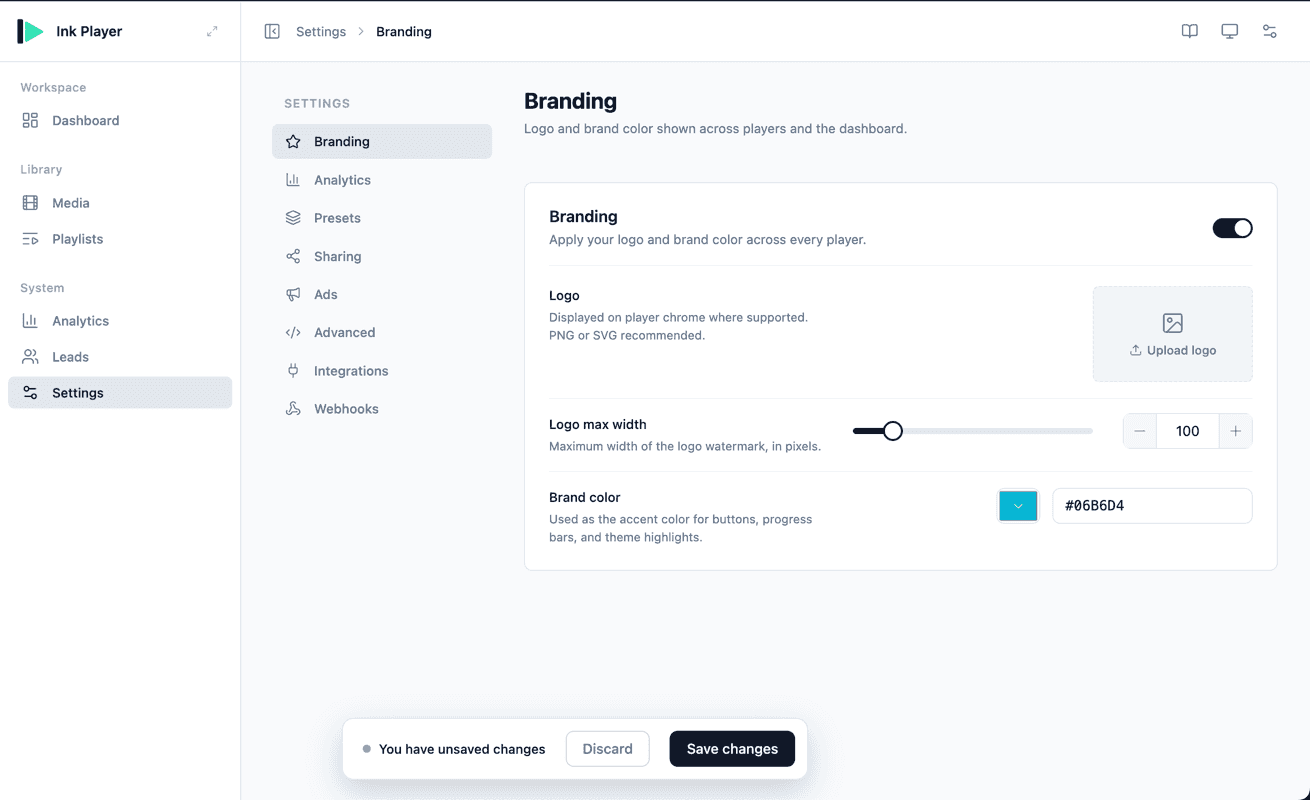
Enable or disable branding
A master toggle sits in the top-right of the section's card header. Switch it off to remove all branding from your players; switch it on to apply the settings below.
Branding options
When branding is enabled, you can configure:
Logo
- Click to open the WordPress media library.
- Pick or upload an image.
The logo is shown as a watermark on the player chrome where supported.
TIP
PNG or SVG files are recommended — they keep crisp edges and support transparency.
Logo max width
Set the maximum width of the logo, in pixels. This caps how large the watermark appears regardless of the source image size.
Brand color
Choose the accent color used across the player — for buttons, progress bars, and theme highlights.
How branding applies
Branding applies globally to every player. The only exception is when a specific preset defines its own branding overrides — in that case, the preset wins for the media that uses it.
INFO
Remember to Save from the Save bar at the bottom of the page after making changes.