

Appearance
Mux
Mux is a Storage integration for hosting and streaming your videos. Connect your Mux account to upload, import, and play assets directly through Ink Player — with public or signed (private) playback. Setup takes a few minutes in the Mux dashboard to create an access token, then a single paste into Ink Player.
What this enables
- Play Mux assets in your players with public or signed playback.
- Upload videos directly to Mux from the media picker.
- Import by URL — hand Mux a public video link and it ingests the asset for you.
- Choose default video quality, playback policy, and caption options.
Prerequisites
- A Mux account (you must be signed in for the steps below).
Step 1 — Create an organization and environment
- Sign in to Mux, then open https://dashboard.mux.com/organizations/.
- Click Create organization.
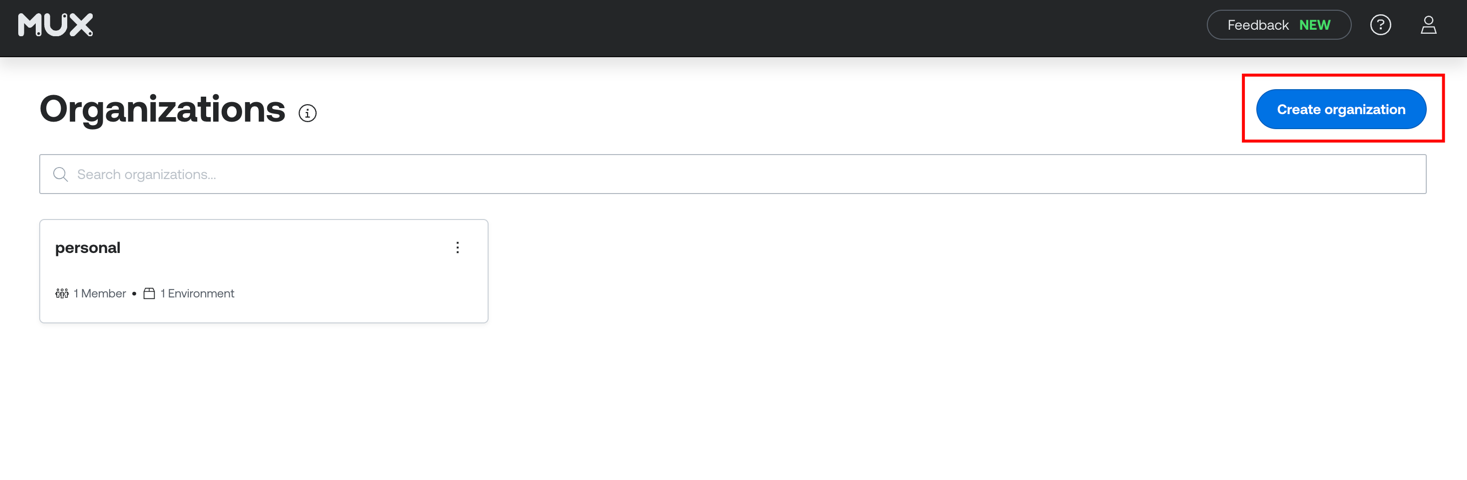
- Give the organization a Name and click Create.
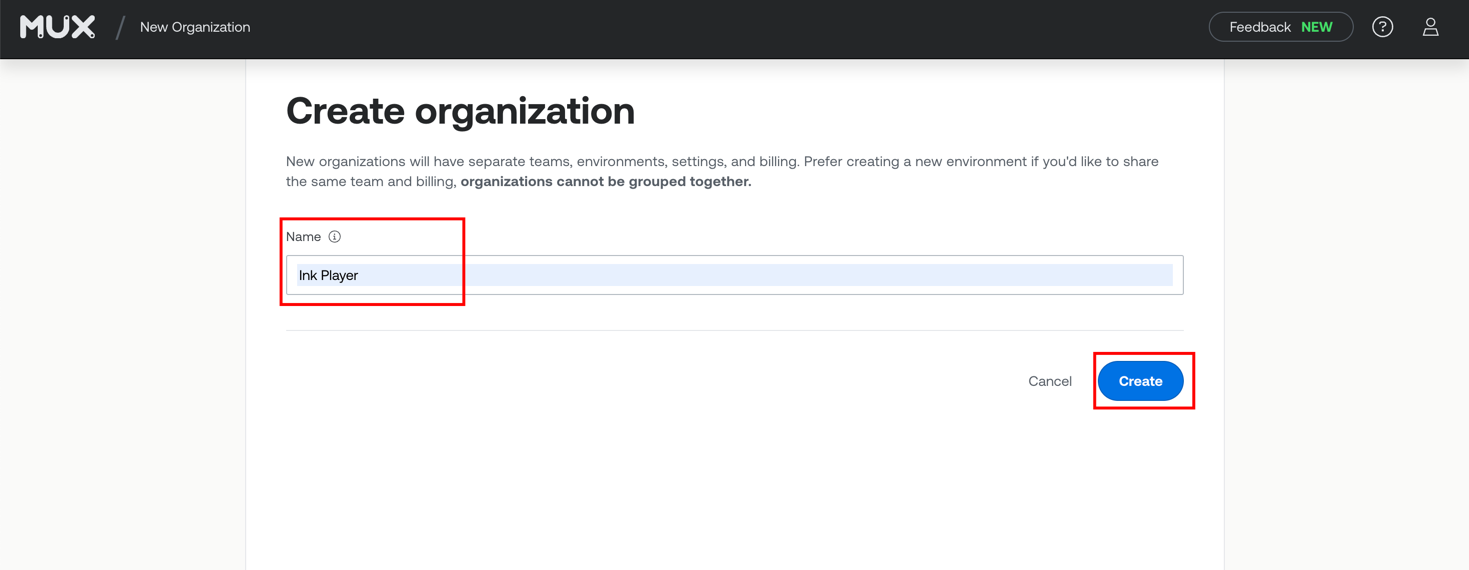
- Create an environment — set a Name, pick a Type, choose Member Access, and click Create. Access tokens and assets belong to an environment.
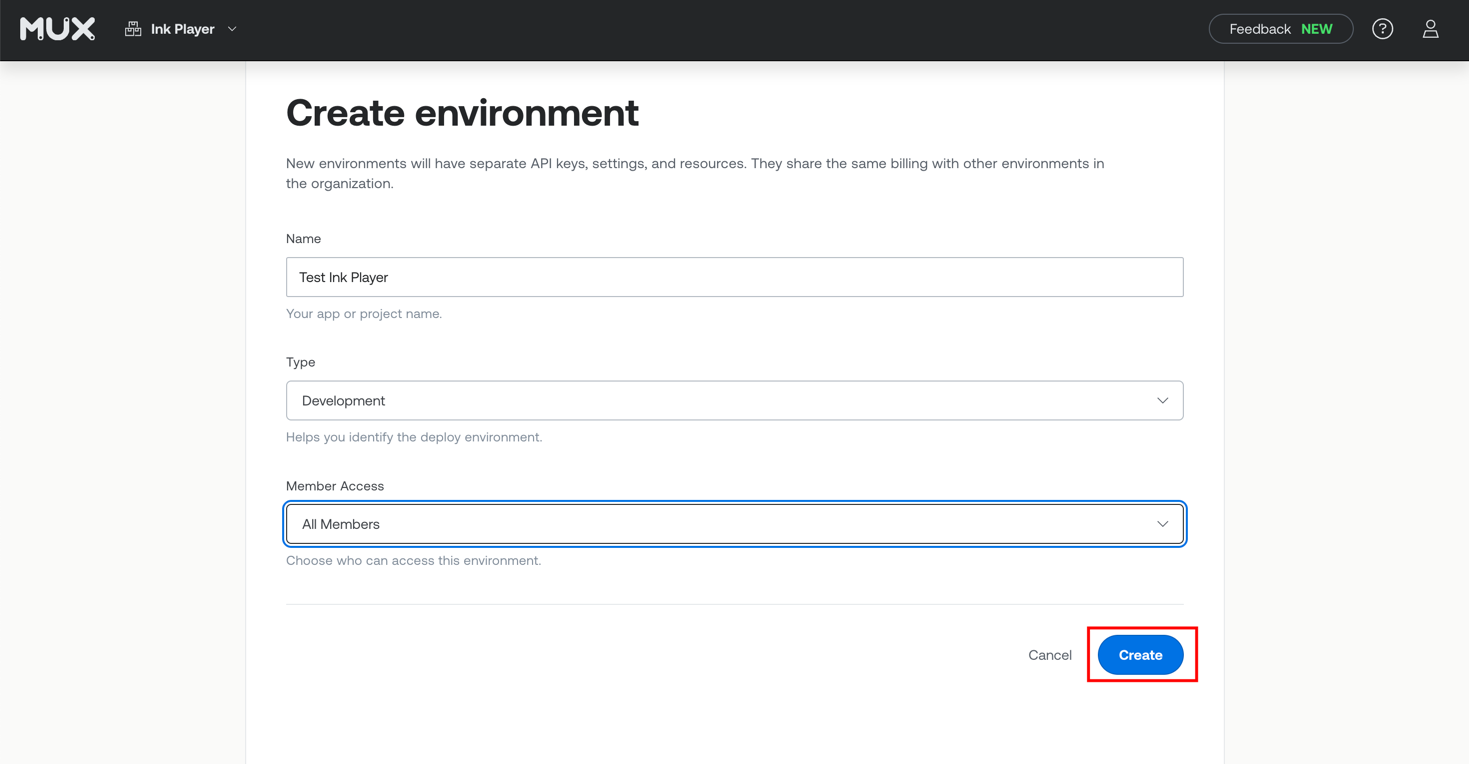
Step 2 — Create an access token
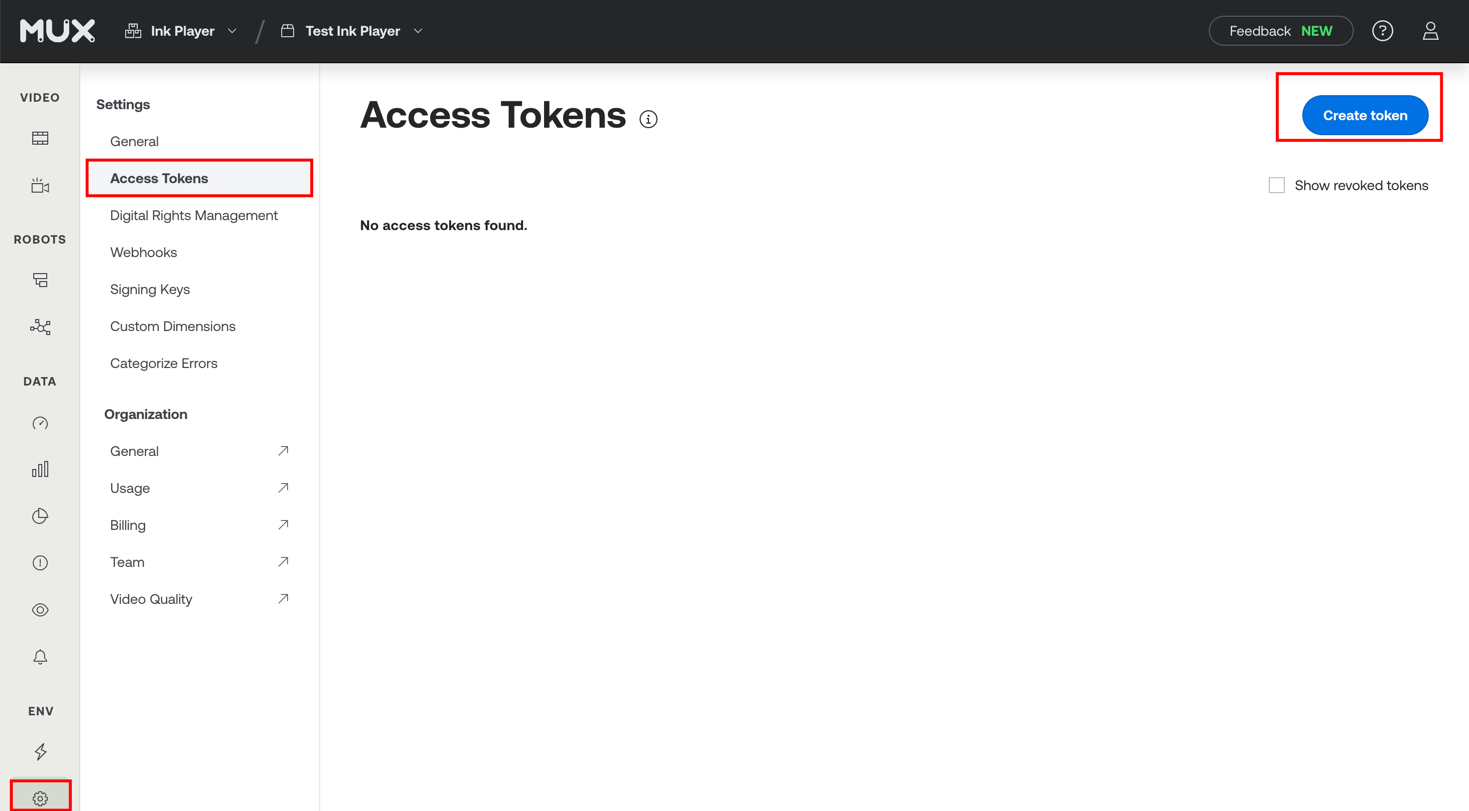
- In the environment, open the Settings (gear) menu.
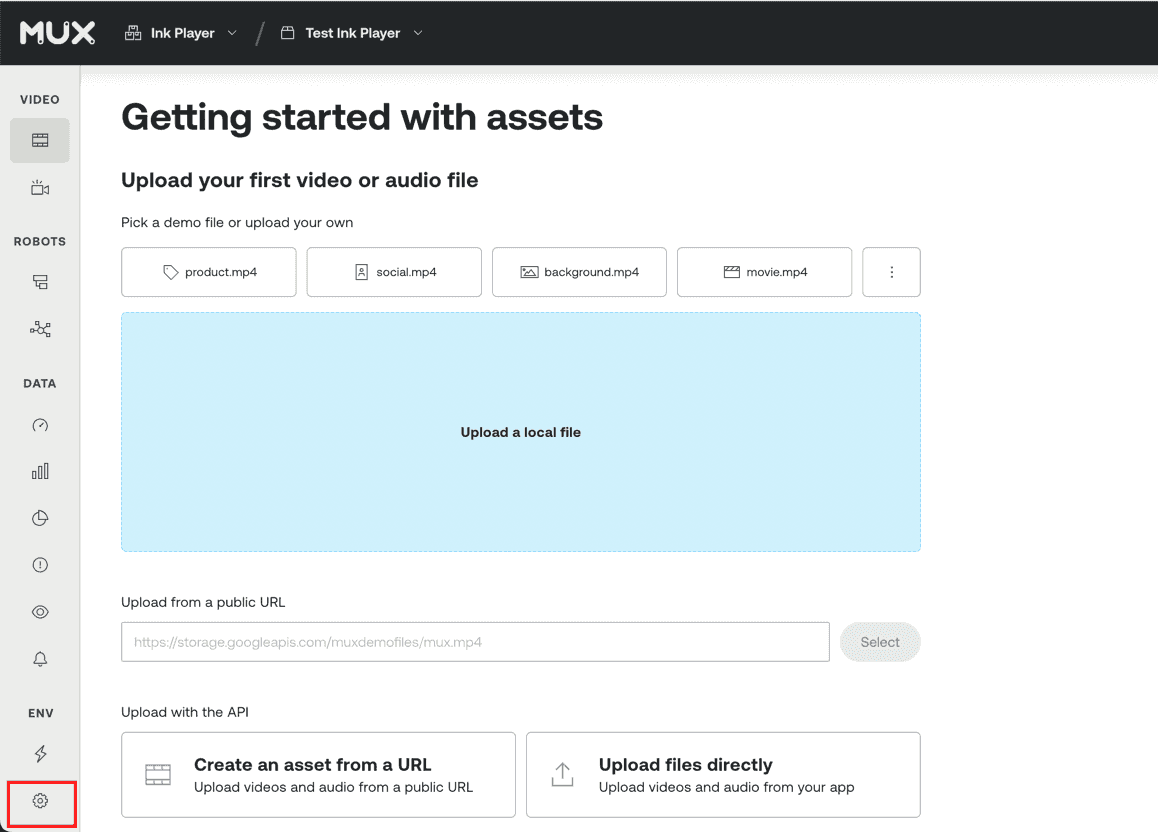
- Go to Access Tokens and click Create token.
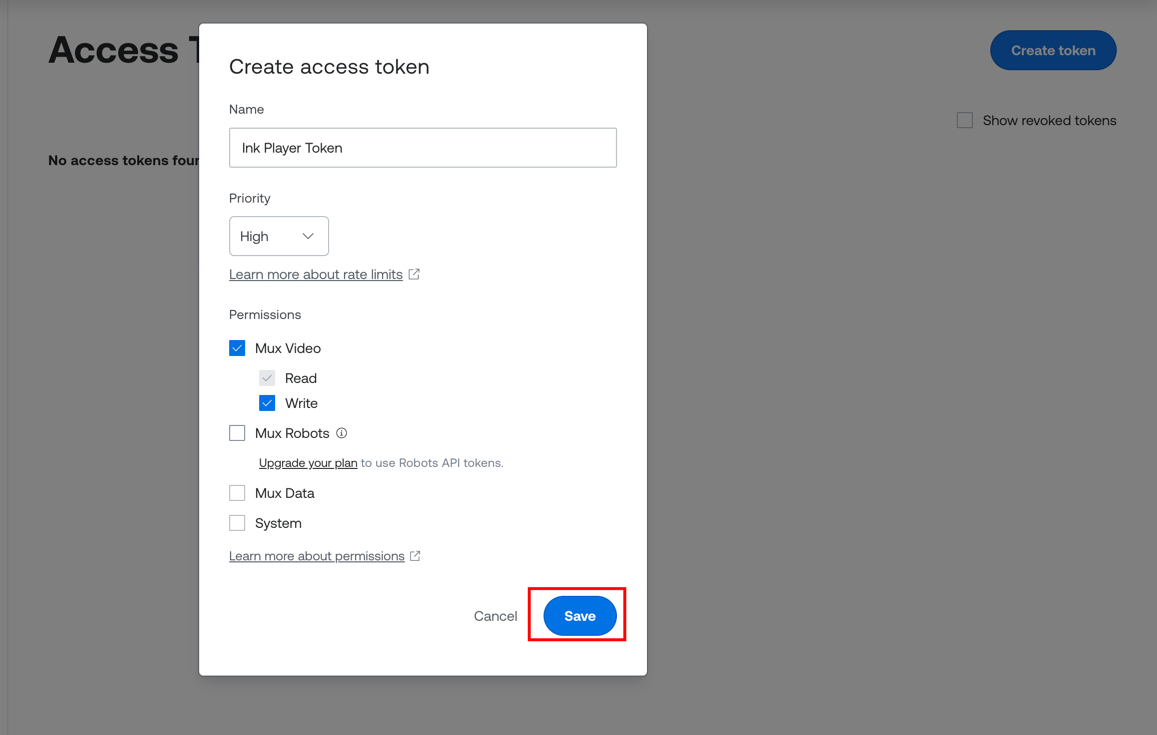
- Name the token and make sure it has Mux Video permission with Read and Write, then click Save.
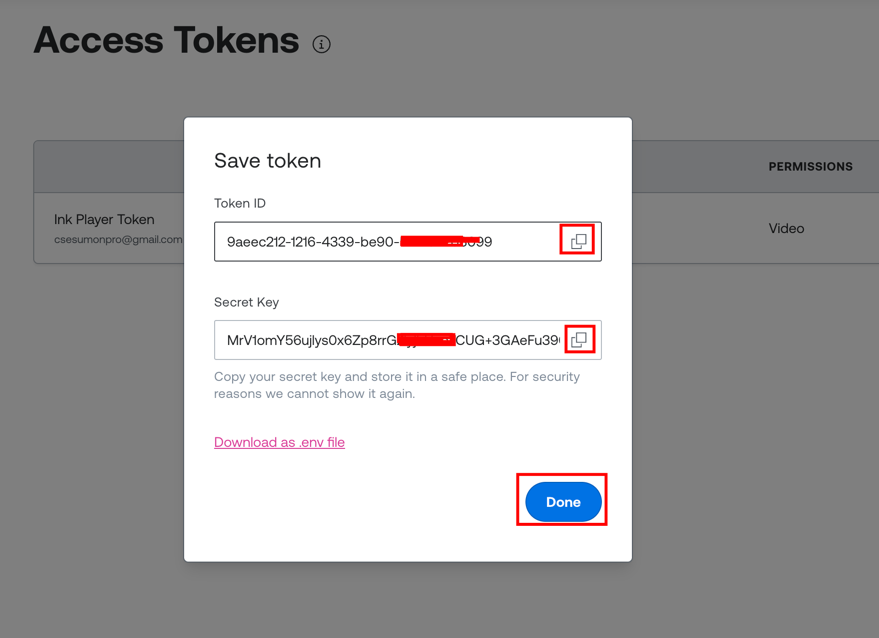
- Copy the Token ID and Secret Key now and keep them safe — Mux shows the secret only once.
Step 3 — Create a signing key (optional)
Only needed if you want signed (private) playback. Skip this for public-only playback.
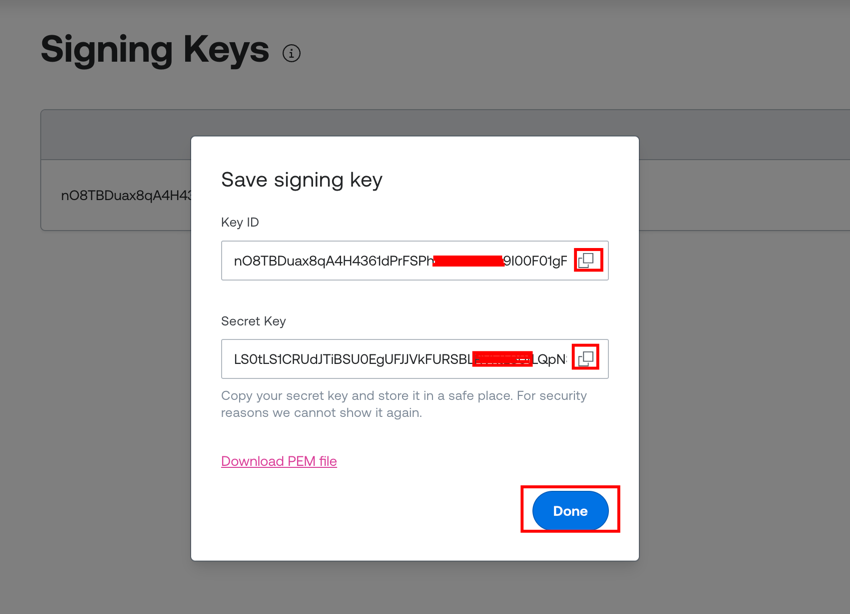
- In Settings → Signing Keys, click Generate key.
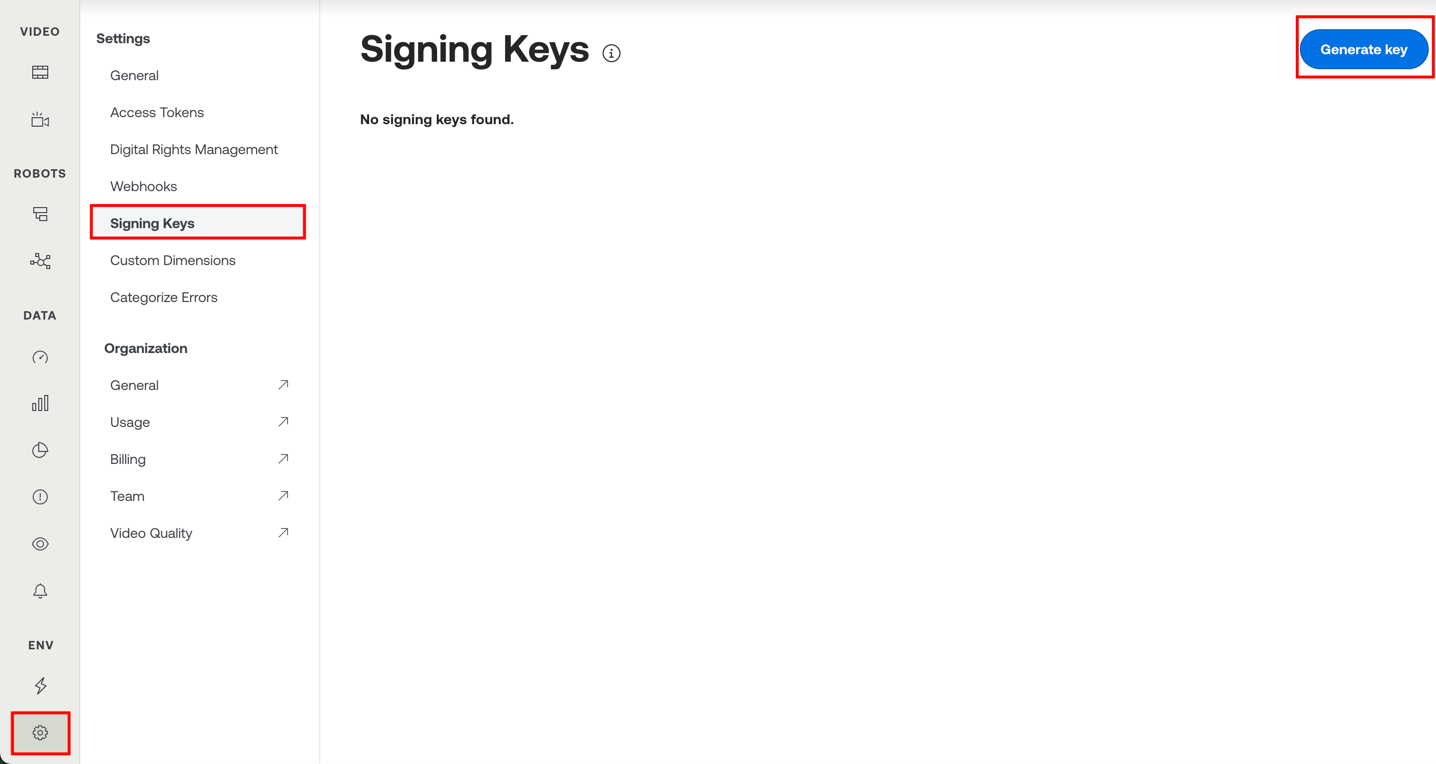
- Copy the Key ID and the Secret Key (Base64) — again, shown only once.
Step 4 — Connect Mux in Ink Player
- Go to Settings → Integrations and enable Mux (under the Storage category).
- Click Manage to open its settings.
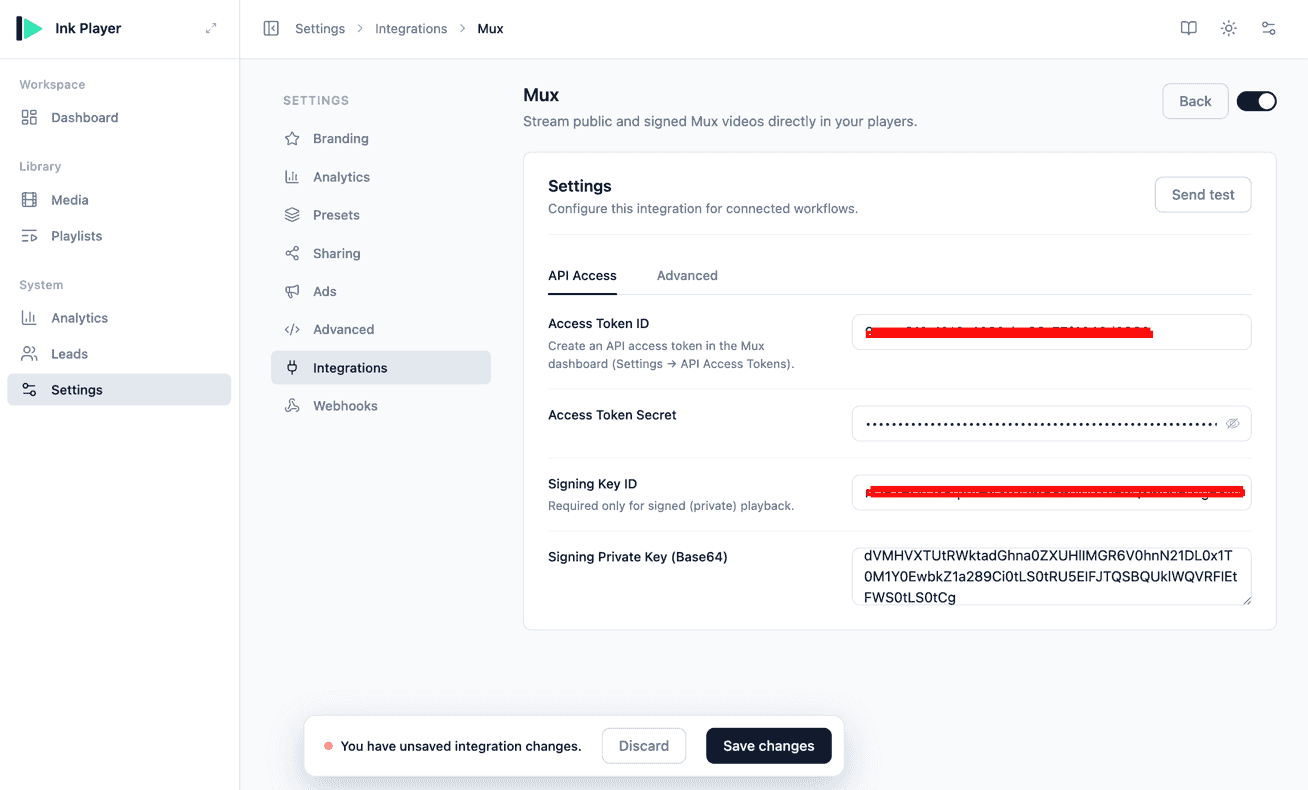
- On the API Access tab, paste your Access Token ID and Access Token Secret. Add the Signing Key ID and Signing Private Key (Base64) only if you created a signing key for signed playback.
- On the Advanced tab, set your default video quality, playback policy, and caption options.
- Click Send test to verify the credentials, then Save changes.
Step 5 — Add Mux media
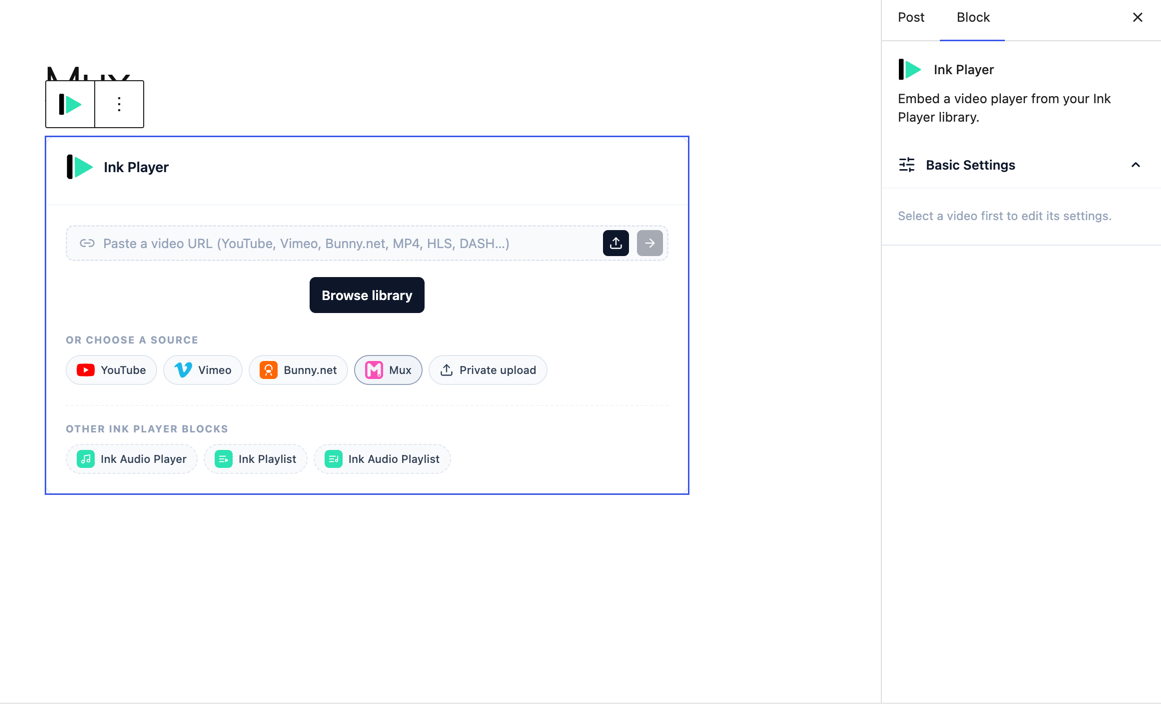
- Add an Ink Player block (or open Add video in your Media library).
- Under Choose a source, click Mux.
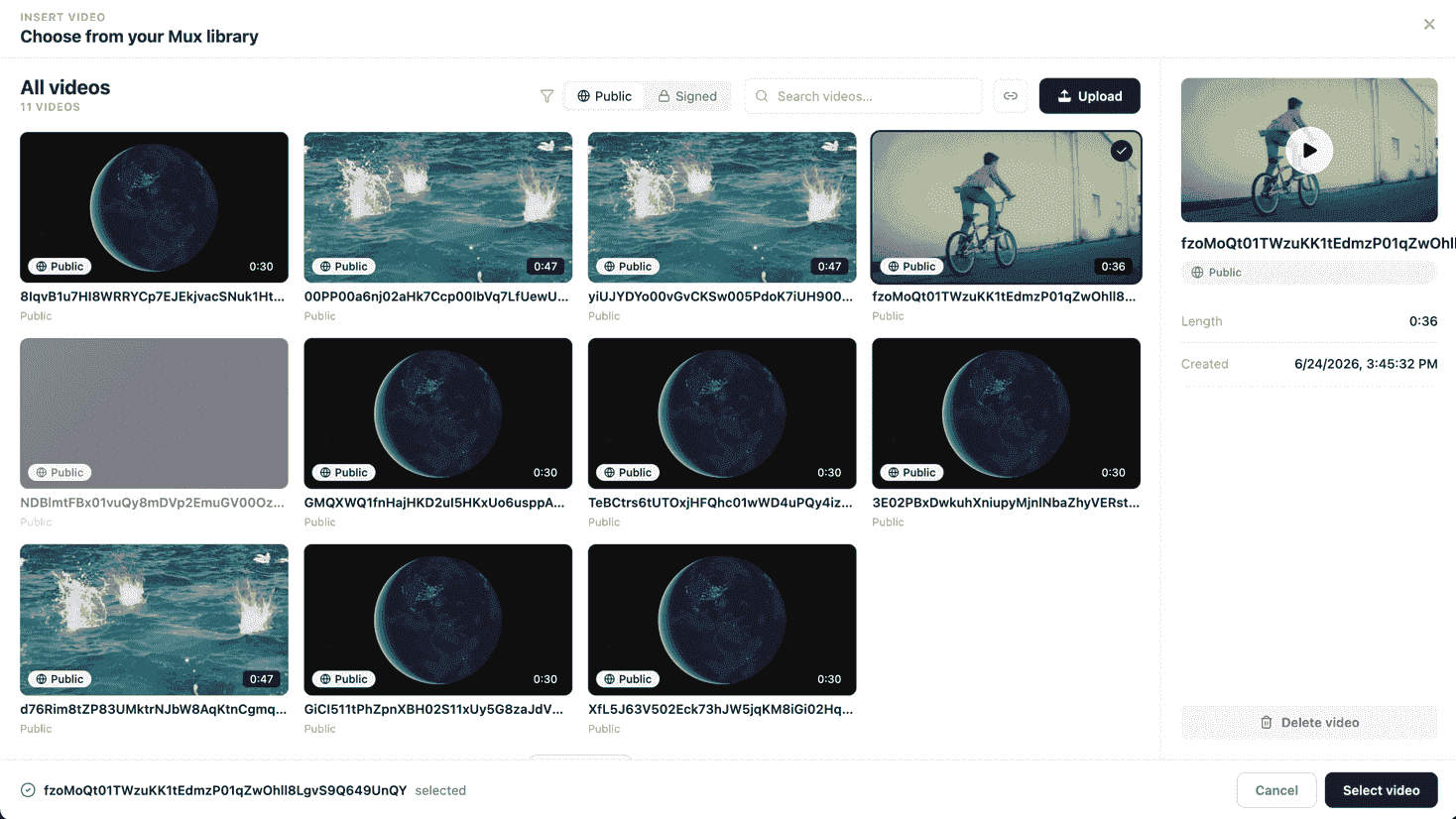
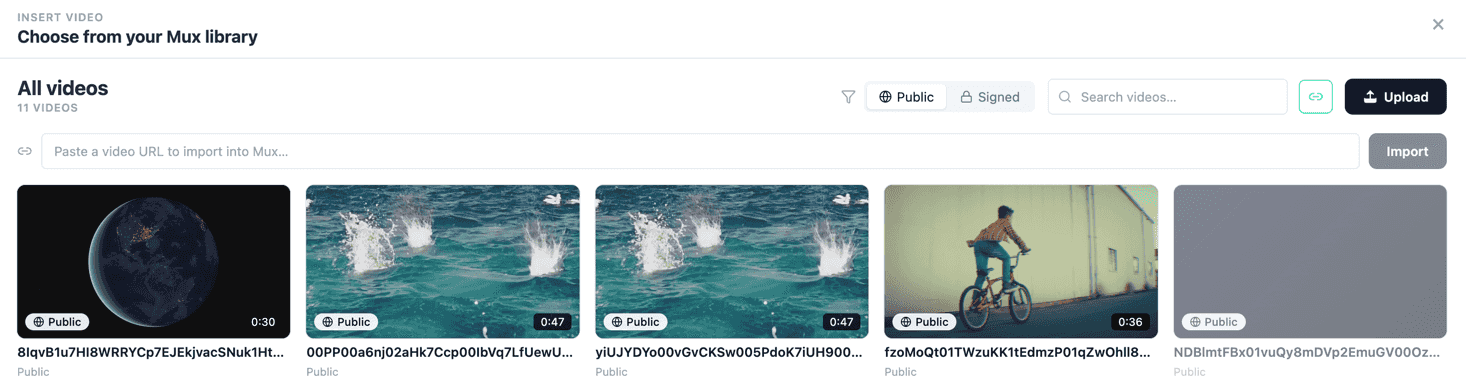
- In the Mux media picker, filter by Public or Signed, search or browse your assets, Upload a new file, then select a video and click Select video.
Import from a URL
Mux can ingest a video straight from a public link. In the picker, click the link icon to reveal the import bar, paste a public, direct video URL, and click Import. Mux processes the asset and it appears in your library once it's ready.
Step 6 — The player renders
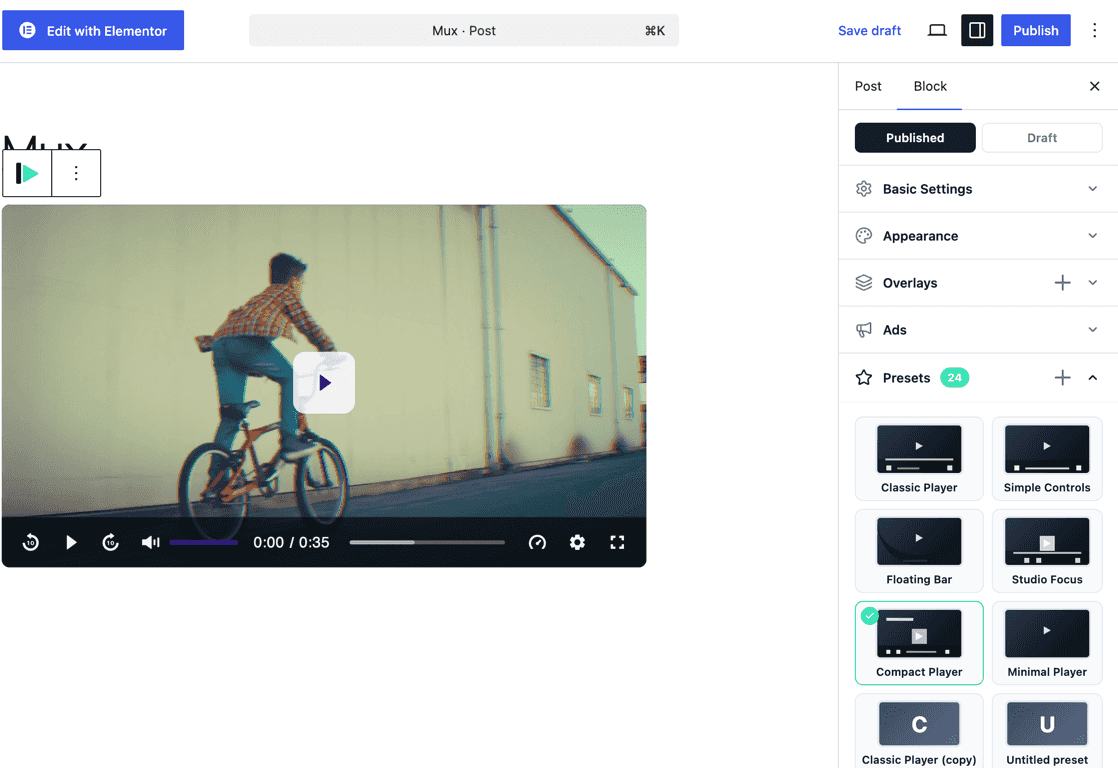
The selected asset is added to your Media library and renders as an Ink Player — ready to place in a post, page, or builder, with all the usual player settings, presets, and overlays.
Playback policies
Every Mux asset is played under one of two policies:
- Public — anyone with the URL can play the video.
- Signed — Ink Player generates an expiring, unforgeable RS256 JWT-signed URL.
WARNING
Signed playback protects the stream URL — the link is unforgeable and expires — but it does not by itself stop a logged-in viewer from sharing a link while it is still valid.
A public Mux video placed on a gated page is gated at the page, but its URL remains reachable to anyone who has it. Choose signed when you need the stream URL itself to be protected.
Settings reference
| Field | Tab | Required | Notes |
|---|---|---|---|
| Access Token ID | API Access | Yes | From Mux → Settings → Access Tokens. |
| Access Token Secret | API Access | Yes | Paired with the Access Token ID; shown only once in Mux. |
| Signing Key ID | API Access | Signed playback only | From Mux → Settings → Signing Keys. |
| Signing Private Key (Base64) | API Access | Signed playback only | The Base64 secret key from the same signing key. |
| Video quality | Advanced | No | Encoding tier for new uploads and URL imports: basic, plus, or premium. |
| Playback policy | Advanced | No | Default for new assets: public or signed. |
| Normalize audio | Advanced | No | Even out loudness across your videos. |
| Auto-generate captions | Advanced | No | Automatically create captions. |
| Caption language | Advanced | No | Shown when auto-captions are on; defaults to auto-detect. |
INFO
For how playback policies fit into protecting your content, see Access control.