

Appearance
Migration
Migration imports your existing library into Ink Player from another video player plugin, so you don't have to rebuild your media, presets, playlists, and settings by hand.
Supported source plugins:
- Presto Player — free and Pro
- FluentPlayer — free and Pro
The importer is additive and reversible. It only adds data to Ink Player — it never changes or deletes anything in the other plugin, and it never edits your page content. You can undo an import at any time.
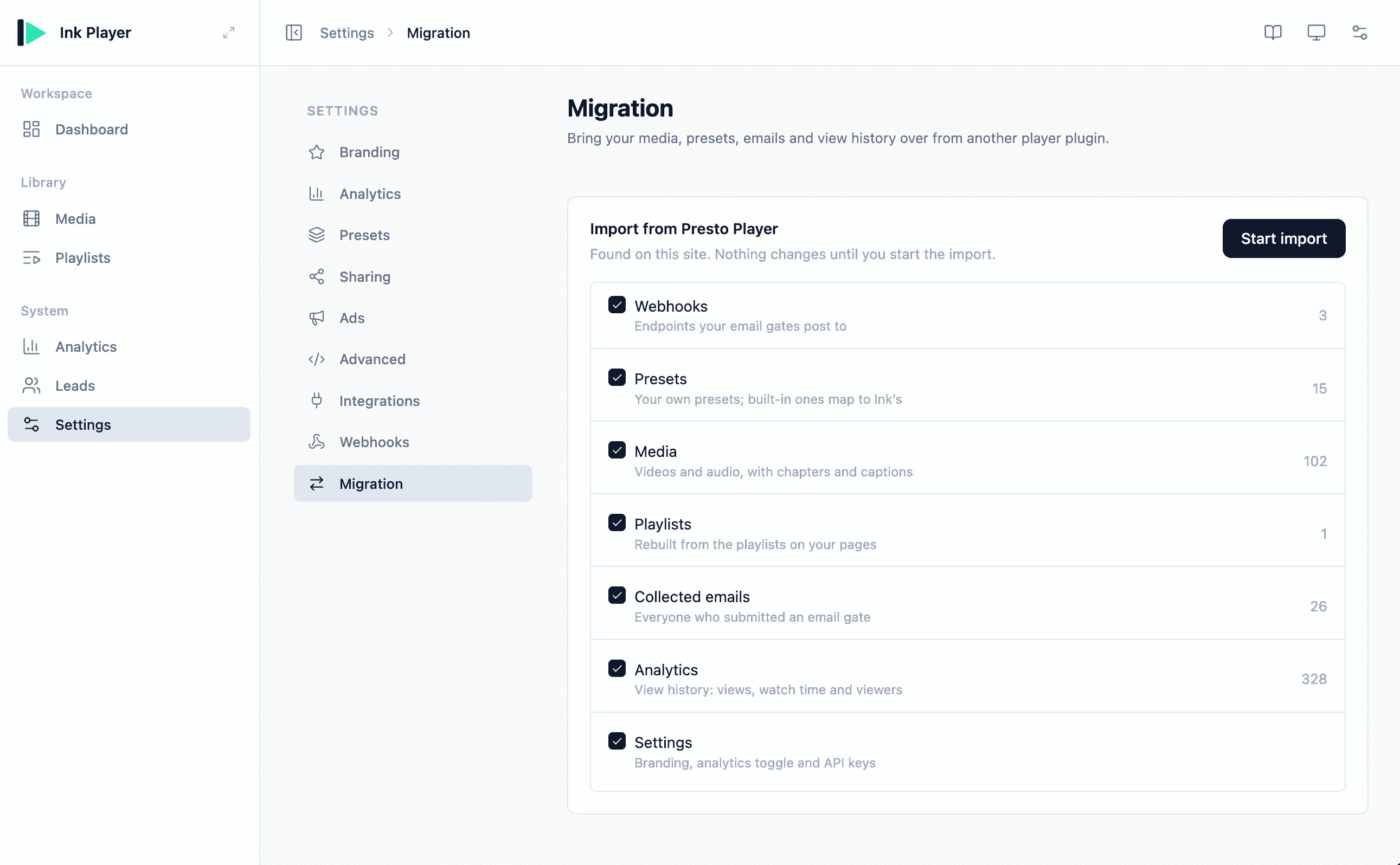
Where to Find It
Migration appears only when a supported source plugin is active on your site:
- Ink Player → Settings → Migration — the permanent home. When no supported player plugin is found, this menu entry is hidden, so it never appears on sites that have nothing to migrate.
- The setup wizard — on the final step of first-time setup, a detected source plugin can be imported right there before you head to the dashboard.
If more than one source plugin is installed, each is shown as its own item.
TIP
Don't see the Migration menu? It only shows when Presto Player or FluentPlayer is active. Activate the source plugin and reload.
What Gets Imported
The importer scans the source plugin and lists everything it found. Each item shows a count and is optional — tick what you want to bring over.
| Item | What it is |
|---|---|
| Webhooks | Endpoints your email-capture gates post submissions to |
| Presets | Your own player presets. Built-in presets from the other plugin are matched to Ink Player's built-ins rather than duplicated |
| Media | Your videos and audio, with their chapters, captions, overlays, CTAs, watermarks, email gates, and ads |
| Playlists | Rebuilt with their media, in order |
| Collected emails | Everyone who submitted an email-capture gate, added to Leads |
| Analytics | View history — views, watch time, and viewers |
| Settings | Branding, the analytics toggle, and provider API keys |
Overlays and gates — CTA, email capture, watermark, action bar, hotspots, and ad breaks — are converted to Ink Player's overlays and ads automatically. Provider credentials (Mailchimp, Bunny.net, Mux, and so on) are moved into Integrations so the imported gates keep working.
Running an Import
- Go to Ink Player → Settings → Migration (or use the setup wizard).
- Review what was found and tick the items you want. Everything is selected by default.
- Select Start import. A progress bar shows each step.
- When it finishes, you'll see a summary and, if anything needs a look, a short list of notes.
The import runs in small batches. If your browser closes or the page reloads midway, just start it again — it continues from where it left off and never imports anything twice.
After the Import: Re-embed Your Pages
The import does not change your existing pages. Your posts and pages still contain the other plugin's embeds, so:
Keep the source plugin active
Leave the source plugin active until you've finished re-embedding, or the pages that use it will show nothing.
After a successful import, the Migration screen lists every page that still embeds the old player, each with a ready-to-copy Ink Player shortcode such as [ink_player id="123"]. For each page:
- Open the page in your editor.
- Replace the old plugin's embed with the Ink Player shortcode, or add the Ink Player block and pick the media with Browse library.
- Save.
Once every page is switched over, you can safely deactivate and remove the old plugin.
Pages that reference media which was empty or already deleted in the source plugin are noted separately — there's nothing to swap for those.
Undoing an Import
Select Undo import on the Migration screen to reverse everything the import created — the imported media, presets, playlists, collected emails, and analytics — and restore your previous Ink Player settings. Your data in the other plugin is untouched, so undoing costs you nothing. You can import again afterward with different choices.
Free vs Pro Source Plugins
You can migrate from a free-only install of the source plugin — its Pro version isn't required. The importer brings over whatever the free version stored (media, presets, collected emails, settings) and skips features that exist only in Pro. Those Pro-only items simply show a count of 0 and are left out; nothing errors.
Good to Know
- Private media stays private. Media marked private in the source plugin is imported behind Ink Player's access gate.
- Ad breaks are imported into Ink Player's ad system. If any ad is imported, the site-wide ads switch is turned on so ads play — undoing the import turns it back off.
- Completion rate is preserved when the source recorded it. Presto Player did not store watch percentage, so completion for imported Presto history may read
0%; views and watch time are always accurate. - A few source-specific extras have no Ink Player equivalent and are left out. The import report tells you whenever something couldn't be carried over.
INFO
Migration is a one-way import into Ink Player. It reads from the source plugin but never writes back to it, so your original library remains exactly as it was.