

Appearance
Cloudflare Stream
Cloudflare Stream is a Storage integration for hosting and streaming your videos as adaptive HLS. Connect your Cloudflare account to upload, import, and play videos directly through Ink Player — with public or signed (private) playback. Setup is two fields: your Account ID and a Stream API token. The signing key needed for private playback is created for you automatically on save.
WARNING
Cloudflare Stream is a paid add-on. The free Cloudflare plan includes no Stream storage, so uploads and imports fail with a "storage quota exceeded" error until you activate a Stream subscription (buy minutes) in the Cloudflare dashboard. Connecting and testing the credentials still works without a subscription — only creating videos requires one.
What this enables
- Play Cloudflare Stream videos in your players with public or signed playback.
- Upload videos directly to Cloudflare from the media picker.
- Import by URL — hand Cloudflare a public video link and it ingests the video for you.
- Signed playback works with no manual key setup — Ink Player provisions the signing key when you save.
Prerequisites
- A Cloudflare account.
- An active Cloudflare Stream subscription to upload or import videos (see the note above).
Step 1 — Create a Stream API token
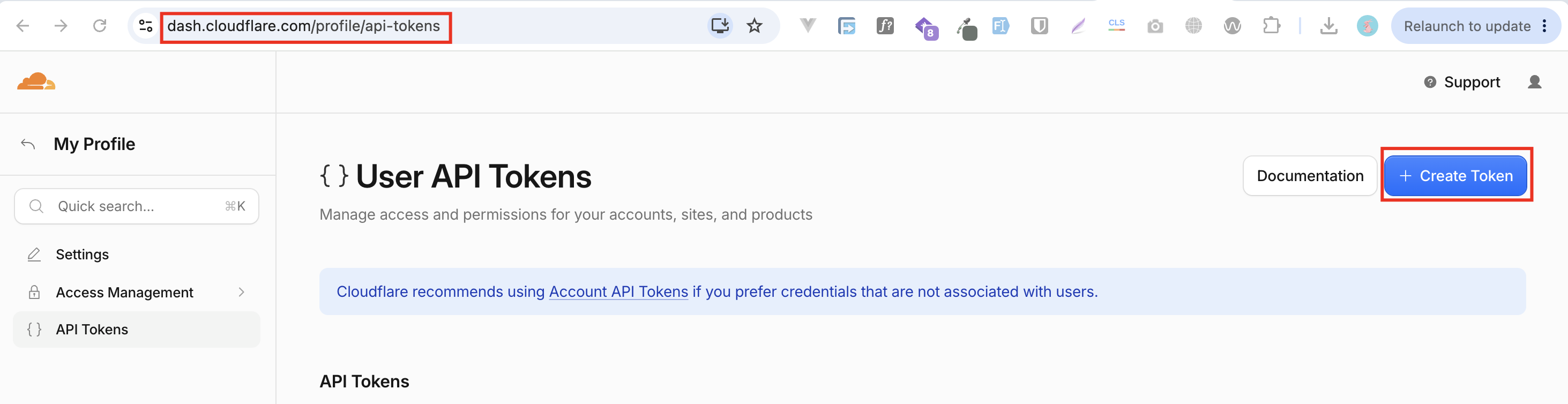
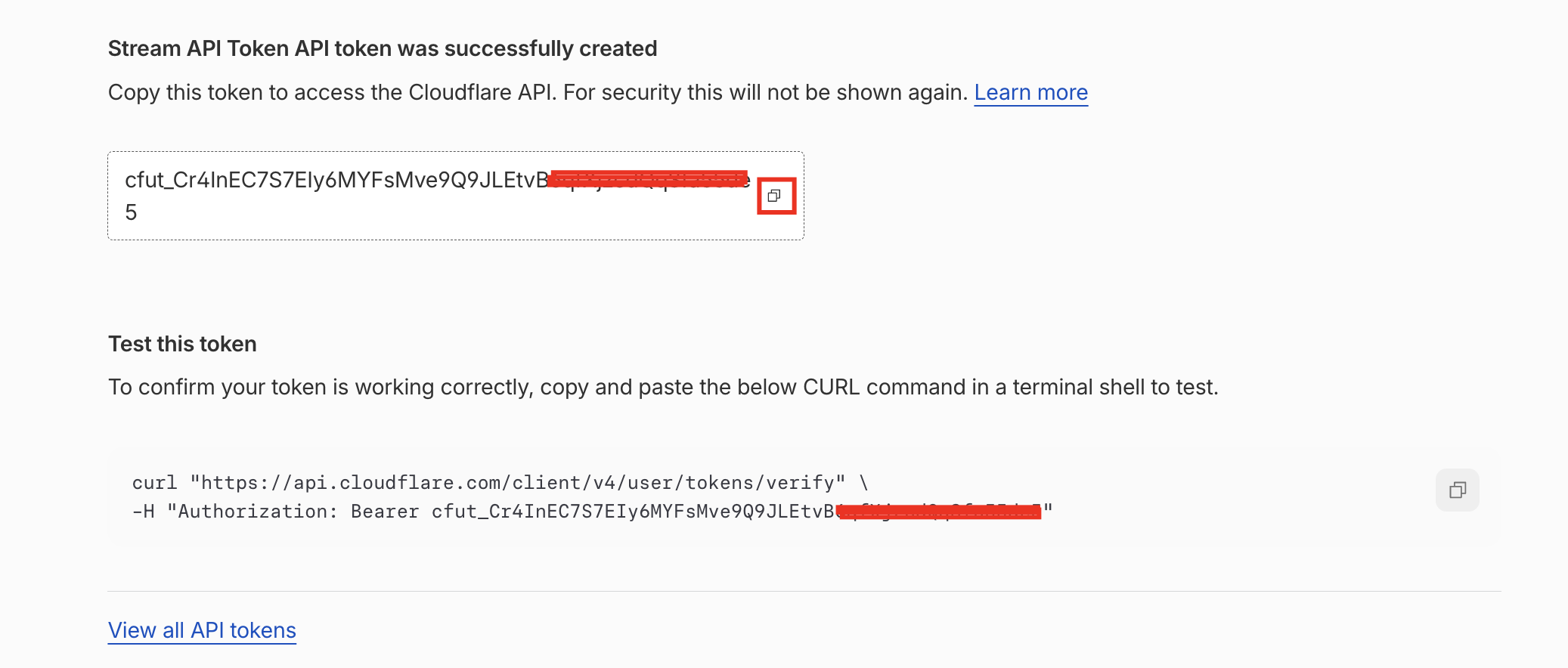
- In the Cloudflare dashboard, open My Profile → API Tokens, or use the direct link: https://dash.cloudflare.com/profile/api-tokens, then click Create Token.
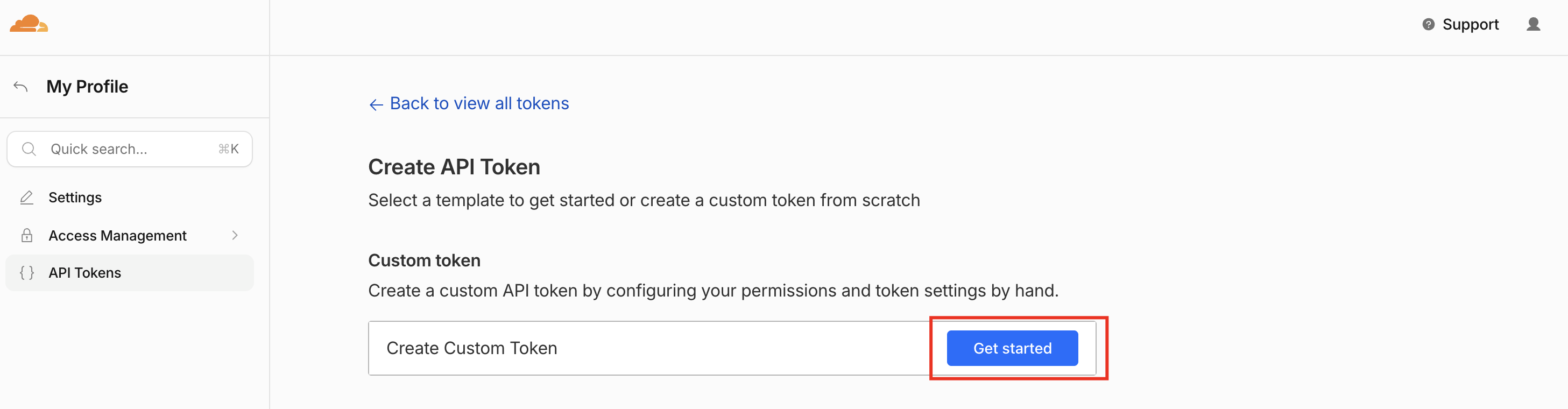
- Under Custom token, click Get started.
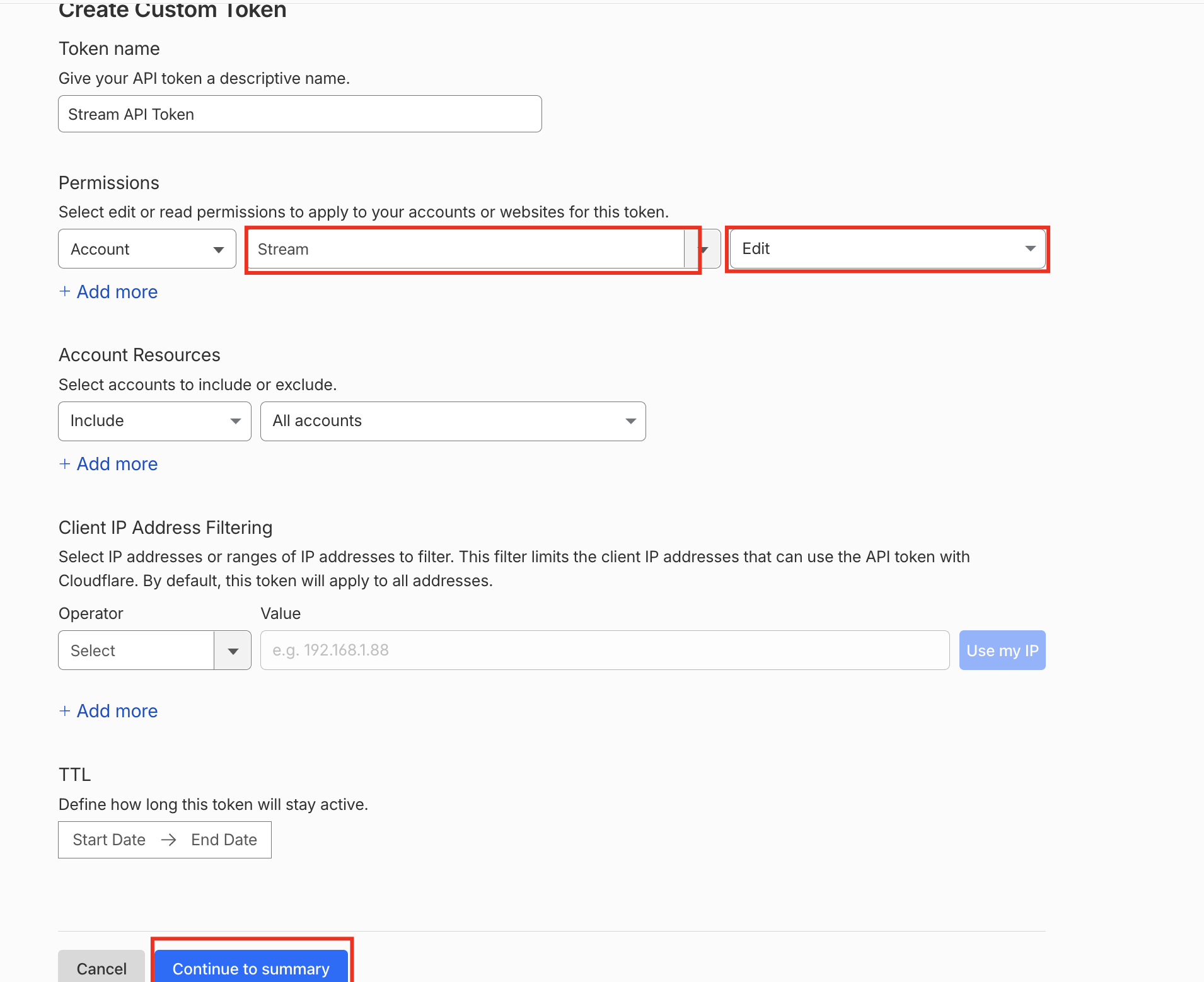
- Name the token, set Permissions to Account · Stream · Edit, and set Account Resources to Include → All accounts (or your specific account). Leave IP filtering and TTL blank, then click Continue to summary.
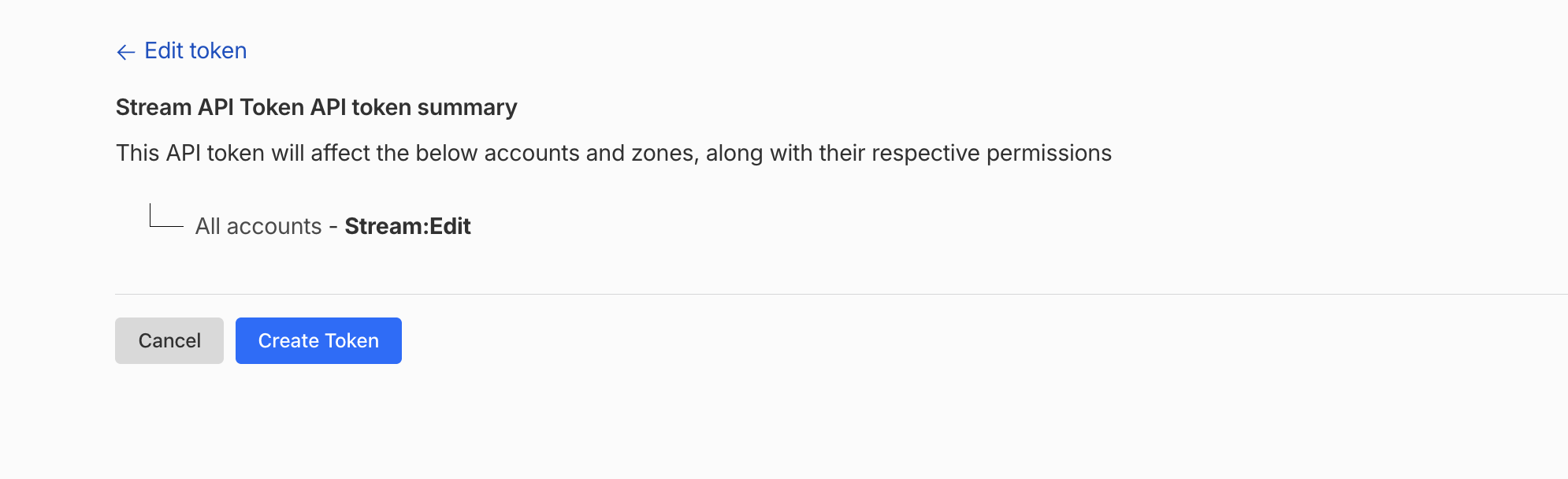
- Review the summary (All accounts – Stream:Edit) and click Create Token.
- Copy the token now — Cloudflare shows it only once.
Step 2 — Find your Account ID
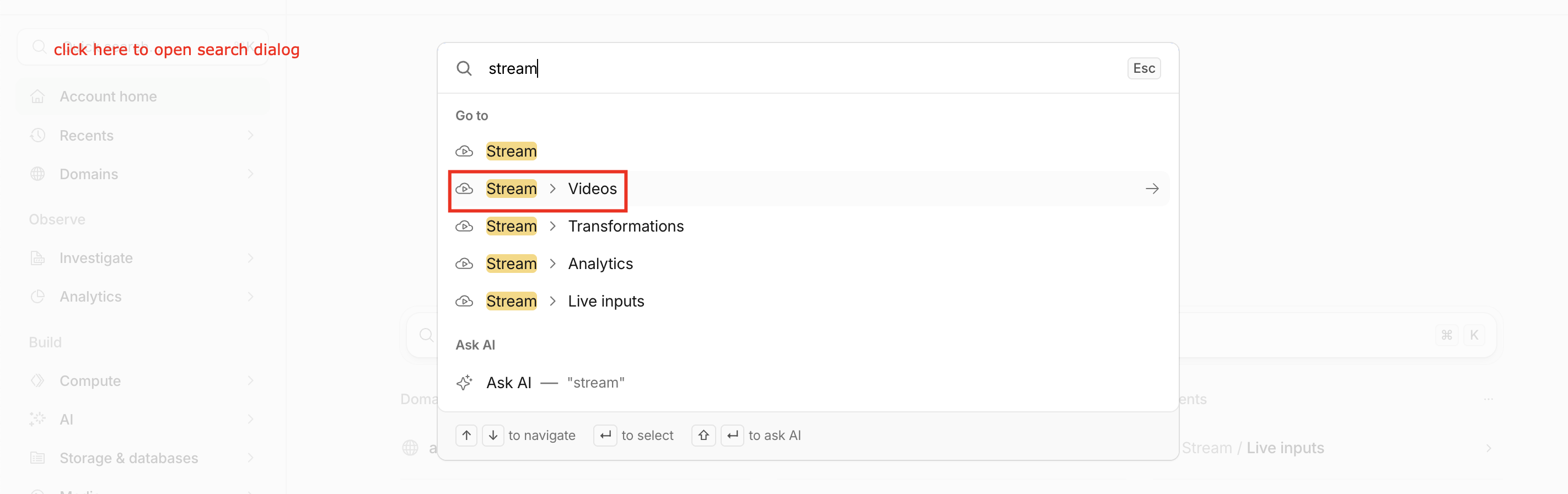
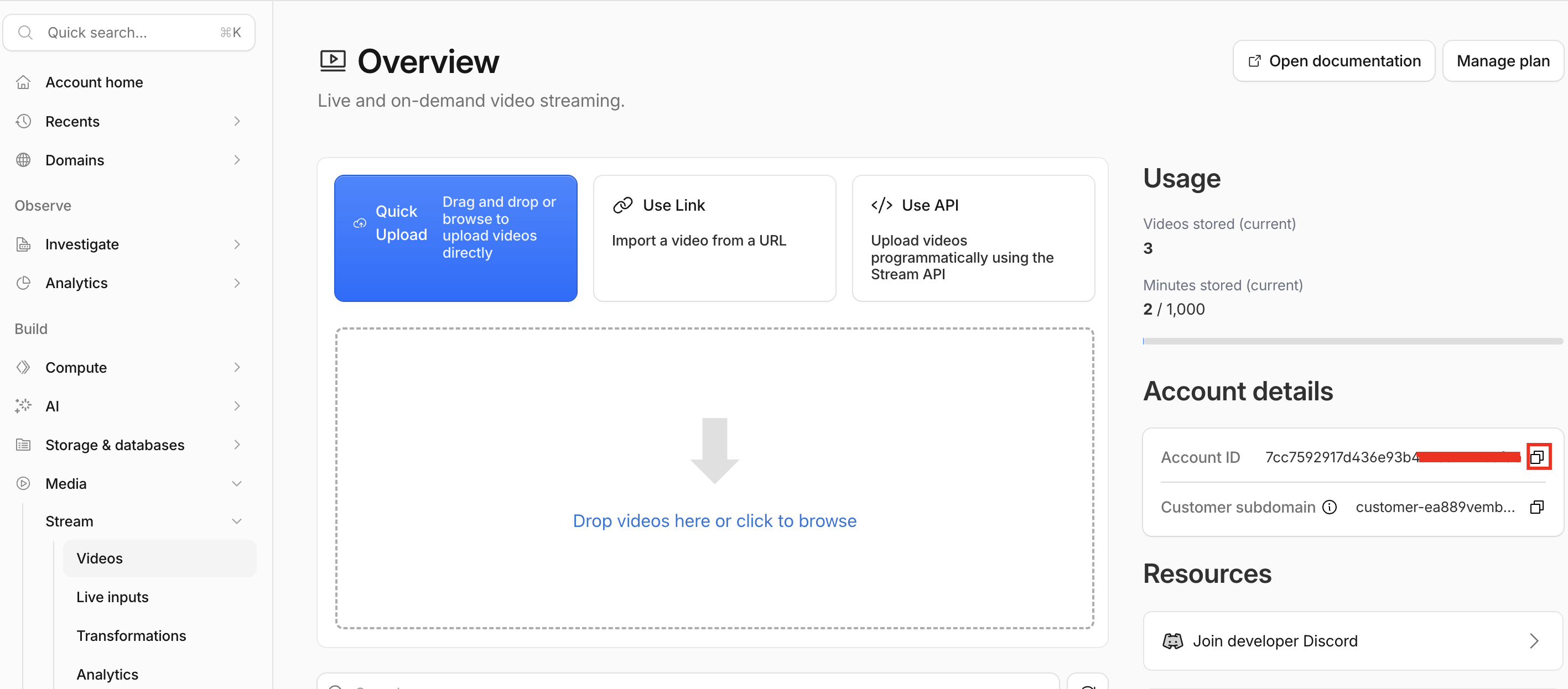
Your Account ID is the 32-character value in any dashboard URL — dash.cloudflare.com/<account-id> — or in the right sidebar of the Stream page, labelled Account ID. It is not the Zone ID, the token's ID, or your email.
Step 3 — Connect Cloudflare Stream in Ink Player
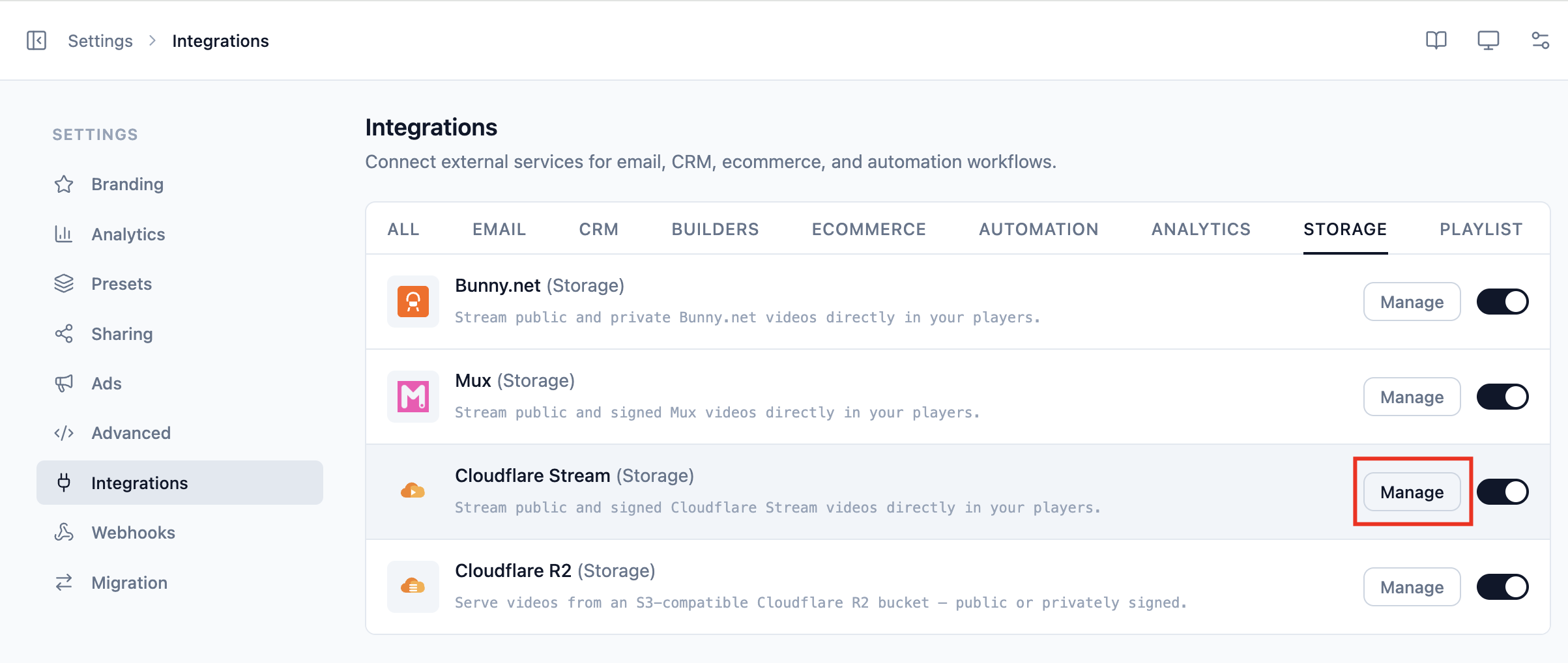
- Go to Settings → Integrations and enable Cloudflare Stream (under the Storage category), then click Manage.
- Paste your Account ID and API Token, click Send test to verify, then Save changes.
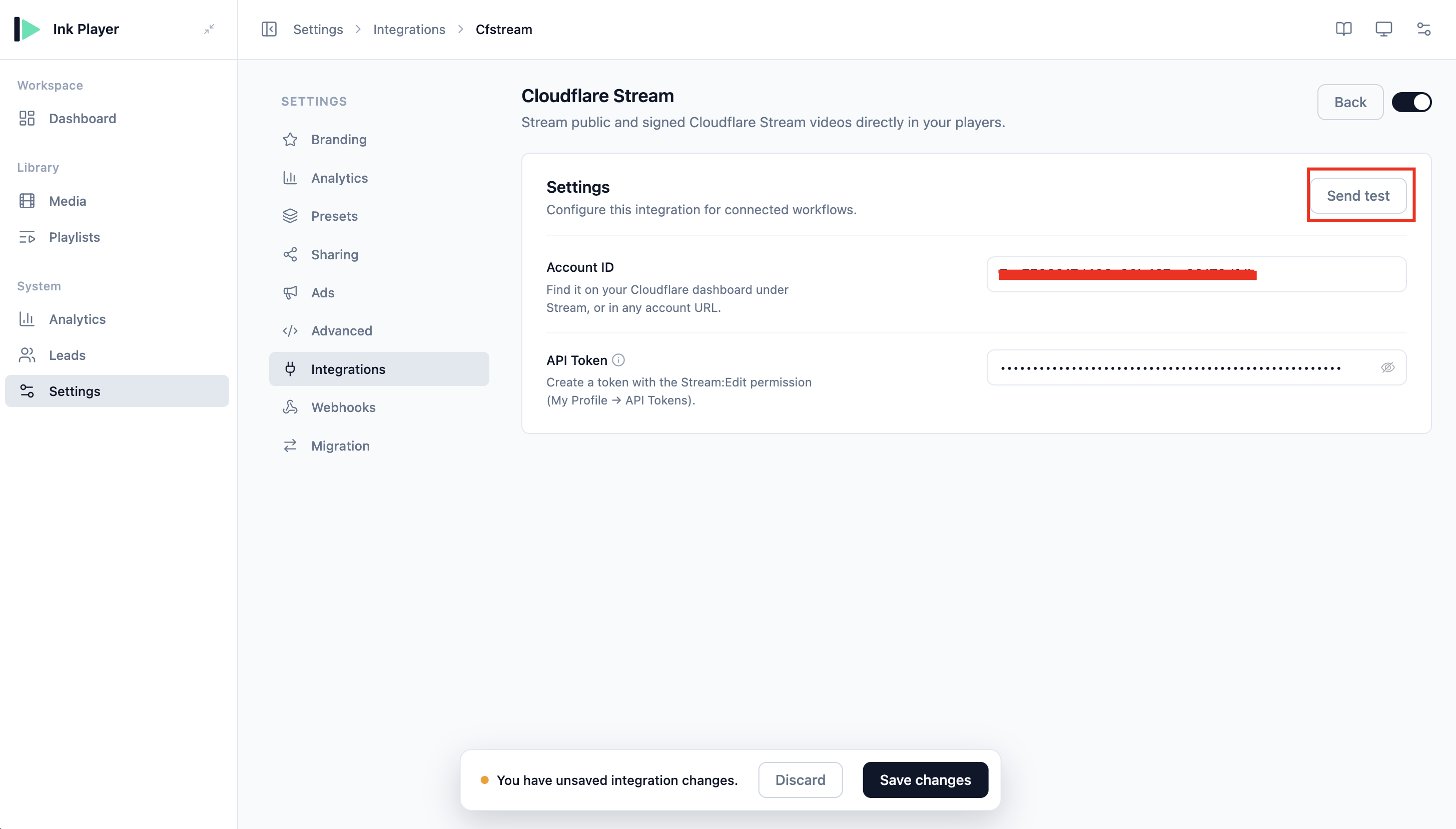
On save, Ink Player provisions a signing key for you in the background, so signed (private) playback works immediately — there is nothing else to configure. (Hover the ⓘ next to the API Token field for the subscription note.)
TIP
If you change the Account ID later, Ink Player re-provisions the signing key automatically on the next save.
Step 4 — Add Cloudflare Stream media
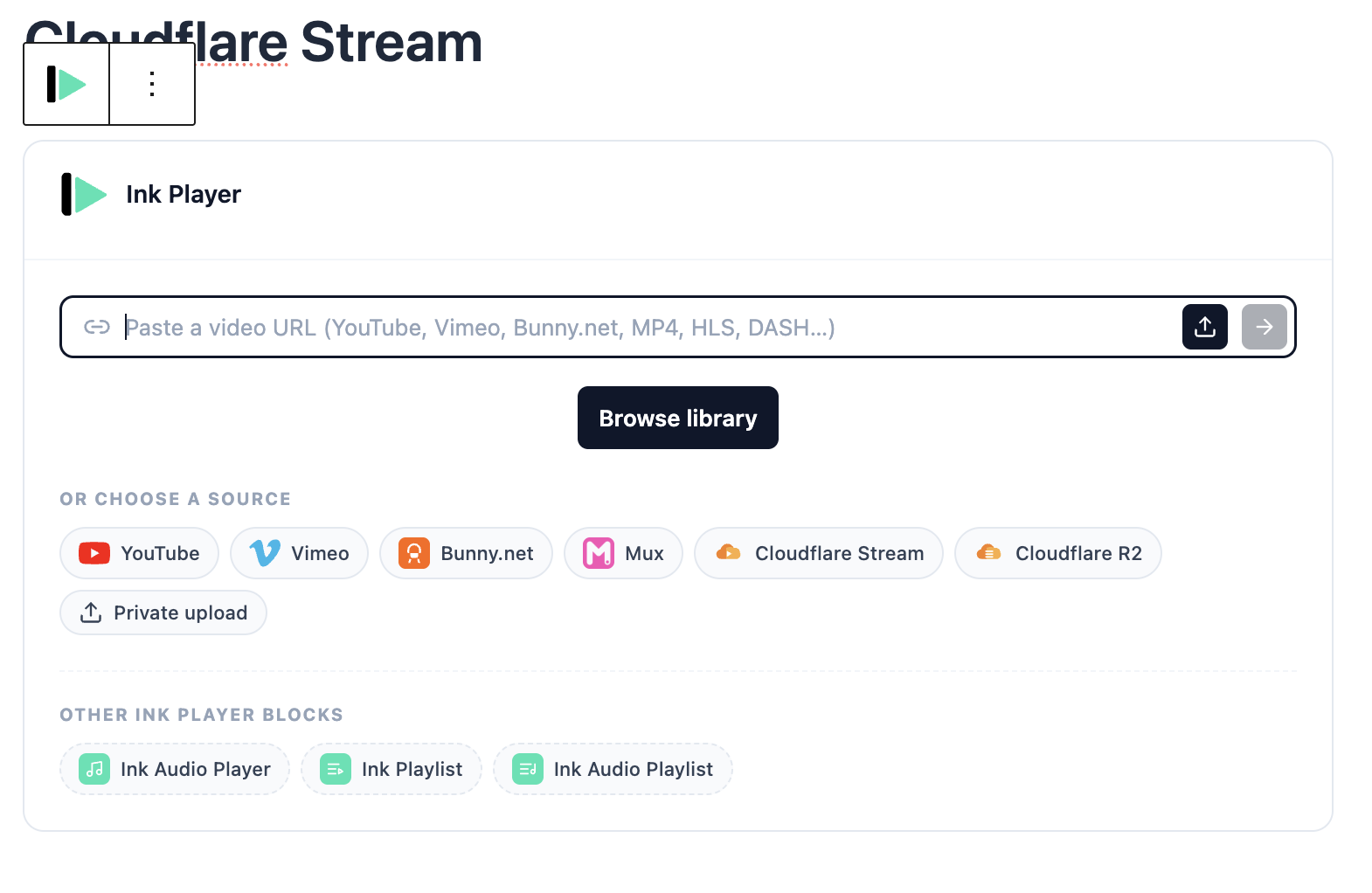
- Add an Ink Player block (or open Add video in your Media library).
- Under Choose a source, click Cloudflare Stream.
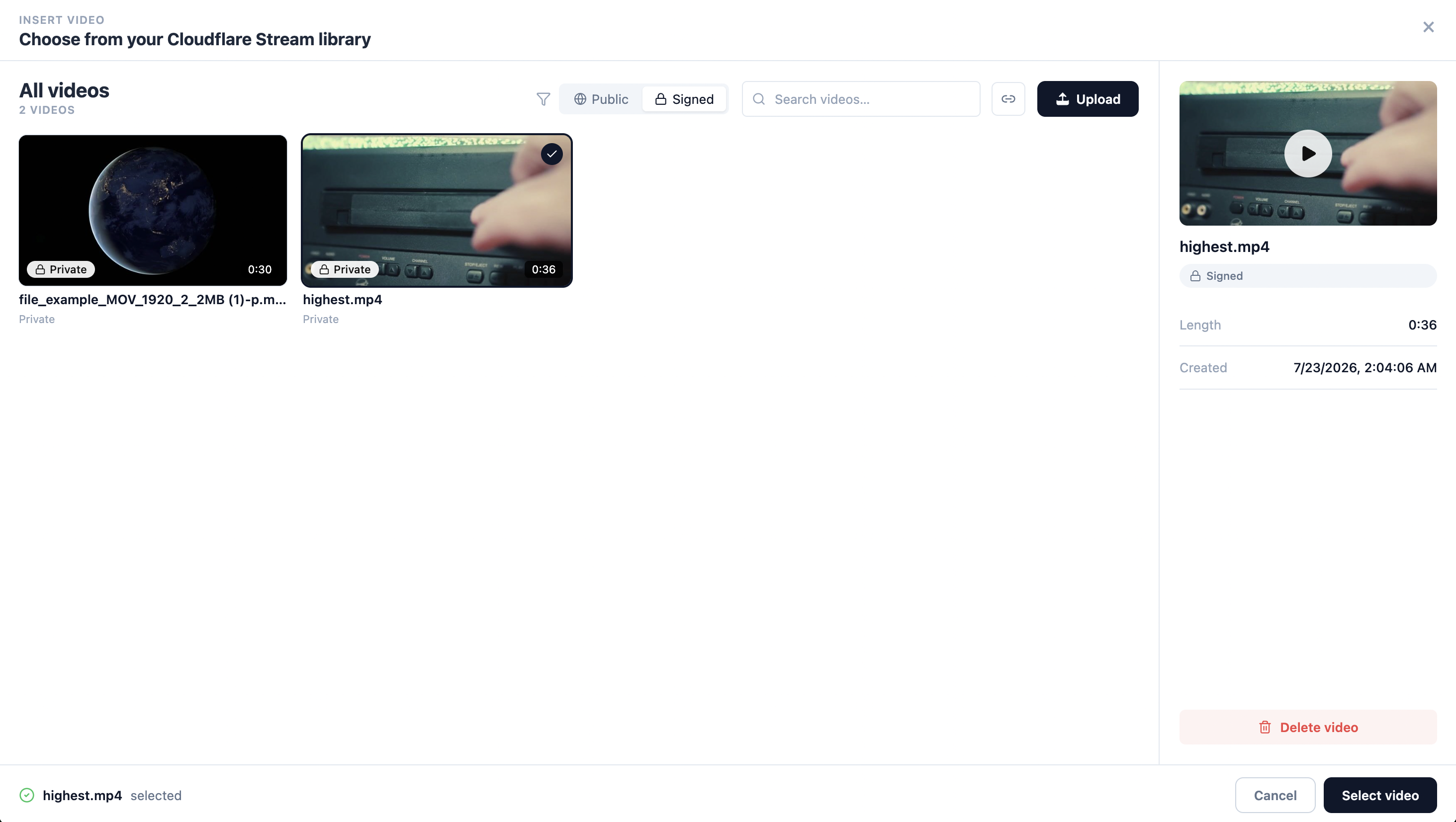
- In the media picker, use the Public / Signed toggle to choose how the video you insert is delivered, then search or browse your videos, Upload a new file, and select a video and click Select video.
Import from a URL
Cloudflare can ingest a video straight from a public link. In the picker, click the link icon to reveal the import bar, paste a public, direct video URL, and click Import. Cloudflare processes the video and it appears in your library once it is ready.
Step 5 — The player renders
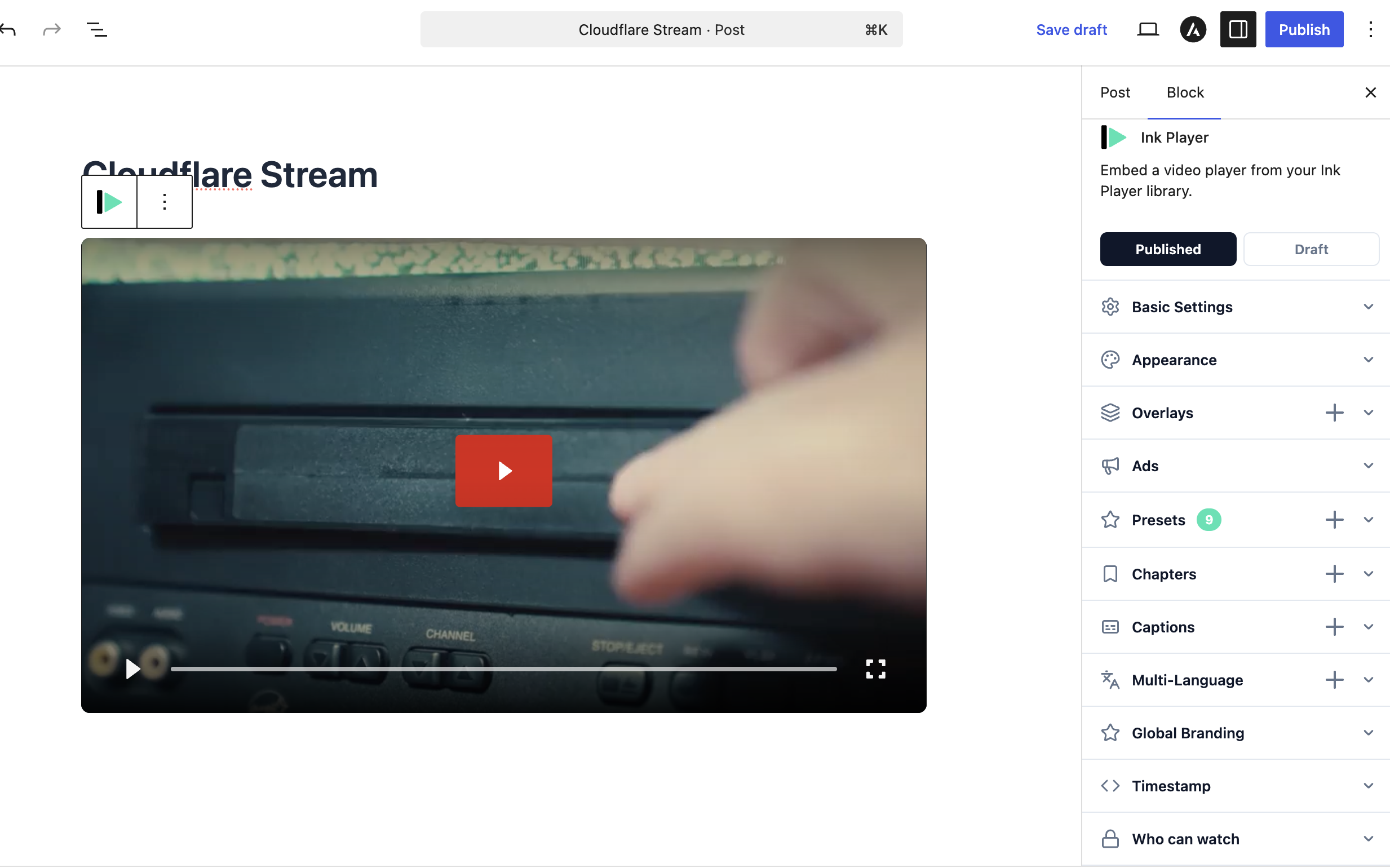
The selected video is added to your Media library and renders as an Ink Player — ready to place in a post, page, or builder, with all the usual player settings, presets, and overlays. Signed videos are re-signed with a fresh, short-lived token on every render.
Playback policies
Every Cloudflare Stream video is played under one of two policies:
- Public — anyone with the URL can play the video.
- Signed — Ink Player generates an expiring, unforgeable RS256 JWT-signed URL using the auto-provisioned signing key.
The Public / Signed toggle in the picker sets the policy for the video you insert; a video uploaded with Signed selected has Require Signed URLs enabled in Cloudflare.
WARNING
Signed playback protects the stream URL — the link is unforgeable and expires — but it does not by itself stop a logged-in viewer from sharing a link while it is still valid. A public video placed on a gated page is gated at the page, but its URL remains reachable to anyone who has it. Choose signed when you need the stream URL itself to be protected.
Settings reference
| Field | Required | Notes |
|---|---|---|
| Account ID | Yes | The 32-character Cloudflare account ID. |
| API Token | Yes | A token with Account · Stream · Edit permission; shown only once in Cloudflare. |
The signing key used for signed playback is created and stored automatically on save — there are no signing-key fields to fill in.
INFO
For how playback policies fit into protecting your content, see Access control.