

Appearance
AutomatorWP
AutomatorWP is a no-code automation plugin for WordPress — it connects your plugins so that when something happens, it does something else. With this integration enabled, Ink Player becomes a trigger source: viewer actions like finishing a video, hitting a progress milestone, or submitting a lead form can kick off any AutomatorWP action — send an email, add a user to a course, grant a role, push to your CRM, fire a webhook, and more.
What this integration does
Adds an Ink Player integration to AutomatorWP with triggers for:
- A viewer plays a media — playback starts.
- A viewer reaches a progress milestone — 25%, 50%, or 75% watched.
- A viewer completes a media — watched to the end (at least 95%).
- A viewer completes a playlist — every item in the playlist finished.
- A viewer unlocks protected media — the correct password is entered.
- A viewer submits a lead form — an email opt-in is captured (also available as a guest trigger for logged-out visitors).
Each trigger can be filtered to a specific media item or playlist, and exposes tags (the media title, watch percentage, lead email, and more) that you can drop into the actions that follow.
How AutomatorWP works
Every AutomatorWP automation has two halves:
| Half | Labelled | What it is |
|---|---|---|
| Trigger | "When this happens" | The event that starts the automation. Ink Player provides the triggers above. A trigger on its own has no visible effect. |
| Action | "Do this" | What actually happens once the trigger fires — send an email, add a role, etc. |
An automation only does something when you pair an Ink Player trigger with one or more actions.
One trigger per automation (usually)
If you add several triggers to one automation, the viewer must complete all of them before the actions run (and, with Sequential switched on, in order). To make each event fire its own outcome, give each trigger its own automation.
Step 1 — Enable the integration
- Install and activate the AutomatorWP plugin on your site.
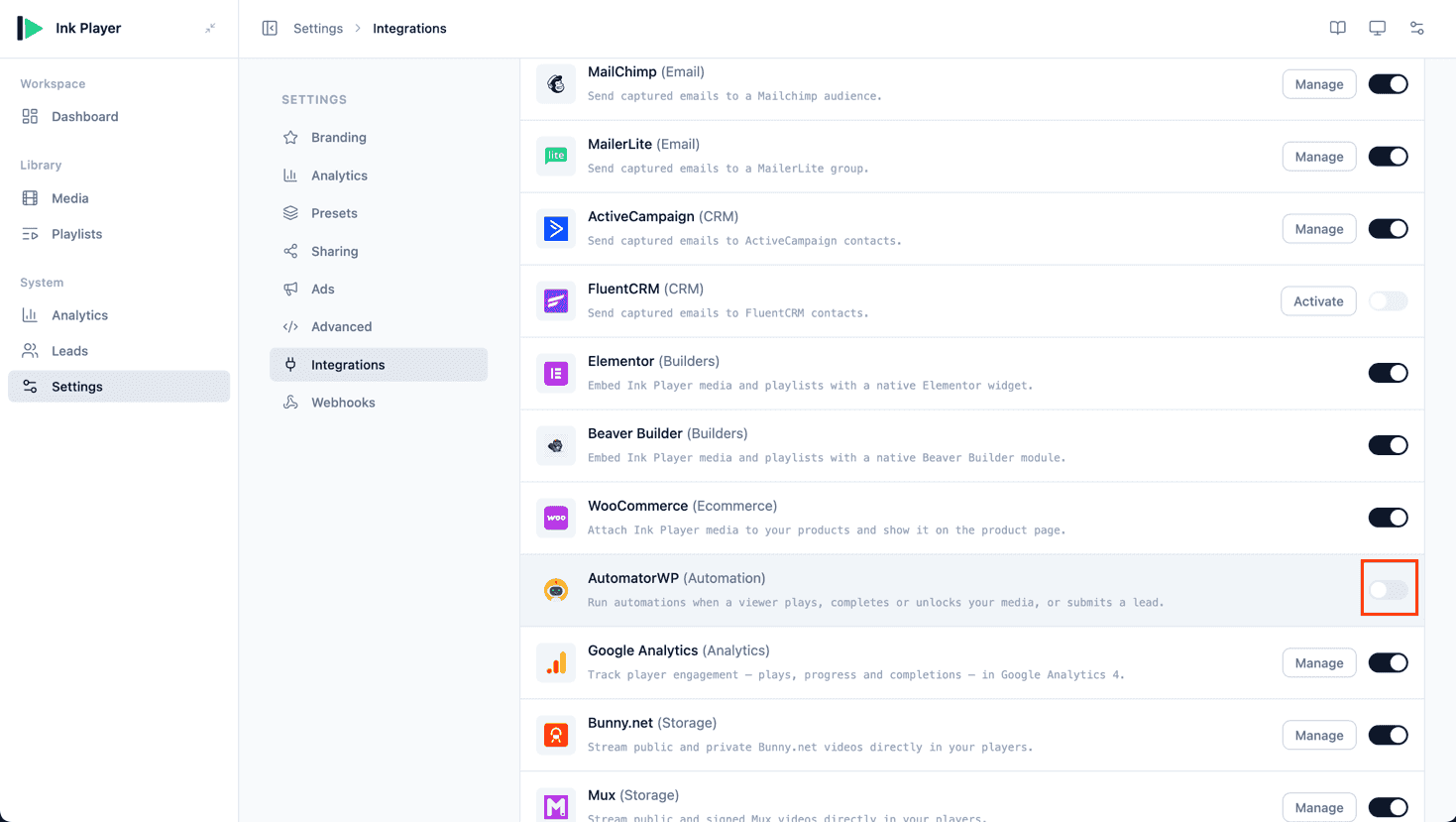
- Go to Settings → Integrations.
- Find the AutomatorWP card under the Automation category and flip Enable on.
Step 2 — Add an Ink Player trigger
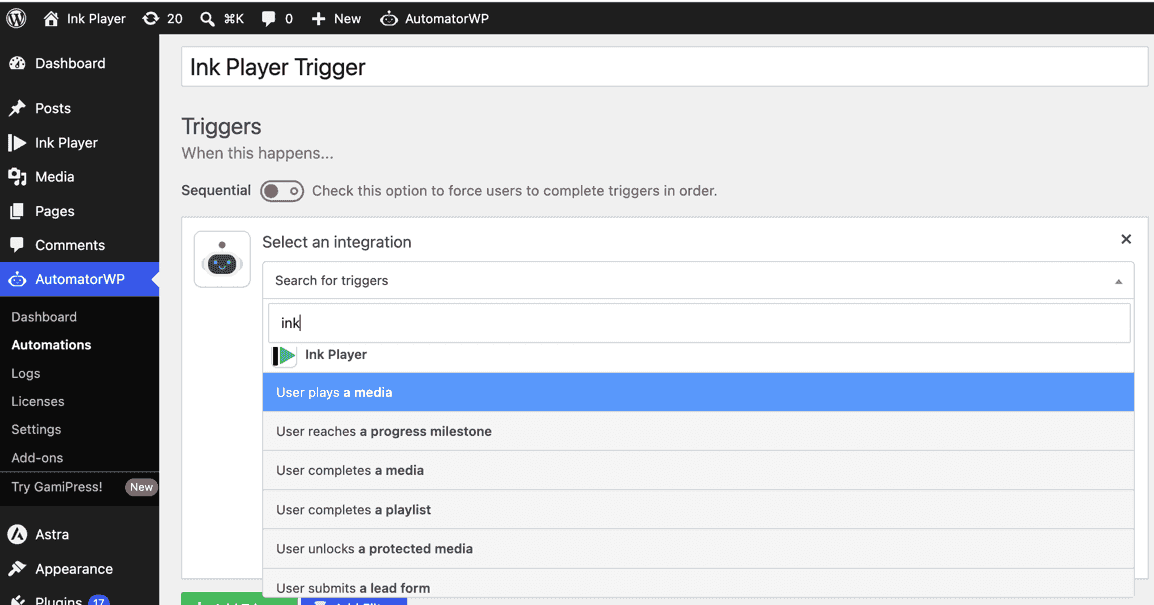
In WordPress, go to AutomatorWP → Automations → Add automation and choose a User automation (or Anonymous, for the guest lead trigger). Click Add trigger, pick the Ink Player integration, and choose one of its triggers.
Step 3 — Configure the trigger
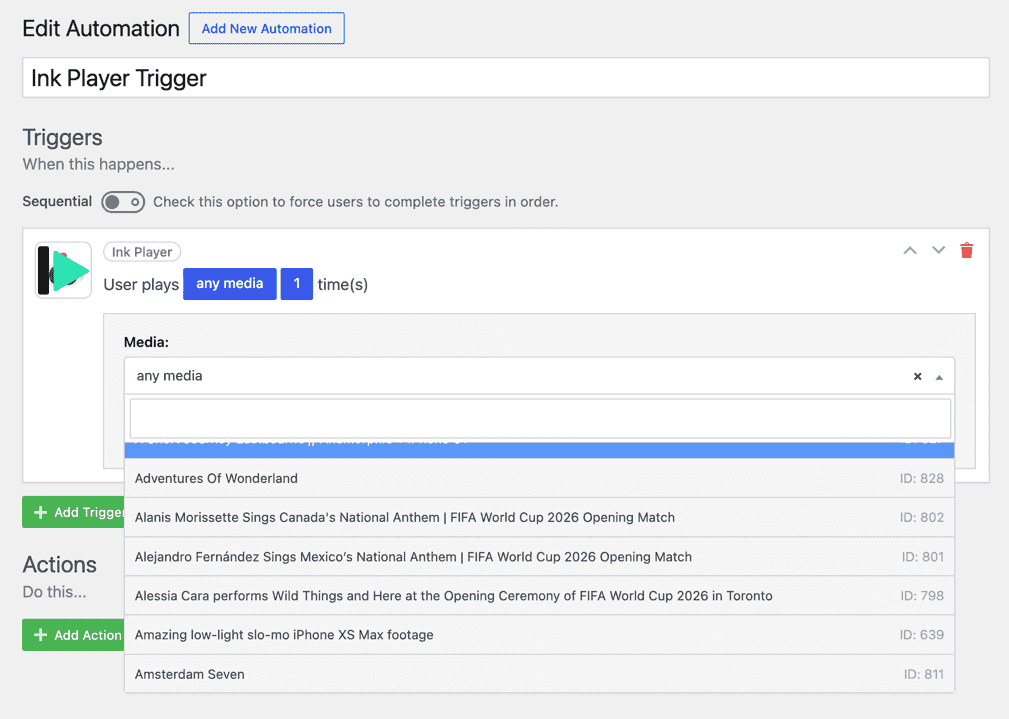
Fill in the trigger's options. The blue words in the trigger sentence are editable:
| Option | What it does |
|---|---|
| Media | Limit the trigger to one media item, or leave it as any media. |
| Playlist | (Playlist trigger only) the playlist that must be completed. |
| Milestone | (Progress trigger only) which point to fire at — 25%, 50%, 75%, or any milestone. |
| Times | How many times the viewer must do it before the trigger fires. 1 fires on the first occurrence. |
"Times" is a count, not a duration
Times means the number of occurrences — e.g. plays a media 3 time(s) fires on the third play. It has nothing to do with seconds or how long the video is. Use 1 while testing.
Step 4 — Add an action
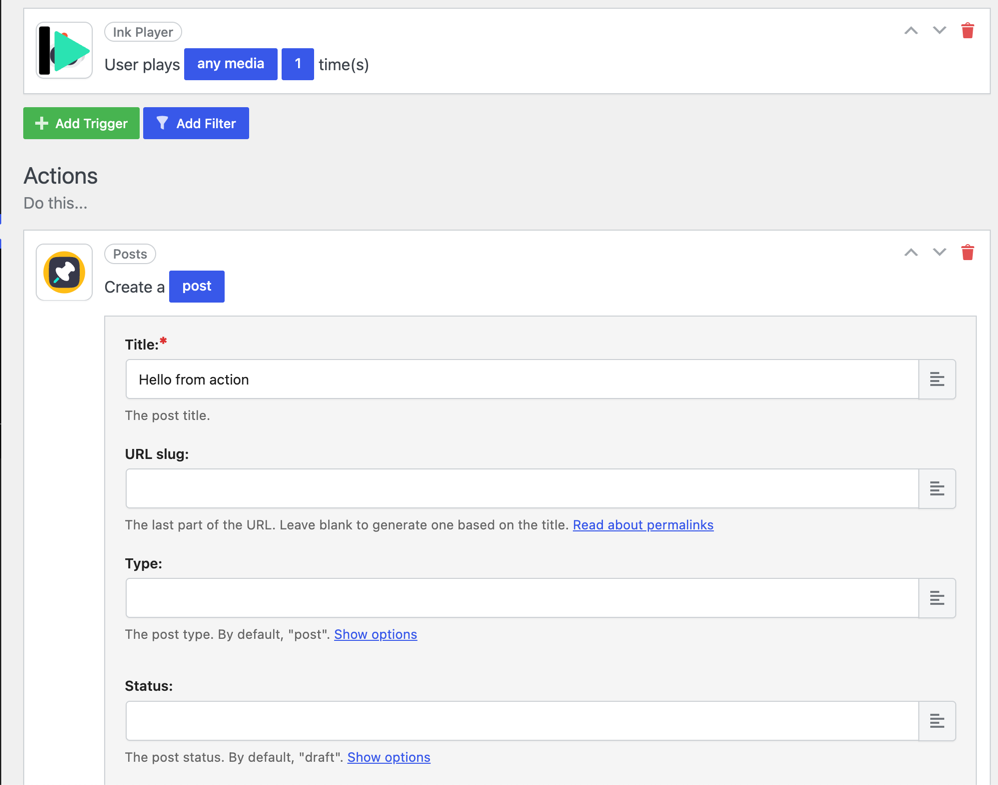
Click Add action and choose what should happen — for example Send an email, Add the user to a role, or (as below) Create a post. You can insert Ink Player tags (see below) into the action's fields — for instance a post title or an email body that says "Thanks for finishing {Media title}!"
Step 5 — Publish and watch it run
Publish the automation, then perform the action as a viewer — watch a video, unlock a media, submit a lead form. AutomatorWP records each run in the automation's Logs: a Trigger entry when your trigger fires, an Action entry for each action, and an Automation entry once every trigger is met and the actions run.
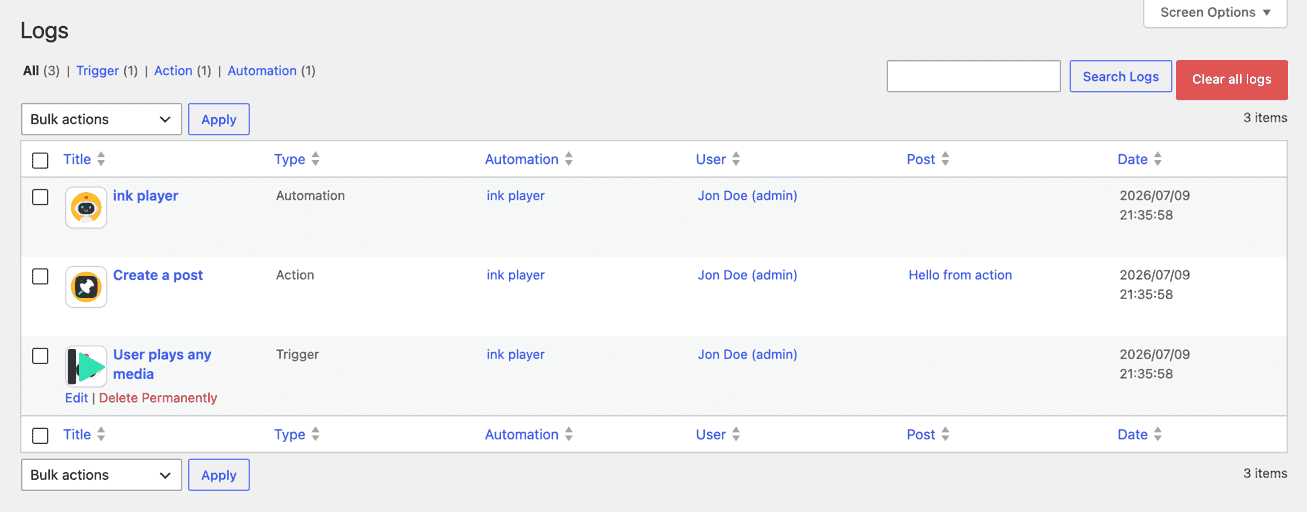
The action's result then appears wherever it applies — here, the automation created the post defined by its Create a post action.

Triggers reference
| Trigger | Fires when | Options |
|---|---|---|
| User plays a media | A signed-in viewer starts playback. | Media, Times |
| User reaches a progress milestone on a media | A viewer crosses 25% / 50% / 75% watched. | Media, Milestone, Times |
| User completes a media | A viewer watches at least 95% of a media. | Media, Times |
| User completes a playlist | A viewer has completed every item in the playlist. | Playlist, Times |
| User unlocks a protected media | A viewer enters the correct password on protected media. | Media, Times |
| User submits a lead form | A signed-in viewer submits a lead / email opt-in. | Media, Times |
| Guest submits a lead form | A logged-out visitor submits a lead form. Use in an Anonymous automation. | Media, Times |
Tags
Tags are placeholders you can drop into any action to insert data from the trigger. Available tags depend on the trigger:
| Tag | Value | Available on |
|---|---|---|
| Media ID / Title / UID / Type / Provider / Duration | Details of the media involved. | All media triggers |
| Watched percent | How much of the media was watched. | Play, progress, completed |
| Watched seconds | Seconds watched (excludes seeking). | Play, progress, completed |
| Milestone reached (%) | The milestone that fired (25/50/75). | Progress |
| Playlist ID / Title | The completed playlist. | Playlist completed |
| Completing media ID | The item that finished the playlist. | Playlist completed |
| Lead email / Lead name | The submitted lead's details. | Lead submitted |
| Times | How many times the trigger has run for this user. | All triggers |
Requirements
- The AutomatorWP plugin must be installed and active.
- Playback triggers (plays, progress milestone, completes, playlist completed) rely on view tracking — turn on Analytics in Ink Player settings.
- At least one Ink Player media item or playlist to trigger on.
Notes
- If the AutomatorWP card is missing, confirm the AutomatorWP plugin is active.
- Playlist completed fires only after the viewer finishes every item in the playlist (each watched to at least 95%) — completing a single item is not enough.
- Playback, unlock, and the standard lead trigger apply to signed-in users. For logged-out visitors, use the Guest submits a lead form trigger in an Anonymous automation — the submitted email gives the automation someone to act on.
- Ink Player media and playlists are picked from your library (not WordPress posts), so the trigger's Media and Playlist fields search your Ink Player content directly.
- Deleted media and playlists never appear in the pickers or fire triggers.