

Appearance
LearnDash
LearnDash is an LMS integration. It makes Ink Player a LearnDash Video Progression video: add an Ink Player video to a lesson or topic, and students must watch it to the end before they can mark the step complete. LearnDash's own Video Progression settings keep working.
What this enables
- Mark Complete stays locked until the video ends — LearnDash checks it on the server, so it can't be skipped.
- Display Timing — show the video before the step's topics and quizzes, or only after they're completed.
- Lesson auto-completion and Completion delay — complete the step automatically when the video ends.
- Video Resume — students continue where they left off.
Prerequisites
- LearnDash installed and active.
- Your video added to Media. Copy its shortcode from the media row, for example
[ink_player id="123"].
Step 1 — Enable LearnDash in Ink Player
Go to Settings → Integrations, open the LMS tab, and turn on LearnDash. There are no settings to fill in.
Step 2 — Add the video to a lesson
- Edit a LearnDash Lesson or Topic and open its Settings tab.
- Turn on Video Progression.
- Paste your shortcode into Video URL, for example
[ink_player id="123"].
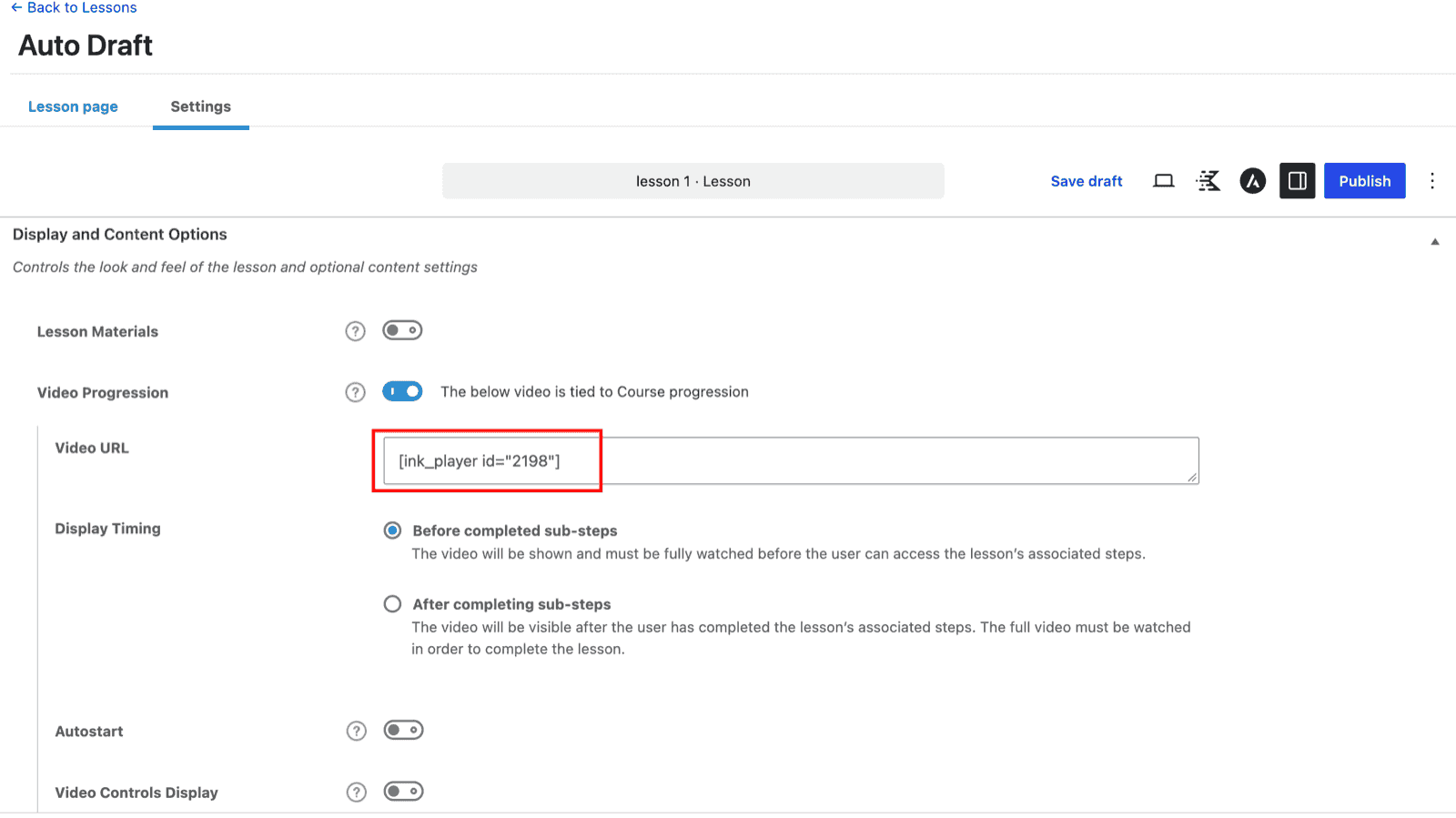
- Choose a Display Timing, and set Video Resume, auto-completion, and the other options as you like.
- Publish or Save the lesson.
TIP
Don't also add the Ink Player block to the lesson content — LearnDash shows the Video URL video for you, in the place your Display Timing sets.
Step 3 — What students see
- The video plays as an Ink Player, with all your player settings, presets, and overlays. Mark Complete stays disabled until the video ends. With Before completed sub-steps, the step's topics and quizzes are hidden until then too.
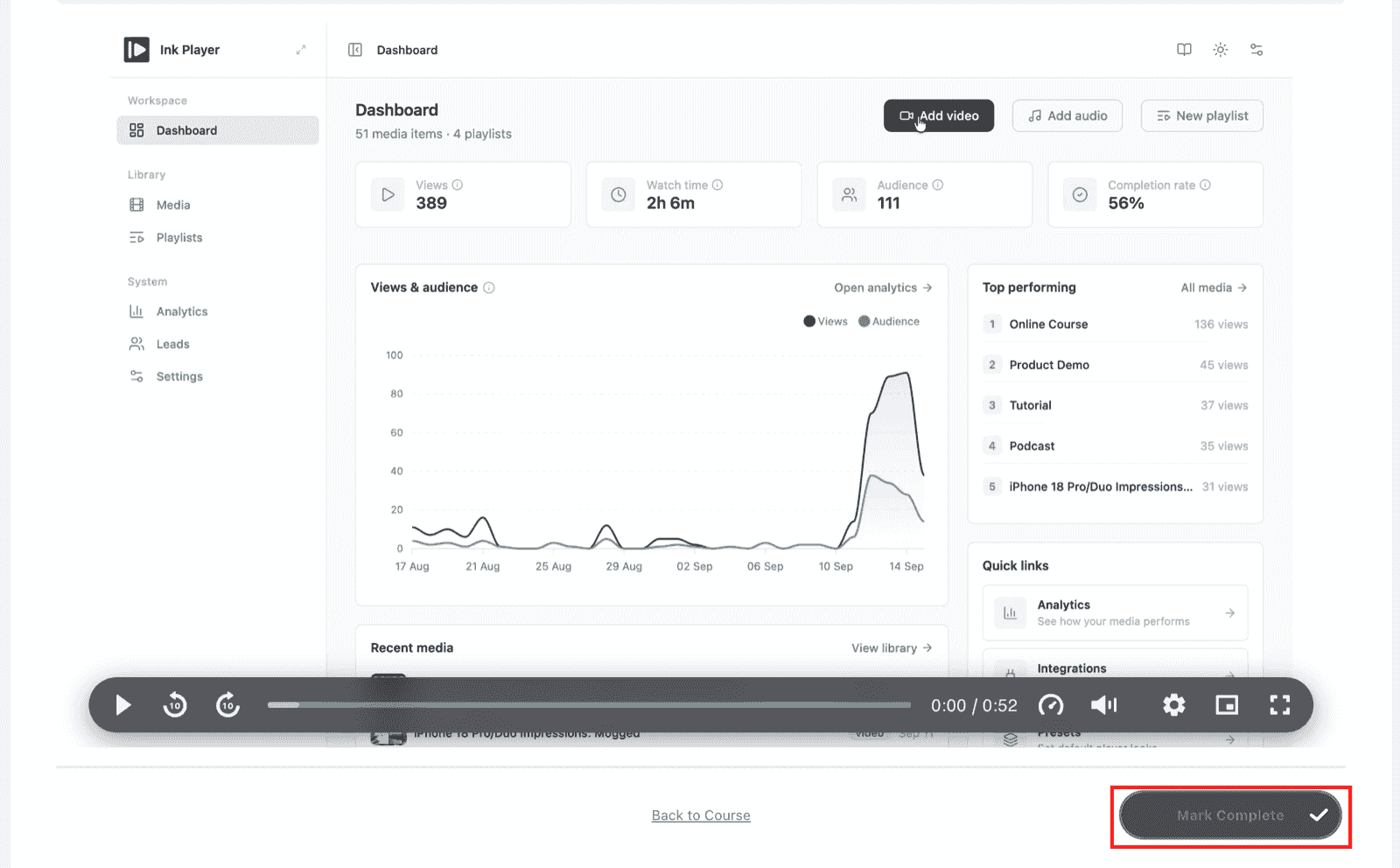
- When the video ends, the button unlocks — or the step completes on its own if auto-completion is on.
- After the step completes, LearnDash shows its "Great Job! You've completed this lesson" message with a Next Lesson button.
TIP
To go straight to the next lesson instead of the message, turn on Automatic Progression under LearnDash LMS → Courses → Settings.
Notes
- Students who already completed the step, and admins who can bypass course progression, are never locked.
- Progress is saved in the same browser cookie LearnDash uses for its own videos.