

Appearance
LifterLMS
LifterLMS is an LMS integration. When a lesson has an Ink Player video, students must watch it to the end before they can complete the lesson — and the lesson can complete and move on by itself when the video ends. It works with the free LifterLMS plugin; no add-on is needed.
What this enables
- Require video completion — Mark Complete and Take Quiz stay locked until the video ends. LifterLMS also refuses the completion on the server, so it can't be skipped.
- Auto-advance — when the video ends, a short countdown appears, then the lesson completes and the next lesson opens and starts playing.
Prerequisites
- LifterLMS installed and active.
- Your video added to Media.
Step 1 — Enable LifterLMS in Ink Player
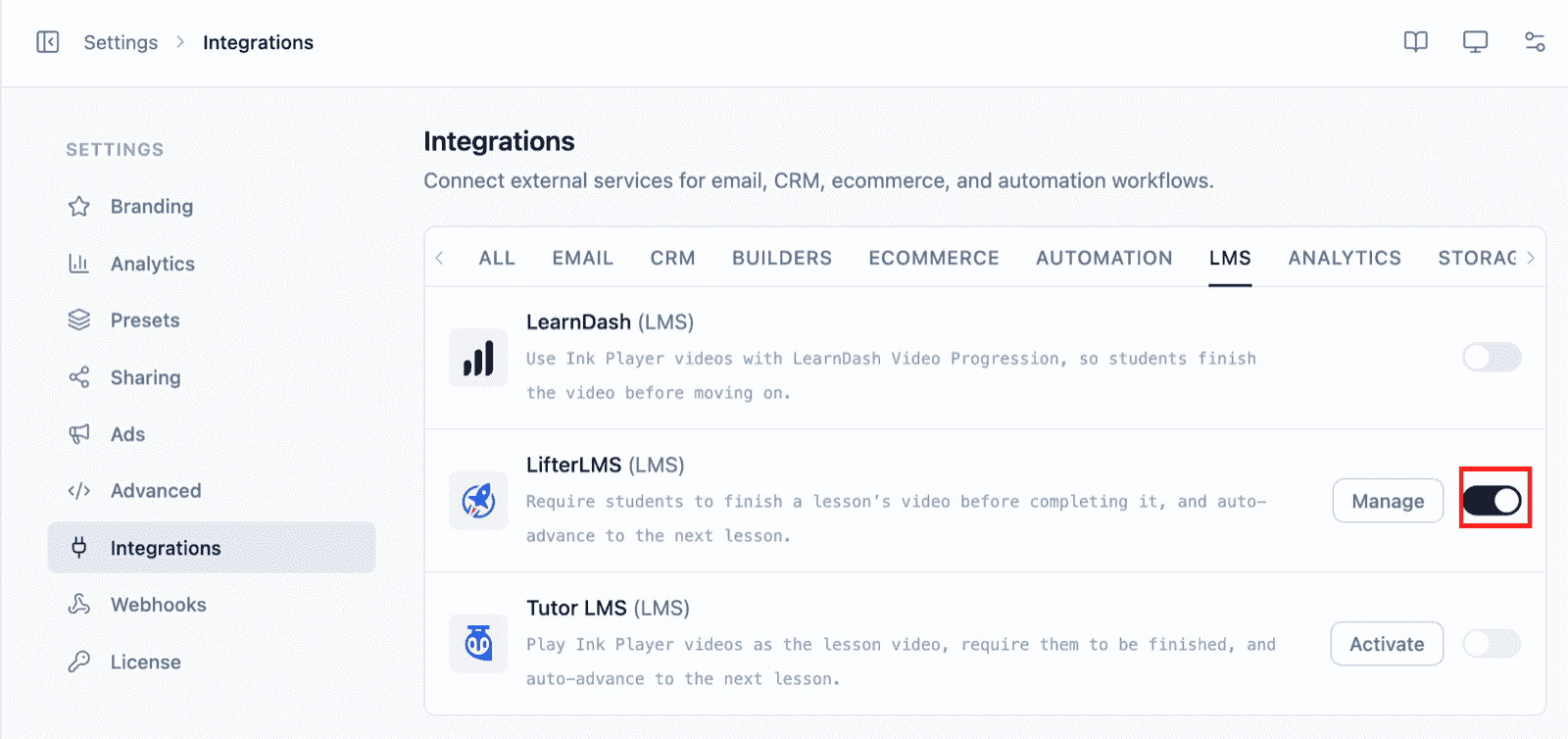
- Go to Settings → Integrations, open the LMS tab, and turn on LifterLMS.
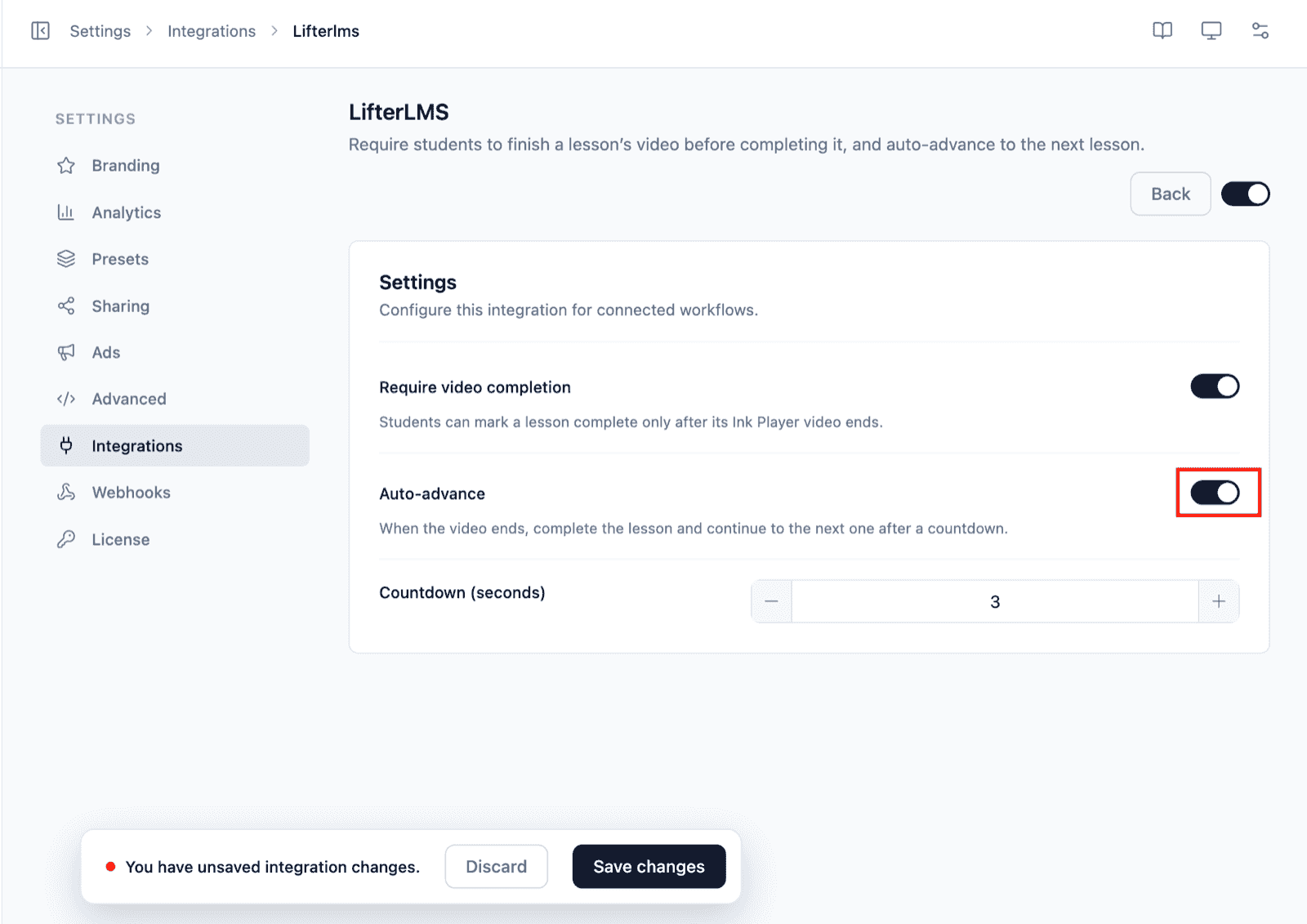
- Click Manage to choose Require video completion, Auto-advance, and the Countdown, then Save changes.
Step 2 — Add the video to a lesson
- Open your course in the Course Builder and click a lesson's Settings.
- Paste your shortcode into the lesson Content, for example
[ink_player id="123"].
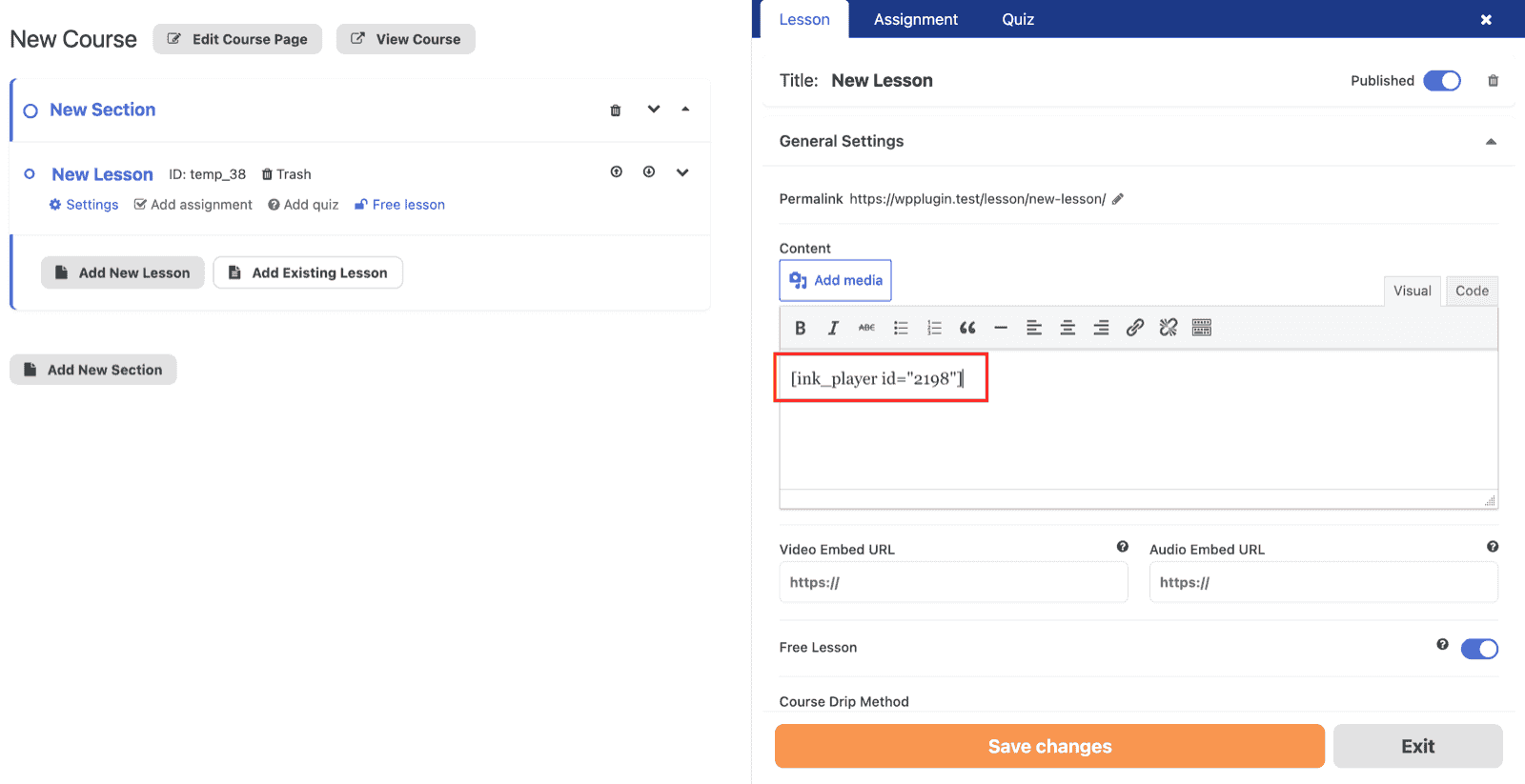
- Click Save changes.
You can also edit the lesson in the block editor and add the Ink Player block to its content instead.
TIP
Leave the lesson's Video Embed URL field empty — the Ink Player video goes in the lesson content.
Step 3 — What students see
- Mark Complete is disabled, with the hint "Watch the video to continue."
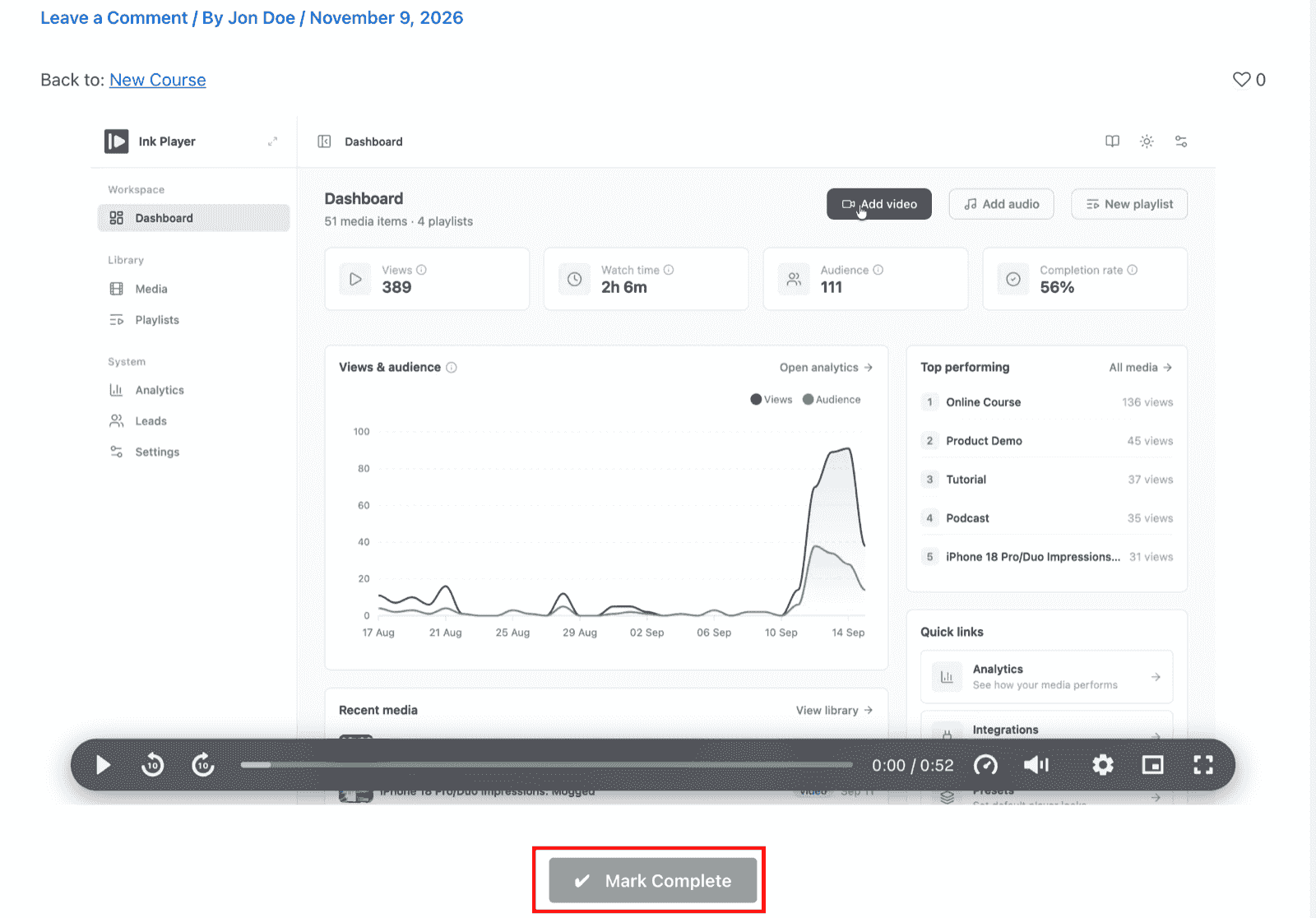
- When the video ends, the button unlocks. Clicking it completes the lesson and LifterLMS opens the next one.
- With Auto-advance on, "Continuing in 3…" counts down, the lesson completes on its own, and the next lesson opens and starts playing.
Settings reference
| Setting | Default | What it does |
|---|---|---|
| Require video completion | On | Students can complete a lesson only after its Ink Player video ends. |
| Auto-advance | Off | When the video ends, complete the lesson and continue to the next one after the countdown. |
| Countdown (seconds) | 5 | How long the countdown runs before the lesson completes. |
Notes
- Lessons without an Ink Player video, and lessons a student already completed, are never locked.
- Instructors can still mark a lesson complete for a student from the admin.
- Auto-advance only autoplays the next lesson it opens. After a manual Mark Complete, the next lesson's video waits for the student to press play.
- If the browser blocks autoplay with sound, the next video starts muted.
- Lock and auto-advance apply to logged-in students; LifterLMS only records completion for them.