

Appearance
Tutor LMS
Tutor LMS is an LMS integration. Use an Ink Player video as a lesson's video, and students must watch it to the end before they can complete the lesson — and the lesson can complete by itself and move on when the video ends.
What this enables
- Ink Player as the lesson video — through Tutor's Shortcode video source.
- Require video completion — Mark as Complete stays locked until the video ends. Tutor also refuses the completion on the server, so it can't be skipped.
- Auto-advance — when the video ends, a short countdown appears, the lesson completes on its own, and the next lesson opens and starts playing.
Prerequisites
- Tutor LMS installed and active.
- Your video added to Media. Copy its shortcode from the media row, for example
[ink_player id="123"].
Step 1 — Enable Tutor LMS in Ink Player
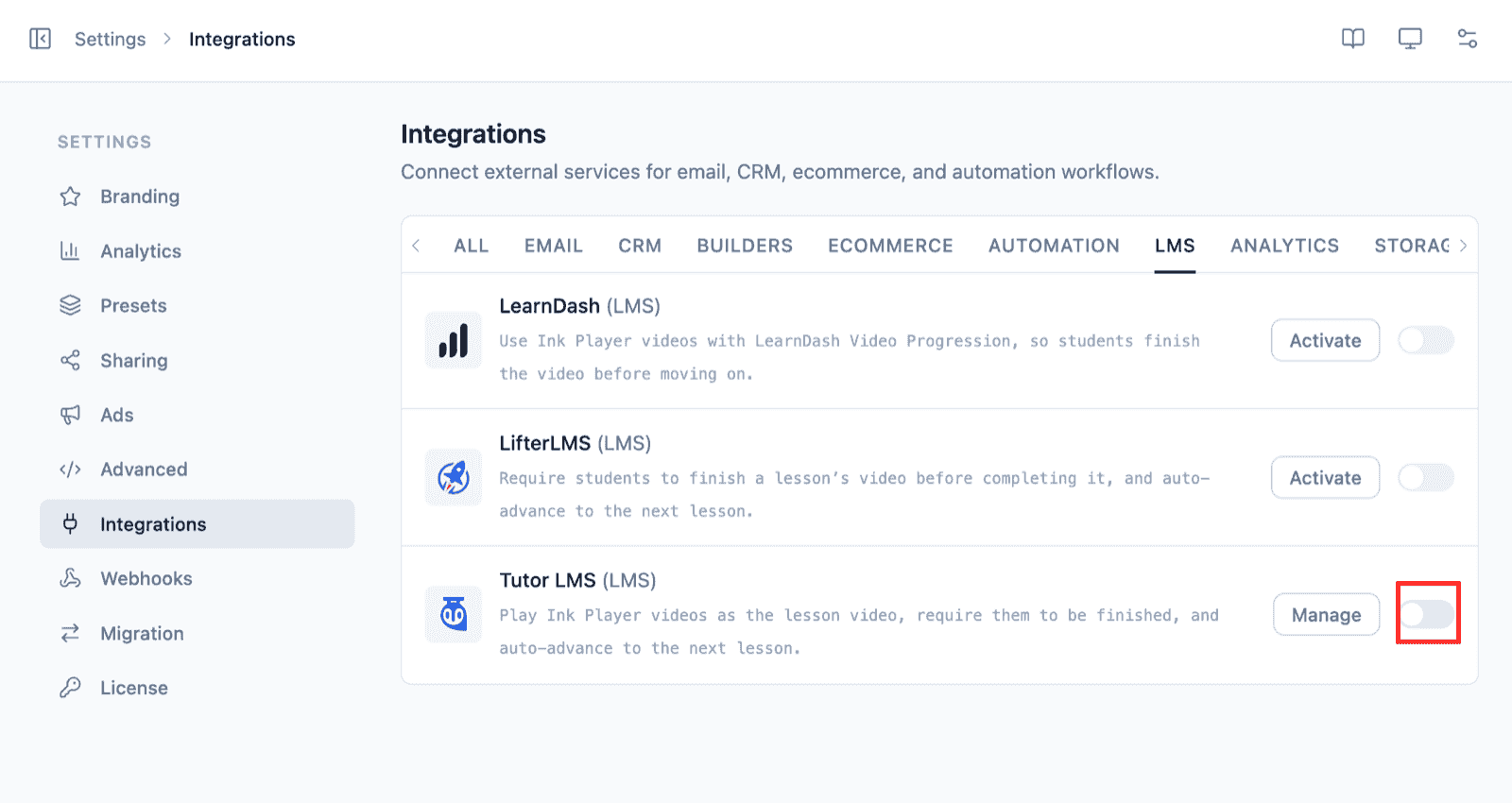
- Go to Settings → Integrations, open the LMS tab, and turn on Tutor LMS.
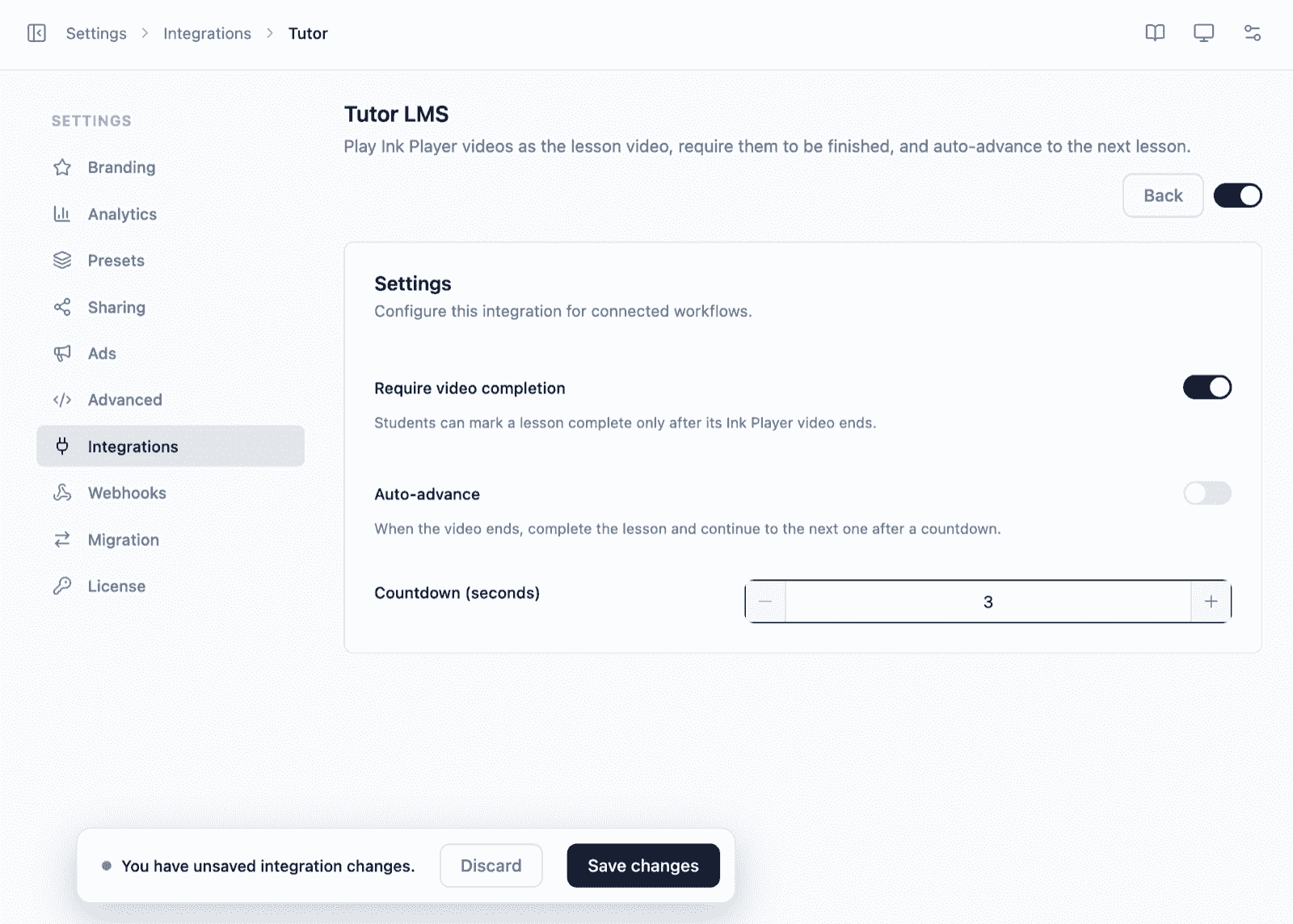
- Click Manage to choose Require video completion, Auto-advance, and the Countdown, then Save changes.
Step 2 — Add the video to a lesson
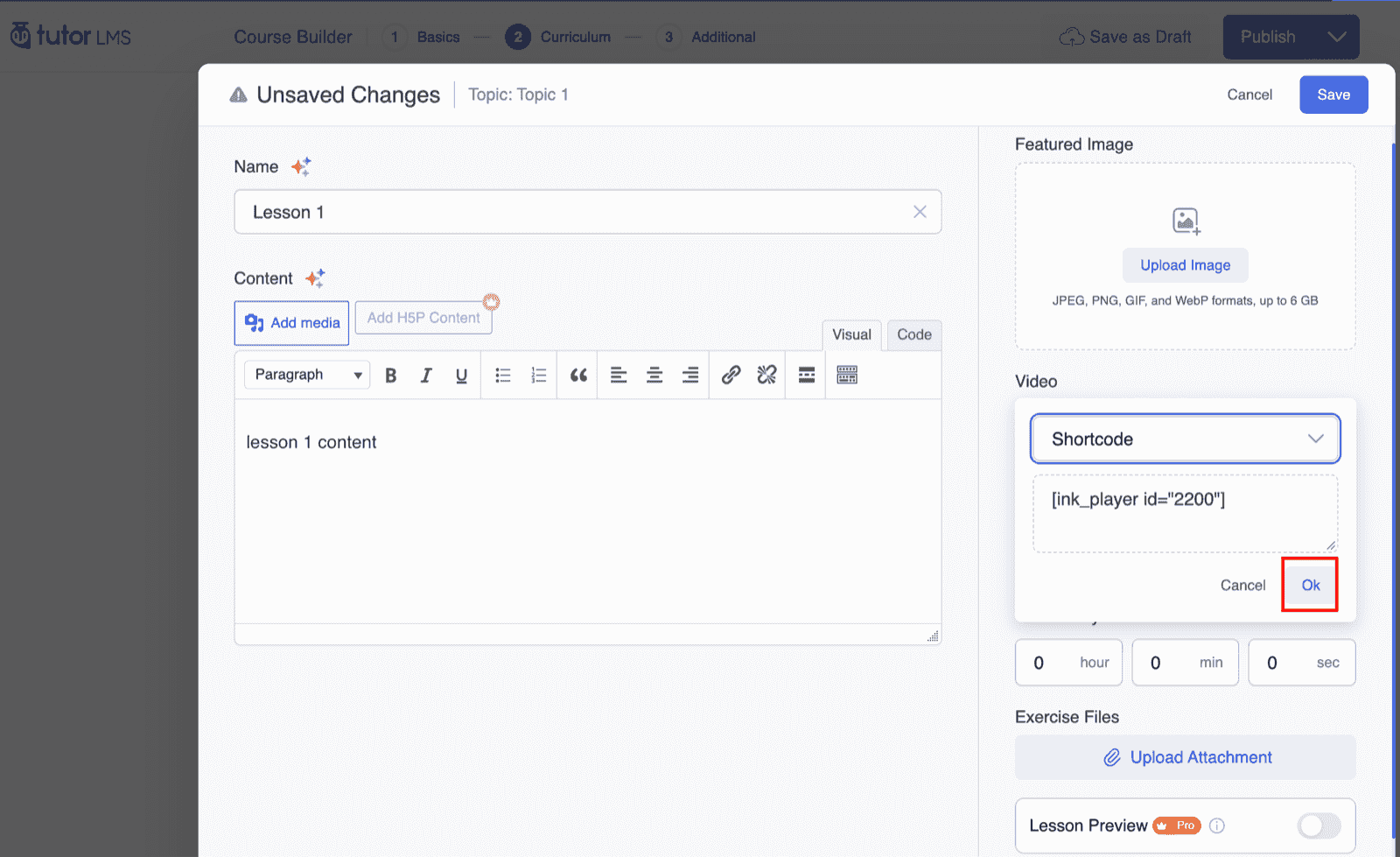
- Open your course in the Course Builder and edit a lesson.
- Under Video, choose Shortcode as the source.
- Paste your shortcode, for example
[ink_player id="123"], and click Ok.
- Save the lesson.
TIP
If Shortcode isn't in the list, turn it on under Tutor LMS → Settings → Course → Preferred Video Source.
Step 3 — What students see
- The video plays in the lesson as an Ink Player. Mark as Complete is disabled, with the hint "Watch the video to continue."
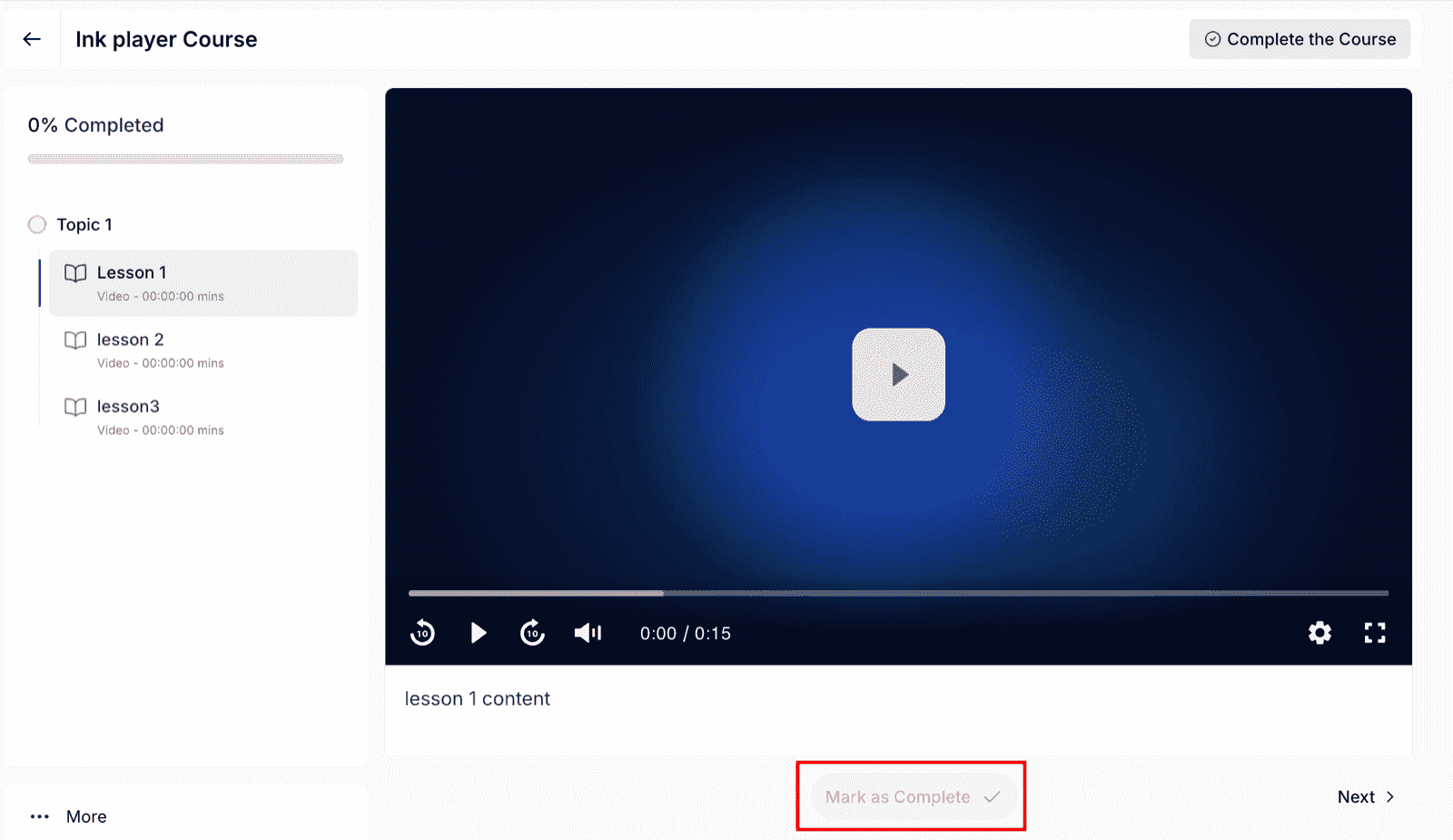
- When the video ends, Mark as Complete unlocks.
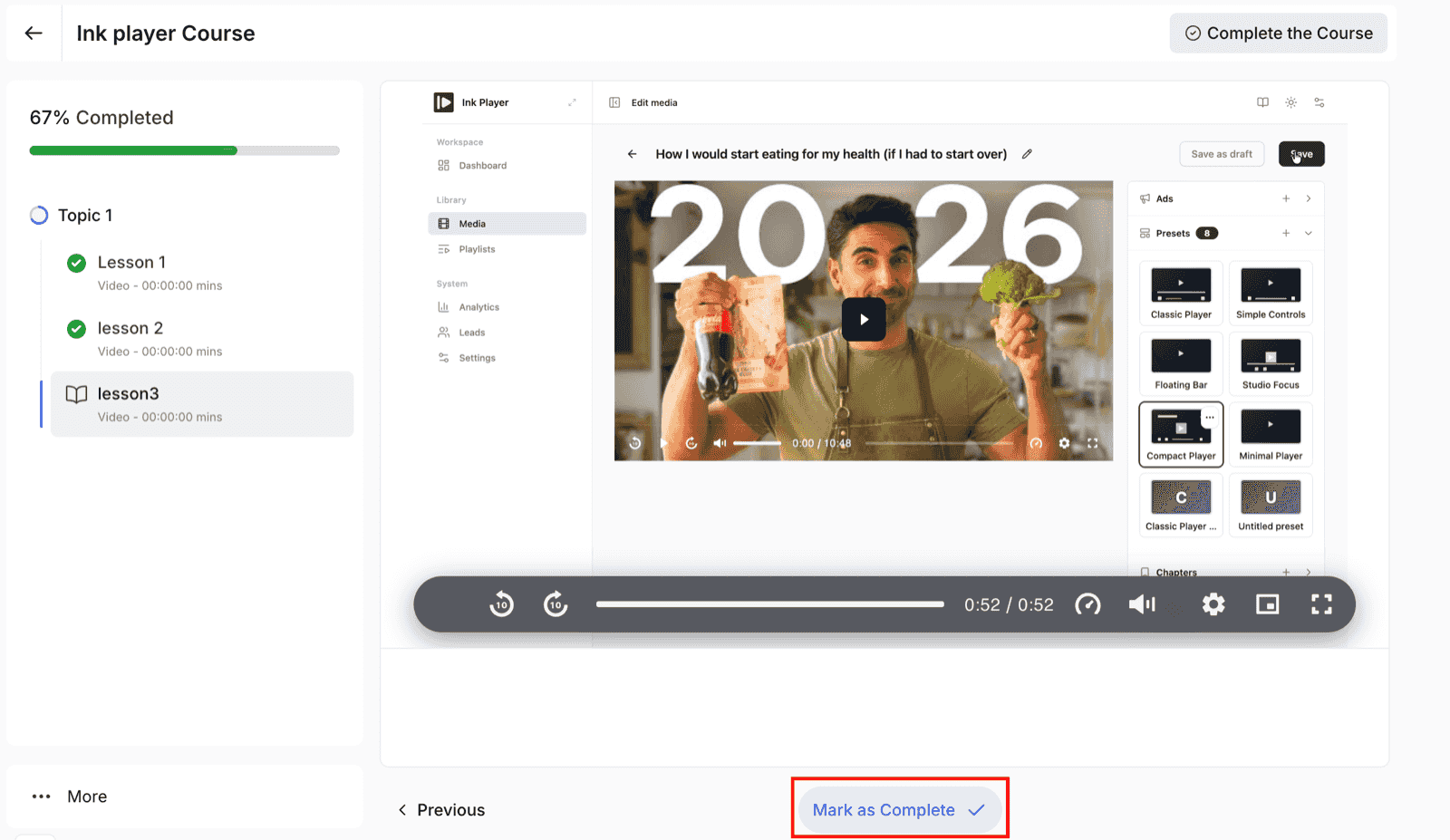
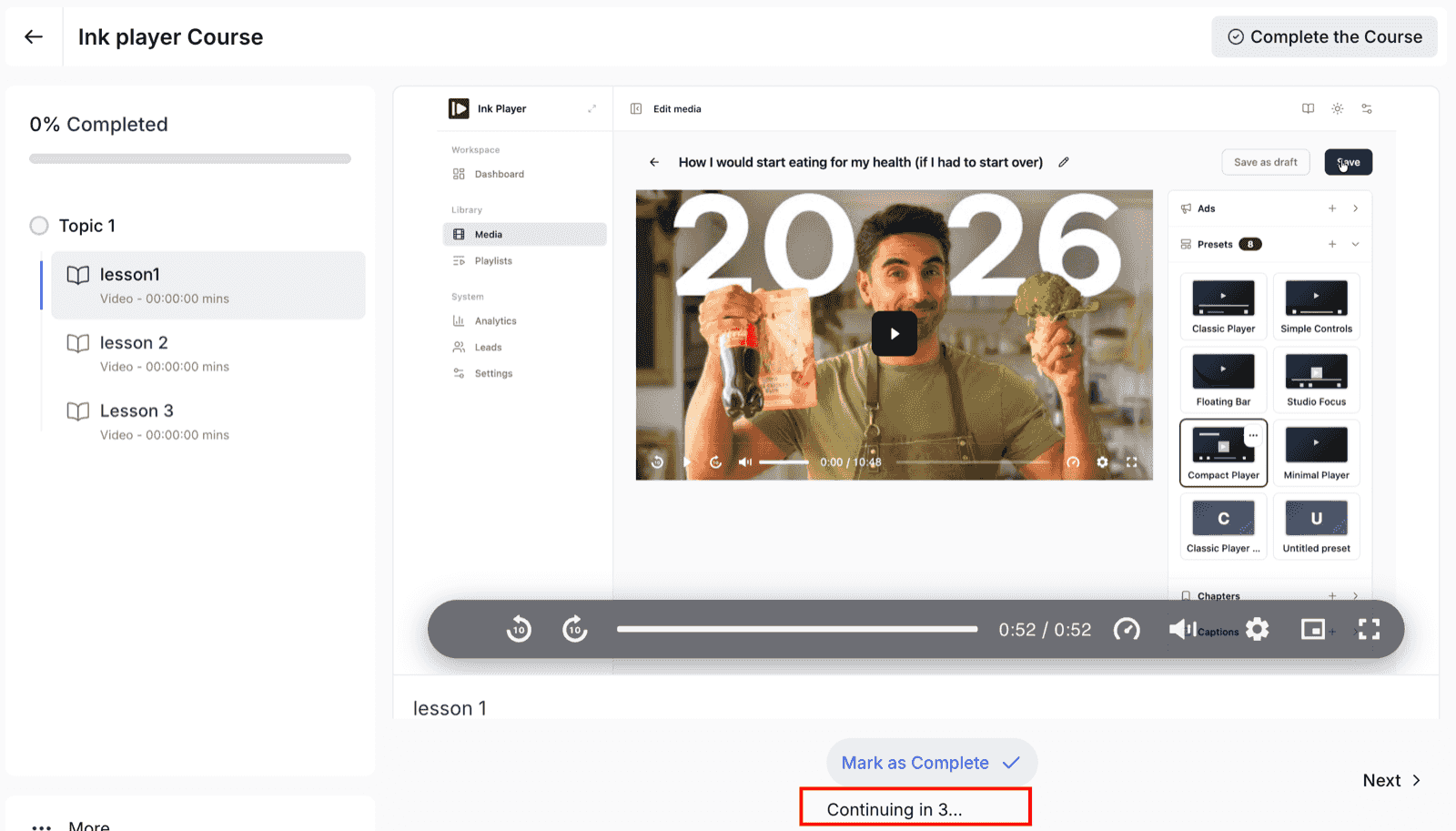
- With Auto-advance on, "Continuing in 3…" counts down, the lesson completes on its own, and the next lesson opens and starts playing.
Settings reference
| Setting | Default | What it does |
|---|---|---|
| Require video completion | On | Students can complete a lesson only after its Ink Player video ends. |
| Auto-advance | Off | When the video ends, complete the lesson after the countdown and open the next lesson. |
| Countdown (seconds) | 5 | How long the countdown runs before the lesson completes. |
Notes
- Lessons without an Ink Player video, and lessons a student already completed, are never locked.
- An Ink Player block or shortcode in the lesson content counts too.
- Auto-advance only autoplays the next lesson it opens. Opening a lesson with Next leaves the video paused.
- If the browser blocks autoplay with sound, the next video starts muted.